 Pleochroma
Pleochroma in the browser
Open or start a faceting design, edit and solve it, and render it in a browser tab. Nothing to install.
The web app shares its faceting engine with the desktop studio. It is a smaller program than the desktop app, and it lacks several of the newer studio features, such as tutorials, cutting mode and editing concave tiers. Section 3 lists exactly what is missing today; several of those items are current limits of this browser build, not decisions.
1What it is
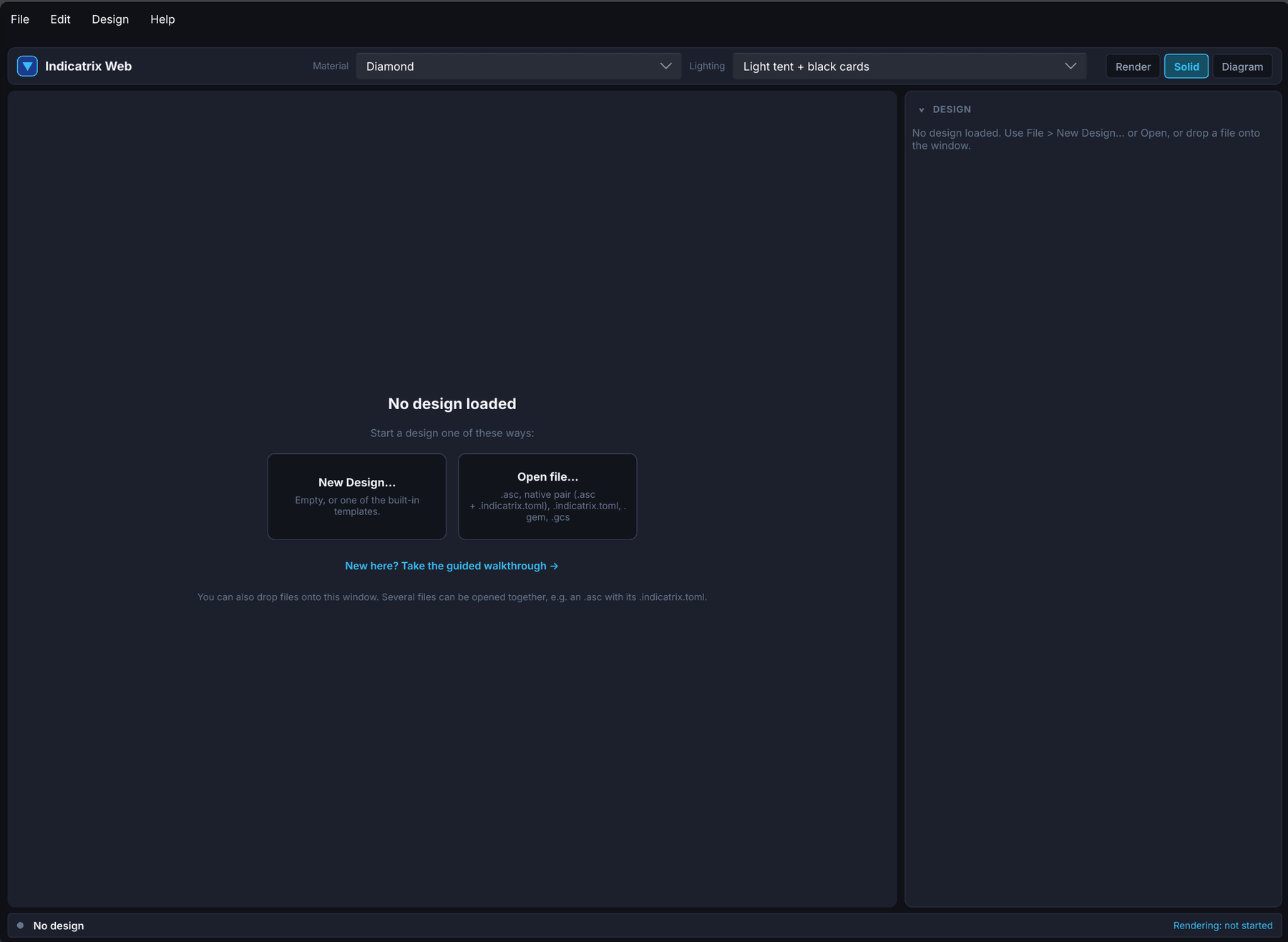
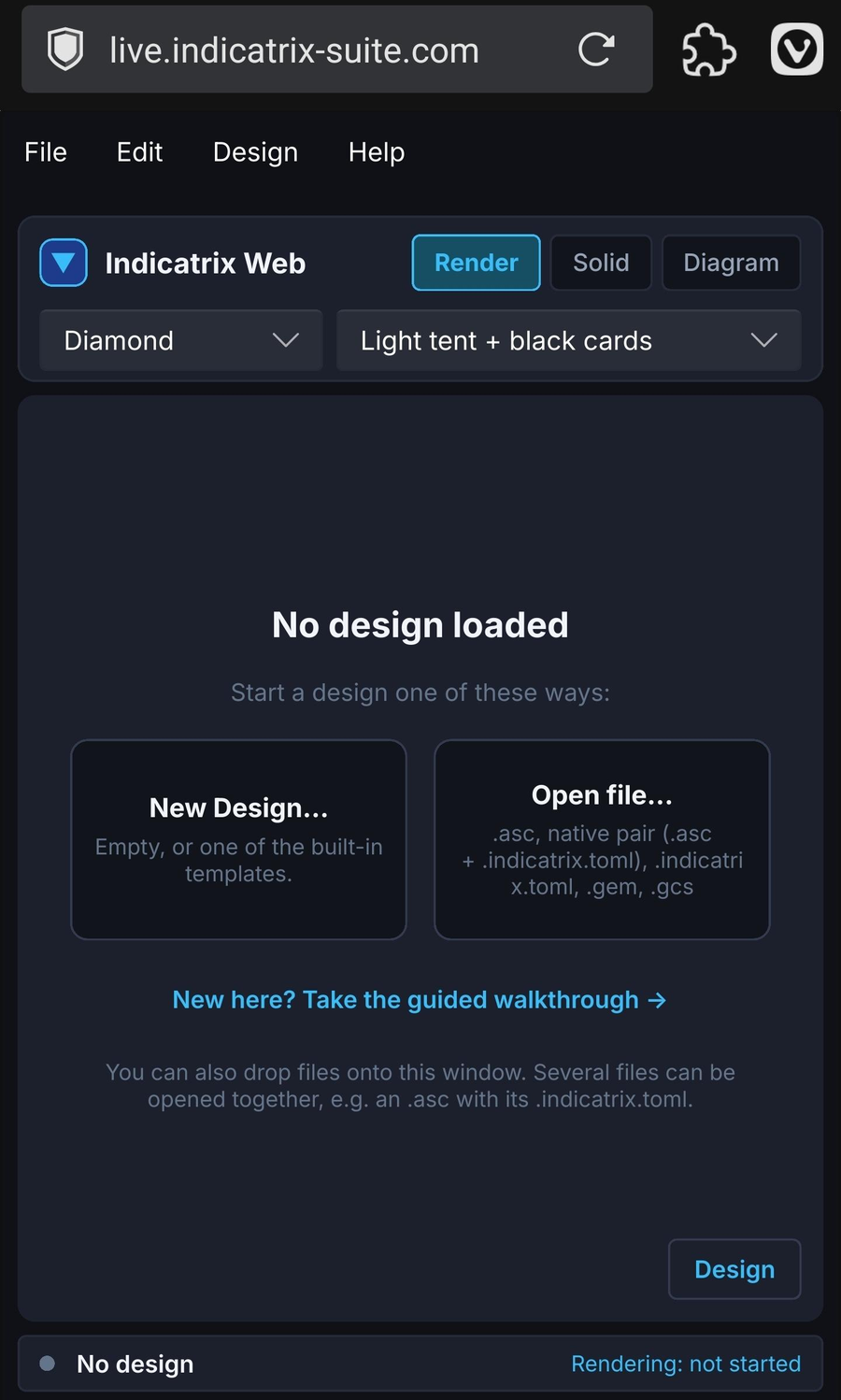
The web app is the same Pleochroma, compiled to run inside a browser page. You open a design file (or start a new one from a template), edit its cutting instructions, let the solver close the meet points, look at the stone as a solid, a faceting diagram and a spectral render, read off the optical figures, and save the design back to your disk as a download.
It runs entirely on your own machine. The page is a set of static files; once it has loaded, your designs, your settings and the rendering all stay in the browser and nothing is uploaded anywhere. There is no account.
2What it can do
- Designs
- Start a new design from the template gallery (an empty design plus nine built-in templates, in one list). Open or import
.asc,.gem,.gcsand Pleochroma's own self-contained.psdddesign file, by file picker or by dragging files onto the page. The file reader is the desktop's, so a design file with concave tiers or tier relations (format versions 2 and 3) opens too; section 3 says what the web app does with them. Save the design as.psdd, or save.asc; an experimental.gcsexport is in the File menu too. The cutting sheet downloads as an HTML page and the faceting diagram as a PNG. A design's frosted facets are kept in the.psddfile and survive a.gcsimport. - CAD editor
- The tier table with inline angle editing, keyboard and Ctrl+wheel nudging, undo and redo; the five-tab inspector (Tier, Preform, Optimize, Schedule, History); design settings, including a compact custom-material editor; and the guided walkthrough, the same ten-step worked example as the desktop. The angle and exact-scale fields of the tier form take plain arithmetic such as
41.5+0.3. The angle cell in the tier table also takes a relation that starts with=, for example=P1 - 2; the tier then follows the other tier and shows an = badge. A Good / Check / Problem badge sums up the design's checks, with a one-click fix where a safe one exists. The History tab lists every undo step and jumps to any of them. Concave tiers are listed after the flat ones with their tool line; they can be selected but not edited yet. - Mouse manipulation
- In the Solid view, drag the angle, depth and index handles of a selected facet, or switch to Slice mode and cut a new facet by dragging a line across the stone. One drag is one undo step, and the design solves itself when you let go.
- Solving
- Solving anything but a small design runs in a background Web Worker, so the page stays responsive; a small design, or one whose last solve was fast, is solved directly on the page thread. A solve can re-run automatically after each edit (auto-solve). Optimize and Retarget run in the Worker with live progress, and Cancel stops the search between steps and keeps the best result found so far; a search that has not stopped 30 seconds after Cancel is ended and keeps no partial result. If the solve Worker fails three times for the same design, the page reports the failure and does not try again until the design changes.
- Rendering
- Path-Traced offers a progressive spectral render on your CPU cores and, in Chrome and Edge, on the GPU too for isotropic stones such as diamond and spinel, with a denoise once the picture settles. While the page loads it tests the GPU behind a loading bar and then says what the render uses (section 4). It uses the same physics, the same material catalogue and the same lighting choices as the desktop app, and it can load an HDR environment map (see the limits below). A design with concave tiers is rendered with its tools cut out, on the CPU and on the GPU, and a design's frosted facets are drawn as frosted. Export the result as a PNG in sRGB or Display P3.
- Views
- The Render view, the Solid view (facet picking and selection linked to the tier table, with the cuts of concave tools drawn) and the Diagram view (crown, pavilion and profile panels).
- Optical figures
- The metrics readout (brilliance, fire, scintillation, windowing, extinction) and the Tilt Performance dialog: brilliance, windowing and extinction against tilt, four azimuths of 181 points each. Both run in their own worker, so they never wait behind a solve. As on the desktop, the readout is scored under the light the view is lit with: with an HDR environment map loaded it is scored under that map and says so. The tilt sweep is scored under the lighting preset at the current light, as the desktop's dialog is, and the dialog notes this while a map is loaded. For a design with concave tiers, both are scored on the stone with its tools cut out, as on the desktop. The tilt sweep also scores a design's frosted facets as frosted; the metrics readout scores every facet as polished.
- Session memory
- Your settings and your place in the walkthrough are remembered in this browser, and the design you are working on is restored after a reload, but the app is not a store: save your design as a download before you leave.
3What it cannot do yet
These are the differences from the desktop application, as of this release. The right-hand column says where each one lives today.
| Feature | Web app | Desktop app |
|---|---|---|
| Design library | No. Open files one at a time. | The searchable local library and the remote coordinator's catalogue (studio page). |
| Rough planner | No. It plans across the design library, which the browser app does not have. | Library → Plan Rough...: ranks up to 10 layouts (as many stones as fit or up to a set number, up to 99 designs mixed) from a block, cylinder, pebble or scanned mesh of rough (studio page). Desktop-only for now. |
| Remote and distributed rendering | No. | Hand sample tracing to a coordinator or render worker (distributed page). |
| GPU rendering | Ray-Traced supports every material class in Chrome and Edge; Path-Traced supports isotropic stones such as diamond and spinel, including concave stones (up to the 128 tools a design can hold). The page tests the GPU while it loads (section 4). For Path-Traced, anisotropic and color-zoned stones render on the CPU, and the message names the reason. | The full GPU compute path for isotropic, uniaxial and biaxial materials, when the machine has a suitable adapter. |
| Deep Solve | No. | Available in the desktop editor. |
| Tilt video export | No. | Tilt Performance dialog in the desktop studio. |
| Batch export and GIF export | No. One still at a time, as a PNG: no lighting-preset fan-out and no animated GIF. | The export dialog renders one still per lighting preset marked for export; the tilt video falls back to an animated GIF when ffmpeg is not found (studio page). |
| Tilt dialog: hover preview, copy data table | No. The curves, axis switches and hover readout work. | Tilt Performance dialog in the desktop studio. |
| Ghost preview and Compare window for Optimize and Retarget | No. Results are listed tier by tier; the stone is not redrawn with the pending angles. | Viewport preview and the before/after Compare window in the desktop editor. |
| Optimize objectives, angle ranges and candidates | No. The Optimize tab has weights, a yield weight, a budget and seed, Polish and Only selected tiers. It runs a single starting arrangement (one start, an evaluation budget of 200 by default). It has no objective presets, no per-tier angle ranges and no list of ranked candidates. | Five objectives (Balanced, Brilliance, Low windowing, Low extinction, Keep weight), per-tier angle ranges, a girdle guard, several starting arrangements (8 by default, up to 32, an evaluation budget of 800 by default), and up to five ranked candidates, each with a preview (studio page). |
| Tier relations | Partly. The angle cell in the tier table takes a relation that starts with =, for example =P1 - 2, and a tier that follows one shows an = badge. The tier form's angle field takes plain arithmetic only, such as 41.5+0.3. |
A tier's angle can follow other tiers, for example =P1 - 2; the tier shows a link icon and the file is written as format version 3. |
| Concave facets | Viewing and rendering, no editing. A design file with concave tiers opens. Its concave tiers are listed after the flat ones with their tool line and can be selected, but there is no tool form and every editing action on one is refused. The Solid view, the render (CPU and GPU), the PNG export, the metrics readout, the tilt sweep, Optimize and Retarget all use the stone with its tools cut out. Apply Gear in the design settings is refused when a concave tier would not be valid on the new gear. | Cylinder, cone, circle, disc and sphere tools in the tier table and the inspector, drawn in the solid view and the diagram, counted in the optical metrics, and traced by the render on the CPU or the GPU (studio page). |
| Angle sweep, Edit as Text, Good / Check / Problem findings from measured figures | No. There is no angle sweep and no Edit as Text view. The Good / Check / Problem badge covers the structural, windowing-by-angle and proportion findings; it does not use the measured brilliance, windowing and extinction. | Edit → Angle Sweep (a table, a chart and CSV for one tier's angle), Edit → Edit as Text, and a badge that also uses the measured optical figures. |
| History and variants | The History tab lists the undo steps and jumps to any of them, without pictures. There are no variants. | A History tab with a picture of every step and a jump to any of them, and named variants of a design kept in the library. |
| Tutorials and welcome tour | No. The ten-step guided walkthrough is the only guide. | 90 short tutorials, one for each CAD function, a welcome tour on first run, and Build This Design, which turns a library design into a lesson. Video tutorials are on the Pleochroma YouTube channel. |
| Cutting mode | No. | The cutting instructions one step per page for the bench, with done marks kept in the library (Edit → Cutting Mode...). Desktop-only for now. |
| Interface choices and help | A short User guide and the keyboard shortcut list (Help, or ?). There is no Simple / Advanced switch, no Preferences dialog, no high-contrast theme, no command palette and no context help buttons. |
One Simple / Advanced switch, Preferences (interface scale, high contrast, larger drag handles), the manual built into the program with ? buttons and a glossary, and a command palette on Ctrl+K. |
| Quick color in the render | Partly. The Render settings panel has a Body Color control, a quick copy of the color choice in the design settings, with the same list: the material's color variants, the nine ready-made colors for a one-color material, and Custom with one color for each direction of a pleochroic crystal. It changes the design in one undo step; there is no view-only color. Variants you save stay in this browser, and the design file carries a copy of the variant it uses. | A Color control next to Render Material: the material's own color, its color variants, the nine ready-made colors (one-color materials only) or any color, for the open design or as a view-only choice. |
| Command-line tool | No. It is a separate program. | pleochroma-cli runs the solver, optimizer, retarget gate and sweep without a window, on one design or on several at once (getting started). |
| Full custom-material editor | Partly. Name, refractive index, dispersion, birefringence, specific gravity and color (saved with the design in the .psdd file); one custom material travels with the design. There is no entry of Sellmeier or Cauchy coefficients: a material typed that way on the desktop is drawn here with a Cauchy curve built from its nD and F−C figure, which is close but not the same curve. |
The full editor, including Sellmeier and Cauchy coefficients with validation (materials page), and the saved custom-material store. |
Design metadata and attachments in the .psdd file |
Kept, not edited. Opening a design file keeps its metadata (title, designer, source, notes, tags, licence, dates, id) and attachments (PDF, original .gem/.asc, diagram image), and Save design writes them back unchanged with a new modification time. The Design panel shows the title, designer, source, notes, tags and licence read-only. |
The same file format carries them (file formats). |
| Large master stills | Up to 4096 pixels on the longest edge and 4096 samples per pixel. | Up to 8192 × 8192 pixels and 32768 samples per pixel. |
| Saved state | This tab's session only. Save your work as downloads. | Designs live in the local database and on disk. |
4How it works
The desktop application and the web app are built from the same Rust code for the editor, the meet-point solver and the optics. The browser build compiles that code to WebAssembly and draws its interface with the same toolkit (Slint) inside a single canvas.
The heavy work runs in Web Workers, so the page stays responsive while it runs: rendering is spread over a pool of them, one per CPU core minus one, up to eight; solving larger designs, Optimize and Retarget share one more, and the optical figures have their own, so they never wait behind a solve. Small solves, the final tone map and merge of the rendered chunks, and the drawing of the Solid and Diagram views still run on the page thread. Rendering runs on your CPU cores. In Chrome and Edge it also runs on the GPU, for every Ray-Traced material class and for isotropic Path-Traced stones such as diamond and spinel; that needs WebGPU and is on by default.
While the page loads it tests the GPU behind a loading bar: it starts a GPU worker and asks for the adapter, checks the adapter's limits, compiles the kernels one by one and traces a small test picture. The CPU workers render meanwhile, and the bar's Hide button hides only the bar. Then the page says what the render uses, as a message and as a sentence that stays in the Render settings panel, for example “Rendering on the GPU (the adapter's name) with 7 workers on the CPU” or “Rendering on the CPU (7 workers)” followed by the reason. A browser without WebGPU, a Path-Traced stone the GPU cannot trace (anisotropic, color-zoned, more than 64 concave tools, or an environment map too large for the adapter) and any problem during the test fall back to the CPU, and the sentence names the reason. The GPU Rendering switch in the Render settings panel turns the GPU off; with it off, the page skips the test.
The result is kept per graphics card, browser version and shader build. An adapter that passed before only compiles the kernels again and skips the test picture. If the browser lost the GPU during an earlier run, the page does not test it by itself again: the panel shows the reason, Forget GPU Test Result lifts it, and Test GPU runs the test by hand.
Your settings, walkthrough progress and the GPU test result are remembered in this browser (local storage, per graphics card, browser version and shader build); the design you are working on is kept in the tab and in the browser's database so a reload brings it back, and otherwise in the files you save. There is no server side to the app: no upload, no account, no design database.
5Browser requirements
A current desktop Chrome, Edge, Firefox or Safari. The page needs
WebAssembly, Web Workers and WebGL 2 (used to draw the interface), and it
uses localStorage, sessionStorage and IndexedDB if they are available. WebGPU is optional, for
GPU rendering in Chrome and Edge; without it the page renders on the CPU and
says so. It does not need any special
server settings. If WebGL 2 is disabled, the page says so instead of starting.
A tablet works for viewing and tapping. Touch arrives as mouse events, so Ctrl or Shift gestures and the keyboard shortcuts need a keyboard; everything they do is also reachable from the menus and buttons.
6Limits
- Render speed. Rendering runs on your CPU cores. In Chrome and Edge it also runs on the GPU for every Ray-Traced material class and for isotropic Path-Traced stones such as diamond and spinel; the page tests the GPU while it loads and falls back to the CPU on any problem. For Path-Traced, anisotropic and color-zoned stones render on the CPU only. For Ray-Traced, an HDR map beyond the GPU's limits falls back to the CPU. A few hundred samples per pixel take tens of seconds to minutes on the CPU, depending on the machine and the size of the view. The live view traces at most 960 pixels on its longest edge.
- Samples and export size. The live render takes 64 to 1024 samples per pixel. PNG export takes 16 to 4096 samples and up to 4096 pixels on the longest edge.
- HDR environment maps. A
.hdrfile is limited to 64 MiB and 8192 × 4096 texels in the browser. Each render worker, and the analysis worker that scores the metrics readout under the map, keeps its own decoded copy, so a large map is used on fewer render workers, with a message, rather than being downsampled. When the memory budget holds only one copy, a render worker keeps it and the readout falls back to the lighting preset and says so. A map that one worker cannot hold within the per-worker memory budget is refused. - Long solves. A solve in the worker that runs for more than 60 seconds is stopped. A cancelled Optimize or Retarget that has not stopped after a 30-second grace period is ended, and keeps no partial result.
- Replacing a render. When a scene is replaced (for example by orbiting), the chunk being traced is aborted between row groups. A browser that cannot run the revocable-URL check the abort relies on runs that chunk to completion instead. A render worker that stays silent for 30 seconds while holding a chunk is replaced, up to three times in a row.
- Memory. The HDR environment-map copies the render workers and the analysis worker hold are held to a fixed memory budget of 1.5 GiB across those workers, which is why very large environment maps are limited. The budget covers those copies, not everything the page allocates.
7Get the desktop app
For the design library, the Rough planner, Path-Traced GPU rendering of anisotropic stones, remote rendering, Deep Solve, tilt video export, full-size master stills, the newer studio features (tutorials, cutting mode, editing concave tiers, variants) and the command-line tool, use the desktop application. On Windows the easiest way to install it is the Microsoft Store, which keeps it updated. It is also a ready-built download for Windows and Linux (see the downloads section), and it also installs from crates.io or builds from source; the commands are in the getting started section of the overview, and the application itself is described on the studio and CAD page. The two open the same files, so a design saved from the web app opens on the desktop and back. Video tutorials are on the Pleochroma YouTube channel.
Ray-Traced and Path-Traced
Choose Path-Traced or Ray-Traced in Render. Ray-Traced supports every material class on CPU and, where admitted, WebGPU. Its GPU uses at least four storage bindings, an independent kernel hash and crash record, and a 16×16 four-tap CPU/GPU self-check. Tool and HDR limits can fall back to CPU; engine refusals remain errors. No remote rendering is offered in the browser.
Ray-Traced is a deterministic approximation: one d-line index, or three fixed indices with Fire, RGB absorption tint and 1/4/8/16 AA taps. It finishes at the tap count without denoising. It omits polarization, birefringent doubling, scattering, zoning and edge rounding. Path-Traced retains the spectral model. Optical metrics, tilt sweeps and diagnostics keep their separate analytic tracer.