 Pleochroma
Pleochroma on a phone or tablet
Browse a design library, edit and solve a faceting design, look at it as a solid, a diagram and a render, and follow the cutting instructions at the machine, all with touch.
The Android app is not in an app store yet: there is no Google Play listing. You can try it today all the same. Build it and install it on your own Android phone or tablet (section 5), or run the same interface in a desktop window with one command, no device needed. It is built from source for now, and it is a smaller program than the desktop studio: section 3 lists what only the desktop does. Several newer features (history and variants, concave editing, Deep Solve, Optimize, Retarget, GPU rendering and remote rendering) are in the source but have not been validated on devices yet; section 6 has the details.
1What it is
The mobile app is Pleochroma with an interface made for fingers. It is a
Slint user interface
(apps/pleochroma-mobile-android) over
pleochroma-mobile-core, a core with no interface toolkit and
no Android code in it. That core uses the same editor session, meet-point
solver and spectral path tracer as the desktop studio and the
web app, so a design solves and renders the same
way on all three, and the apps open the same files.
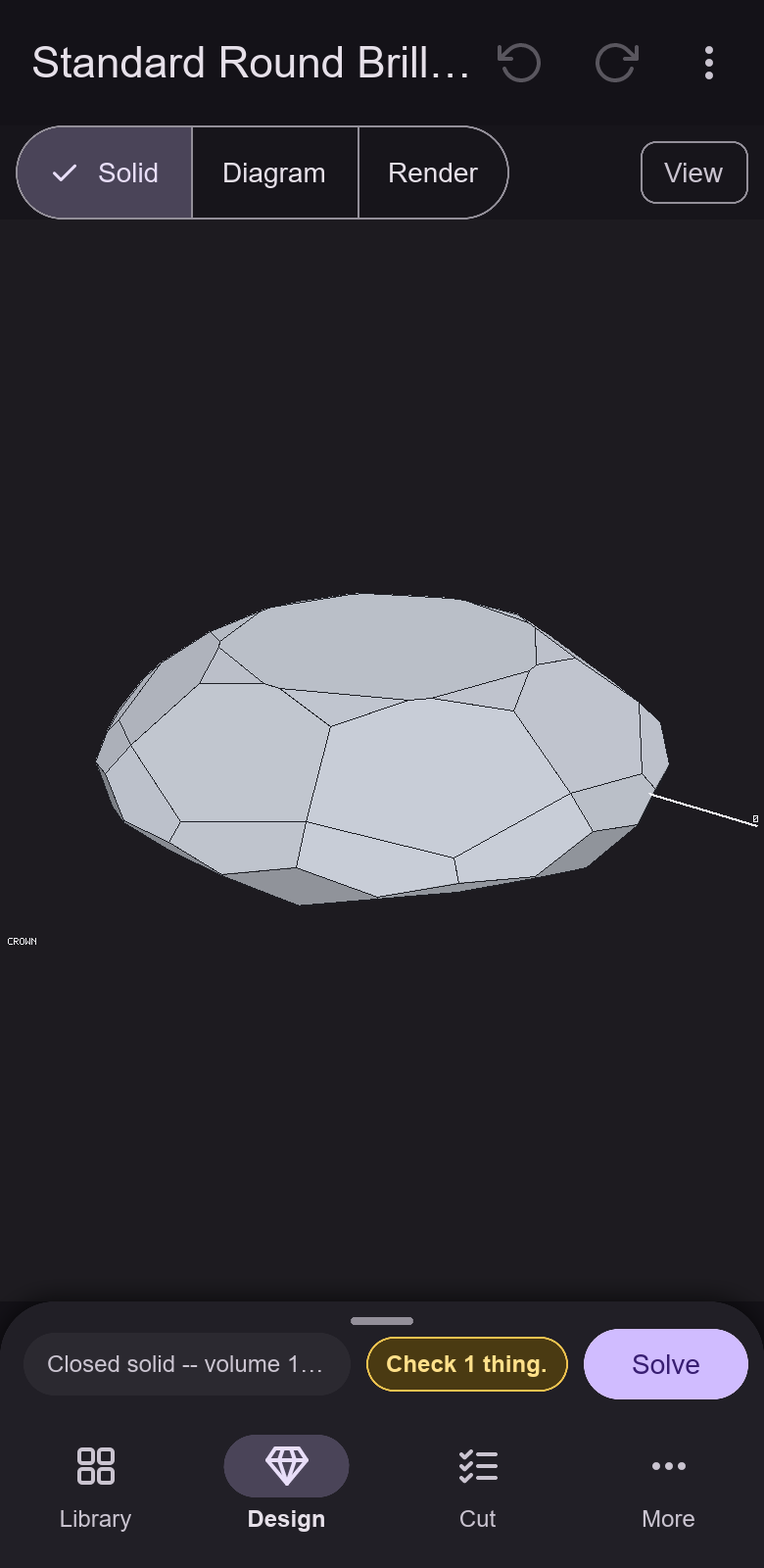
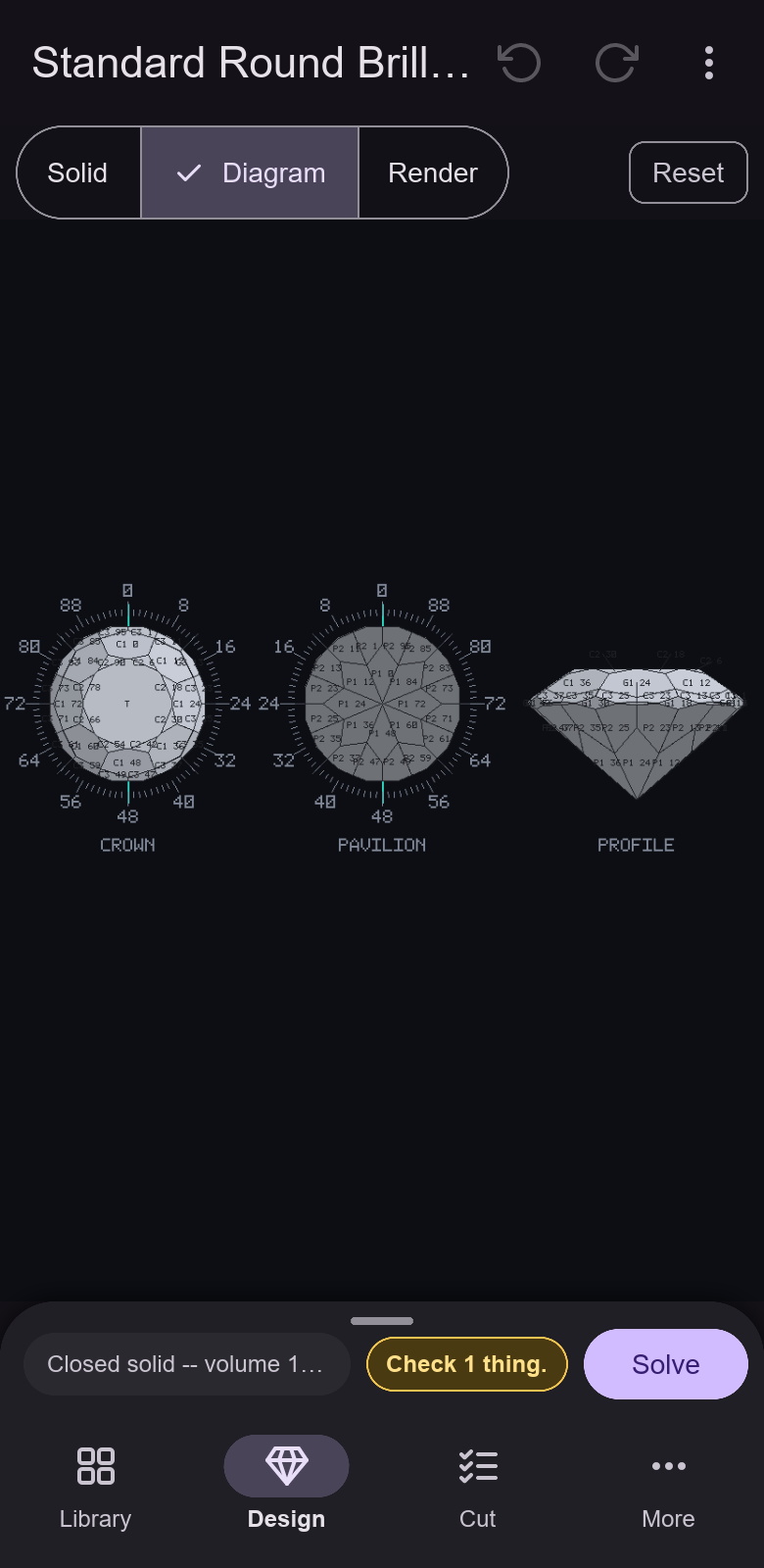
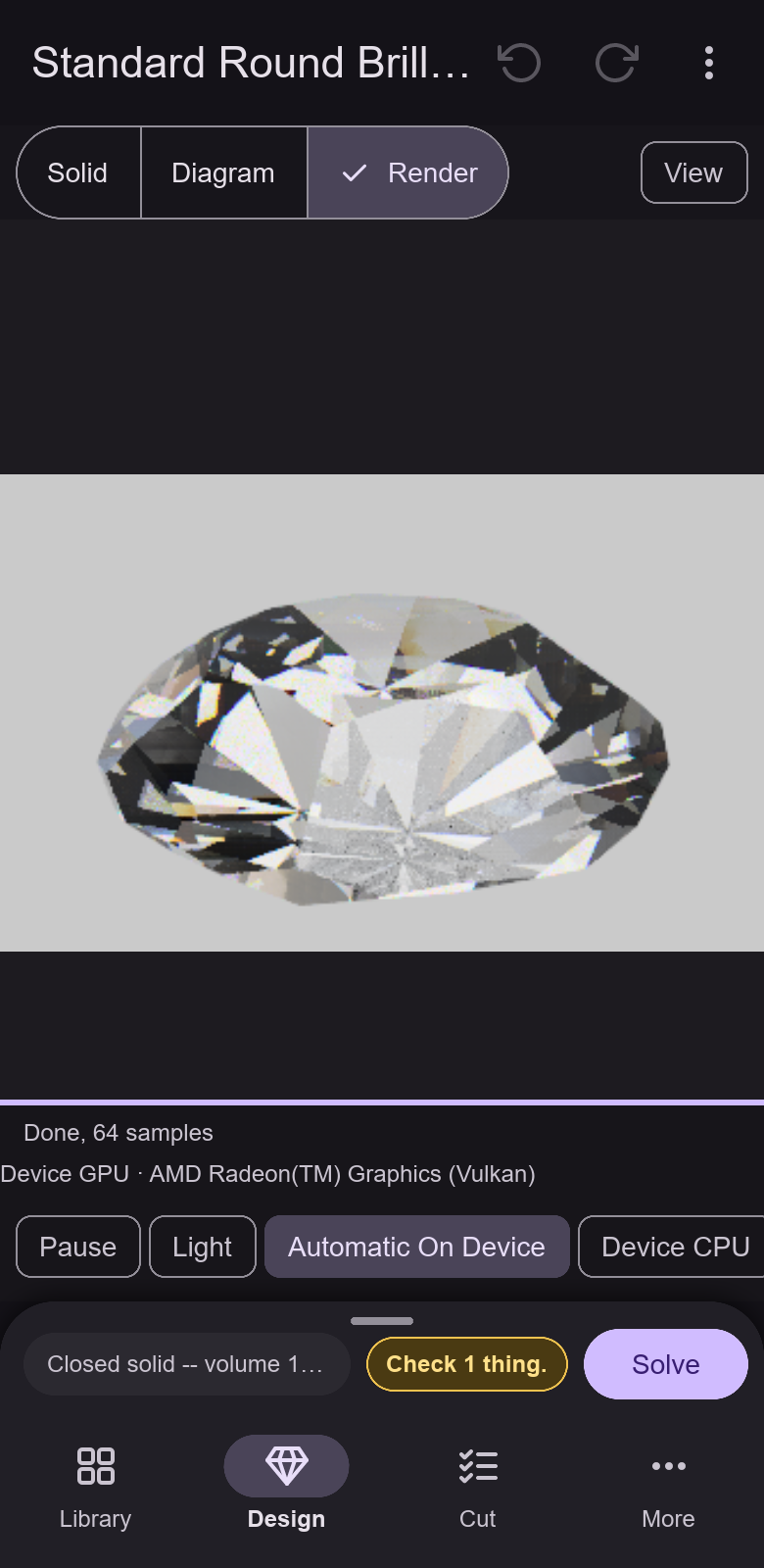
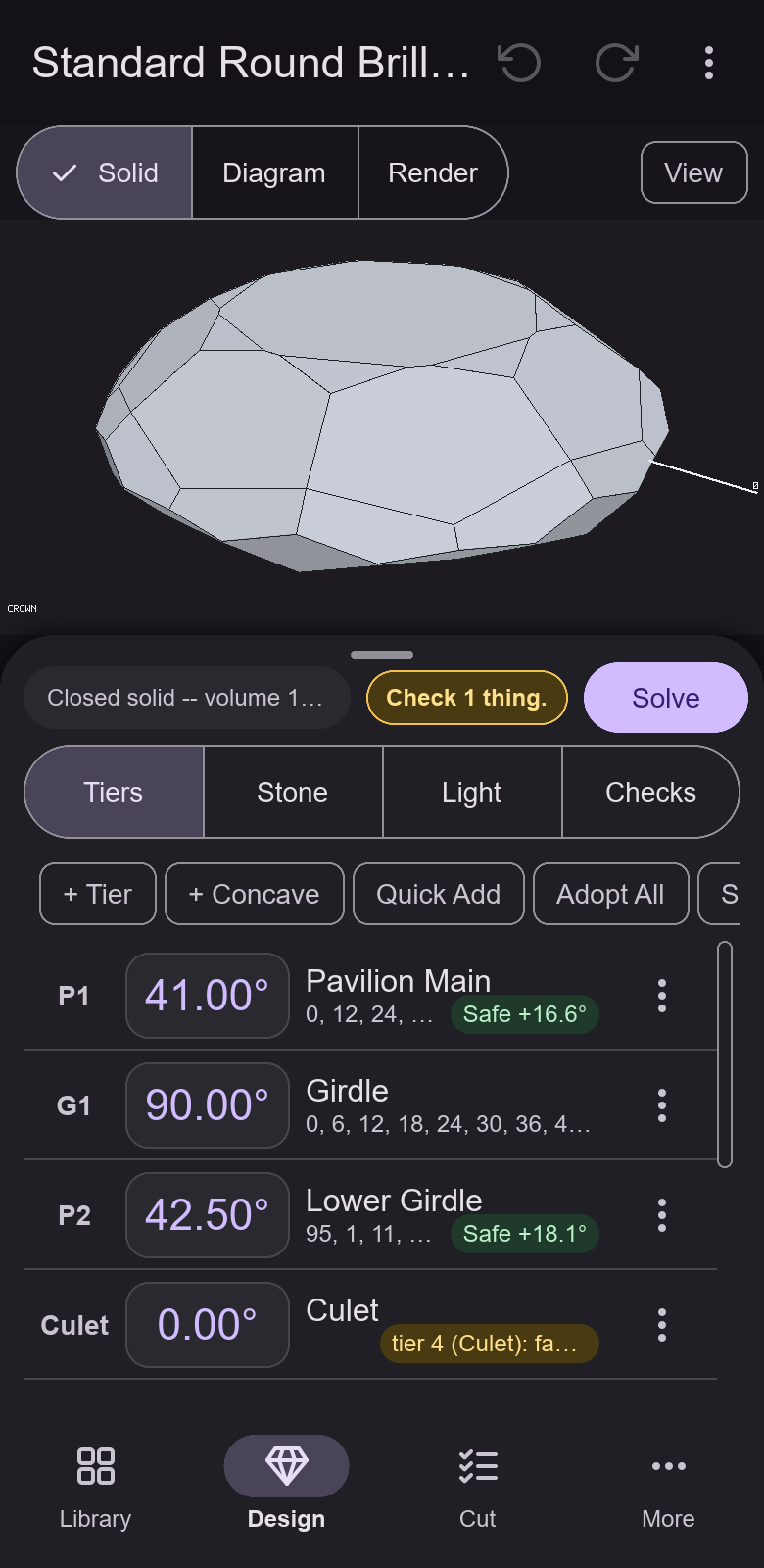
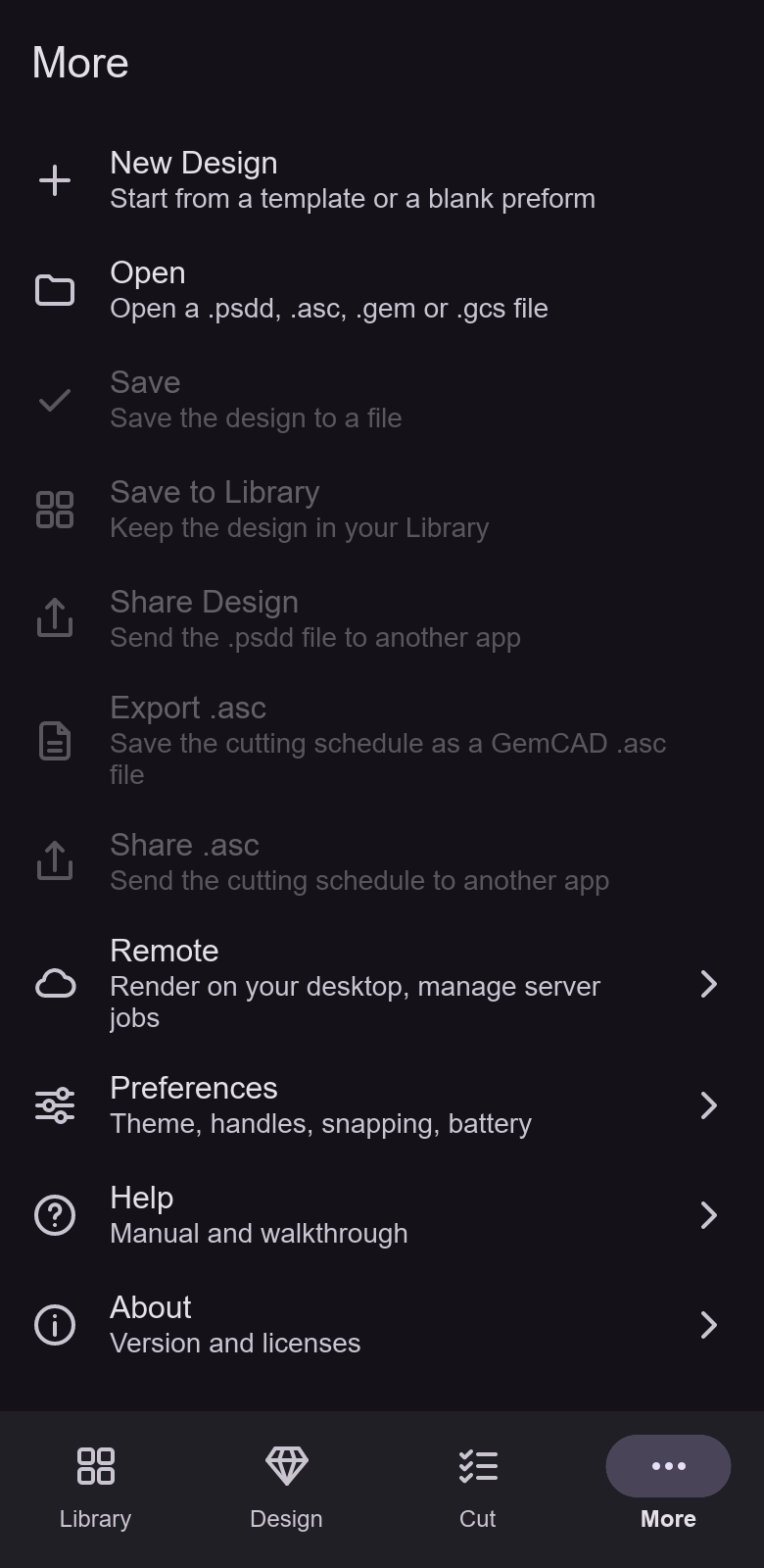
The app has four places, in a bar at the bottom of a phone (a rail at the side of a tablet): Library, Design, Cut and More. It works on your own device. The designs, the library and the settings stay on it, and the render is traced on its processor or its graphics chip. A render goes to your own desktop or server only when you choose Remote.
2What it can do
- Library
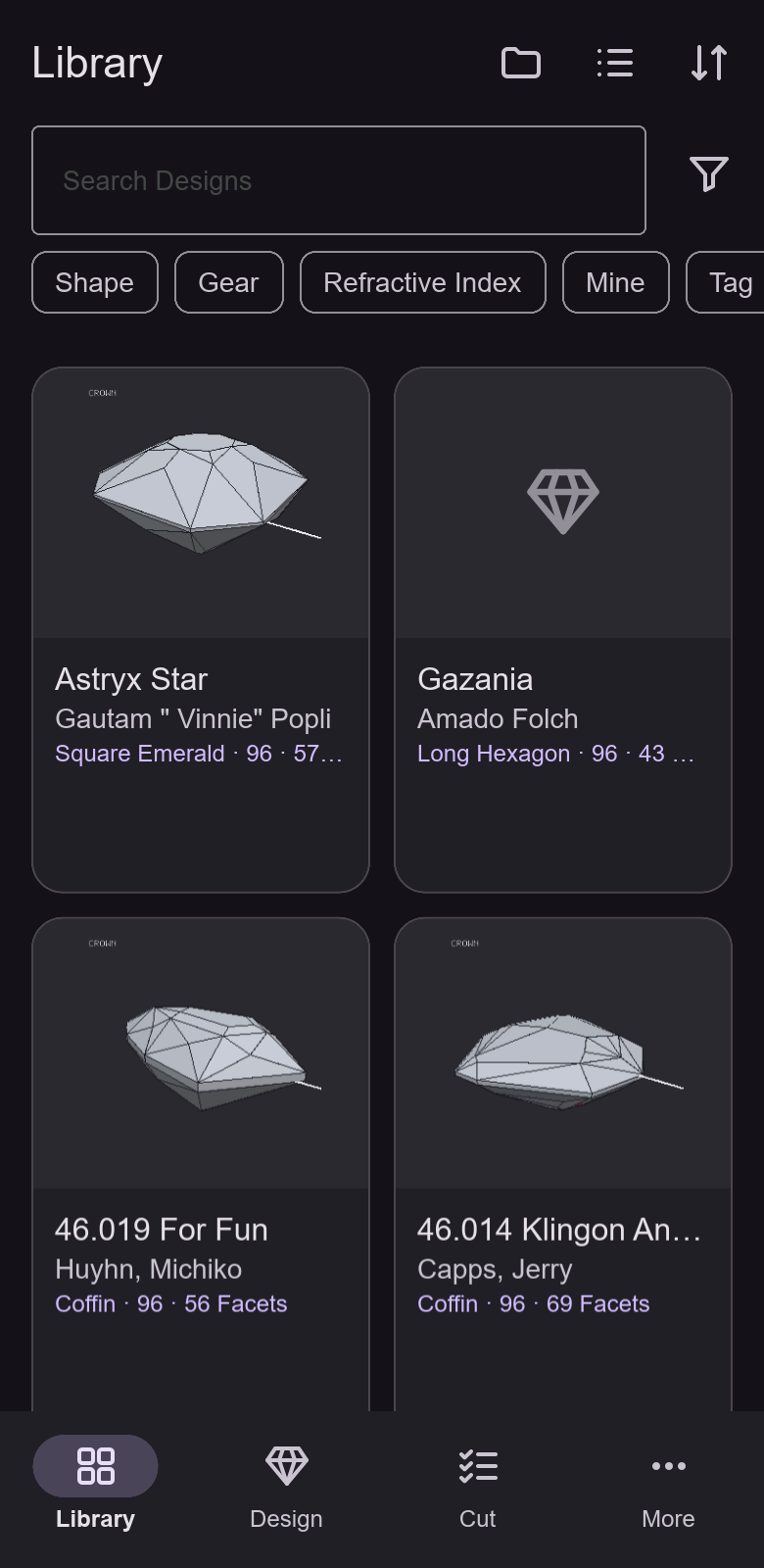
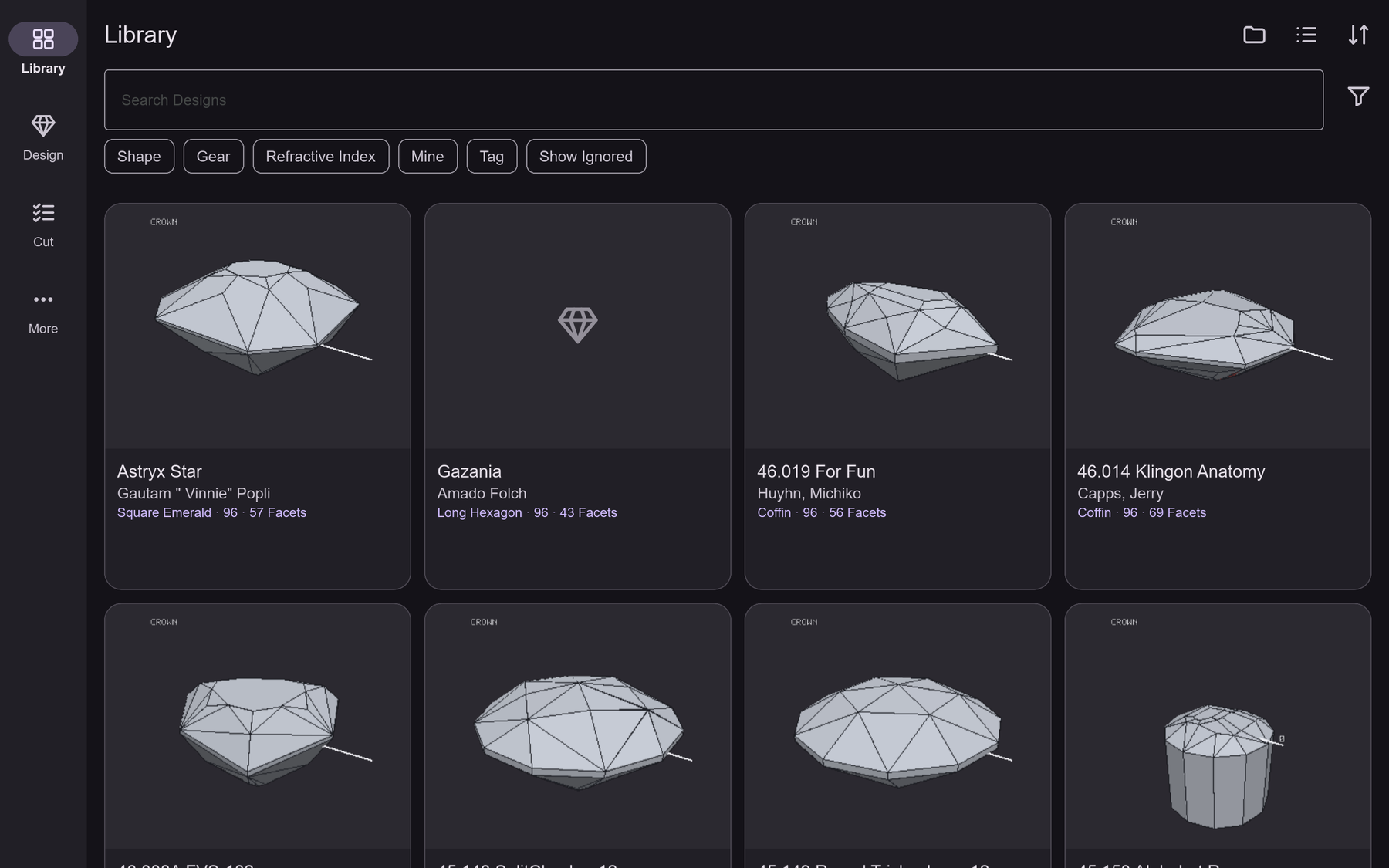
- A searchable local library of designs, as a grid of cards or a list, with filters for shape, index gear, refractive index, your own designs and tags, a sort order, and an option to show the designs you ignored. Import
.psdd,.asc,.gemand.gcsfiles (single files or a folder), tag, share or delete several at once. - Designs
- Start a new design from a template or a blank preform (round, oval, square or rectangle, with a gear, a symmetry order, a material and a stone width). Open a
.psdd,.asc,.gemor.gcsfile. Save to the library or to a file, save a copy, share the design, and export or share the cutting schedule as a GemCAD.ascfile. Undo and redo are in the top bar. - Editing tiers
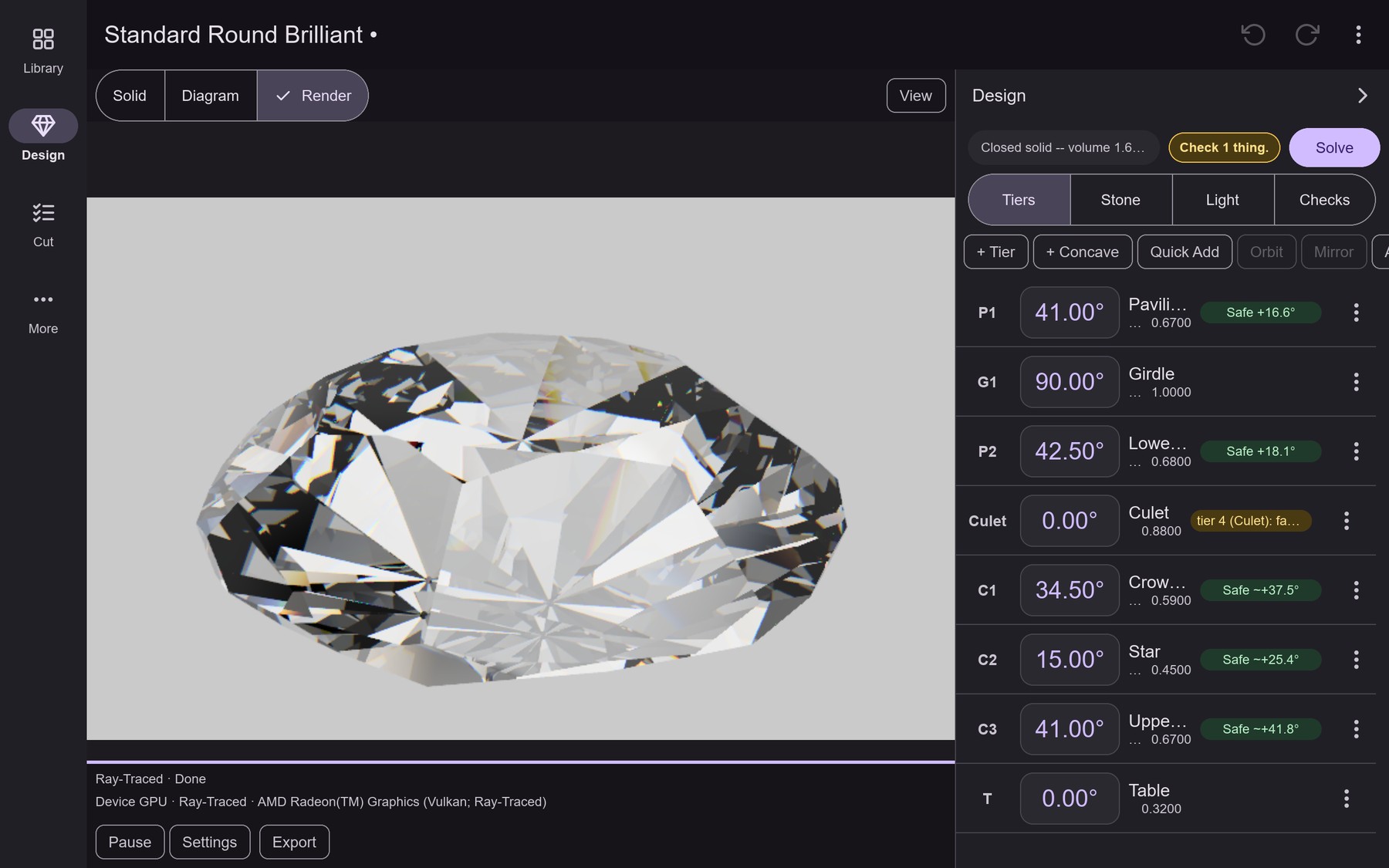
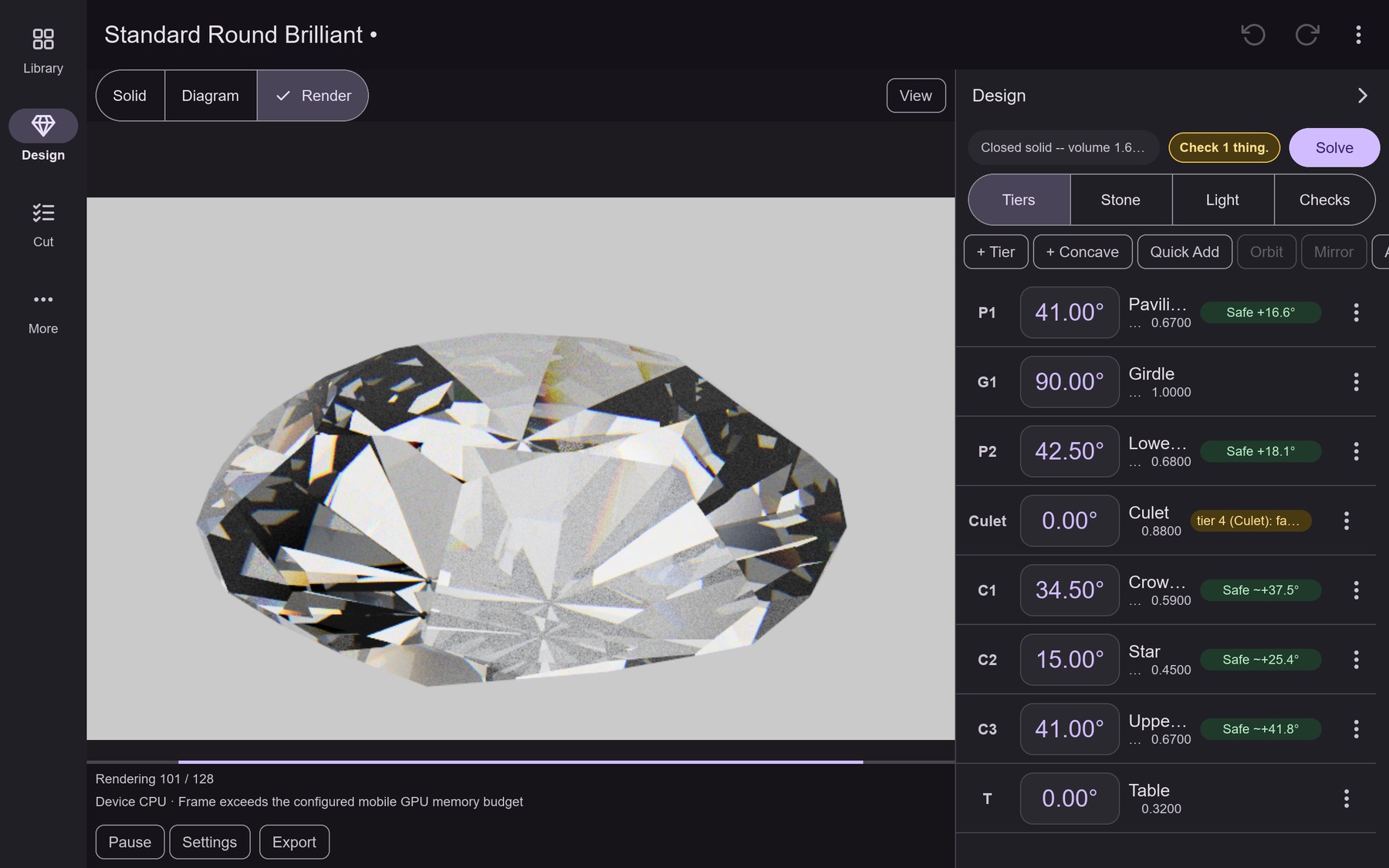
- The Tiers tab lists every tier with its angle, name, indices and its margin over the critical angle. Add a tier or use Quick Add for a table, girdle or culet; change an angle with a keypad, a slider or small steps from 0.01° to 1°; edit the name and the indices (add an index, turn all of them by one tooth, mirror them, complete an orbit); see what a tier meets and adopt a meet that an imported file stated; duplicate, reorder or delete a tier; select several tiers and nudge them together. Designs solve in the background, and the status chip shows the result.
- Concave tiers
- The + Concave button in the Tiers tab adds a concave tier, and a tap on a concave row opens it for editing or deleting. Pick a tool (cylinder, cone, circle, disc or sphere) and set the facet angle, the index positions, the tool azimuth, its position and diameter relative to the stone width and, for a cone or a disc, the included angle, and whether the tool reciprocates or plunges. Save Tier commits one edit; Cancel Draft discards the draft. The solid view, the render, the checks and the cutting rows use the stone with its tools cut out.
- History and variants
- In the Design page's overflow menu, Session History lists the steps of the design, previews a step with a short comparison and moves to it; later steps stay available until you make a new edit. Saved Variants keeps named copies of the design with notes, saved from the current design or from a historical step; opening one is a single undoable edit, and variants survive restarts.
- Handles and Slice
- In the Solid view, drag the angle and index handles of a selected facet, or switch to Slice and cut a new facet by dragging a line across the stone (Keep, Flip, Discard and Symmetric choose what happens to the cut). A Snap switch, also in Preferences, snaps a dragged angle to the index gear. Preset views (Front, Top, Bottom, Left, Right), Fit and Reset move the camera.
- Views
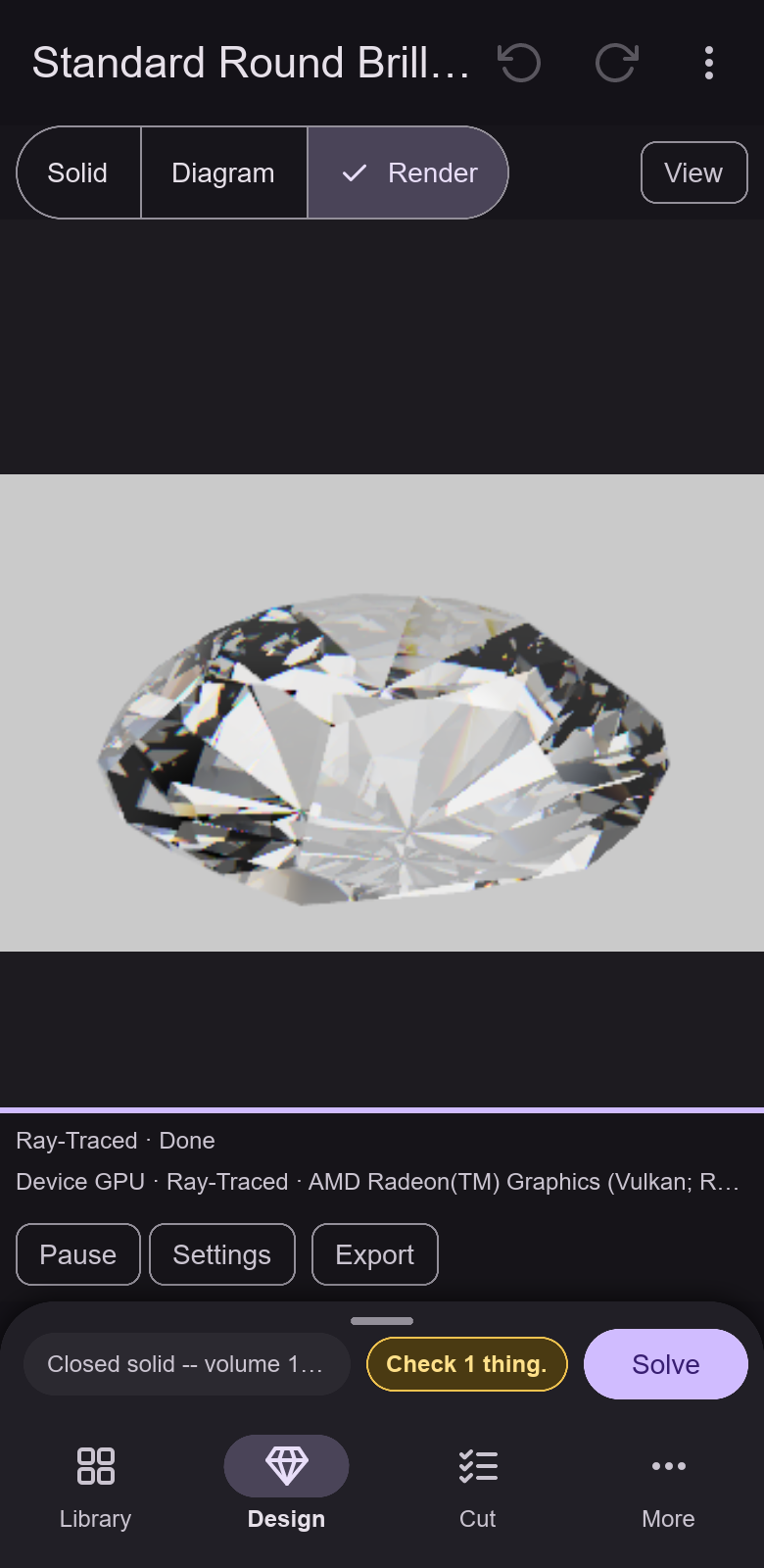
- The Solid view, the Diagram view (crown, pavilion and profile panels) and the Render view, with progressive Path-Traced or fixed-tap Ray-Traced pictures, with Pause, Settings and Export under the picture. Settings unfolds the choices: the renderer (Path-Traced or Ray-Traced), where it is traced (Automatic On Device, Device CPU, Device GPU or Remote · Upload Scene), a quality step (Draft, Normal or Fine), a Light switch that makes a drag move the light, and Denoise for the Path-Traced picture. Export Picture saves or shares a PNG at a size, a sample count and a color space (sRGB or Display P3) that you pick, up to limits set in the app's settings (1024 pixels on the long edge and 256 samples per pixel by default).
- Device GPU
- Automatic On Device uses the device's GPU when it can and the processor otherwise; the render report says which one is tracing and, for the processor, why. The Path-Traced GPU path takes pictures of up to 262,144 pixels (512 × 512); Ray-Traced allows 1,048,576 pixels and every material class. A larger picture or a color zoning the GPU kernels cannot render is traced on the processor.
- Remote rendering
- Choose Remote · Upload Scene in the Render view to trace on your own desktop or server (distributed page). More → Remote holds the endpoint's address, a one-time enrollment token that enrolls the phone (mutual TLS, with the credentials encrypted by an Android Keystore key), the transfer mode (DisplayOnly for a coordinator, FullData for a coordinator or a standalone worker) and Allow Metered Networks, which lets a session that moves many megabytes run on a metered connection. Nothing is uploaded until you choose Remote. An HDR environment map is sent once, exactly as the device uses it, to an endpoint that supports it. PNG export works in both modes, up to 1,048,576 pixels. Send To Server in the export sheet stores a durable job on the endpoint, which keeps rendering after the phone disconnects and refuses color-zoned materials; More → Remote → Server Jobs lists, saves, cancels and deletes the phone's jobs. A live remote render that is interrupted reconnects by itself a few times and restarts from sample zero.
- Stone and light
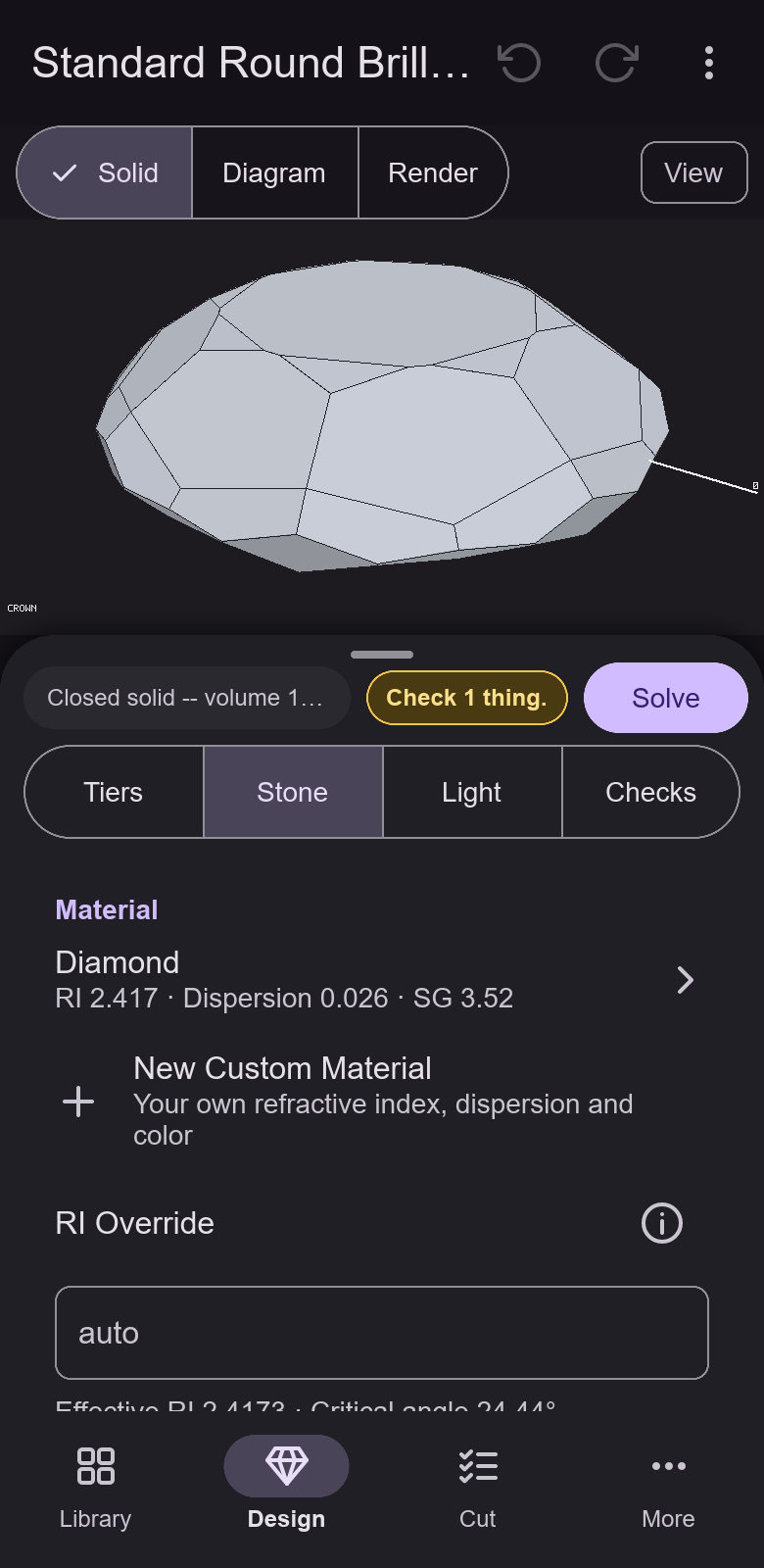
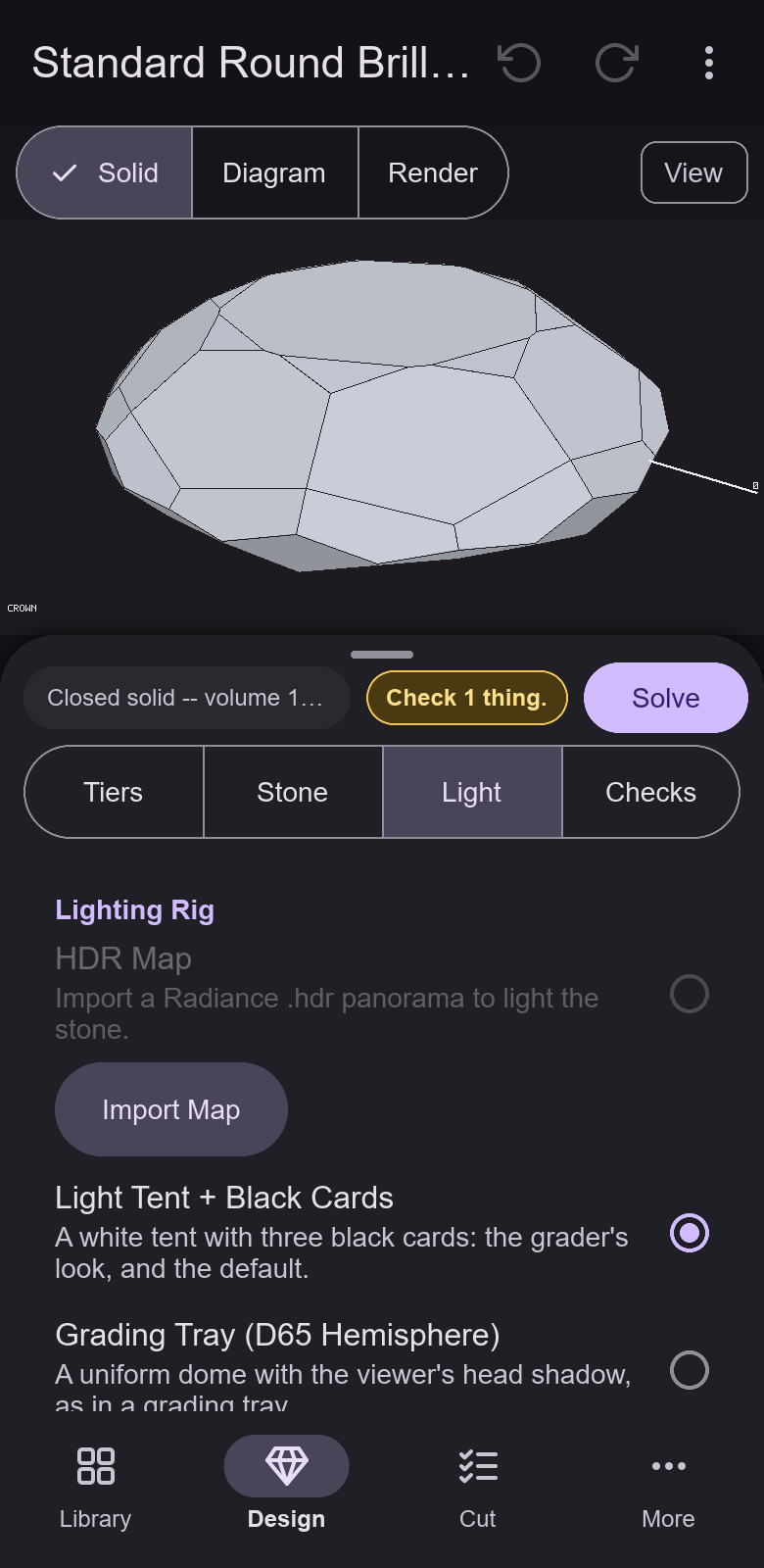
- The Stone tab picks the material from the built-in list, sets a refractive-index override, a body color (pick a built-in color variant of the material, or one a design file carries; there is no color editor or variant saving on the phone) and the stone width, the inclusion haze, a frosted girdle, edge rounding and the crystal axis, and makes a custom material of your own. The Light tab picks a lighting rig, loads an HDR environment map, sets the light azimuth and elevation, the exposure, the backdrop, the surface glare and the head shadow.
- Checks
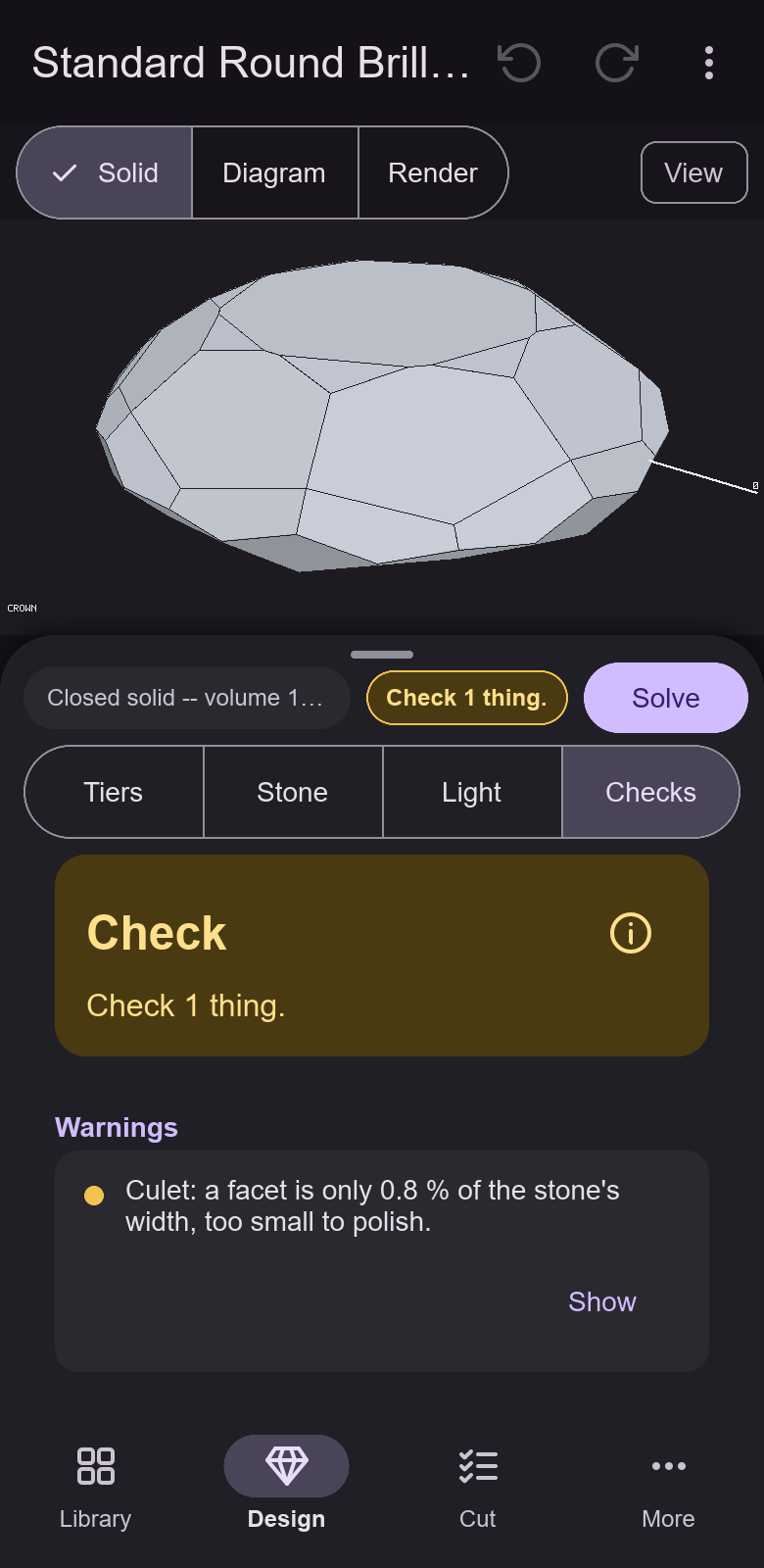
- The Checks tab gives the verdict (Good, Check or Problem), lists the warnings with a Show button and, where the shared code has a safe one, a Fix button; it shows the proportions, the preform fields and the yield figures, measures brilliance, fire, scintillation, windowing and extinction on demand, and opens the tilt curves (brilliance, windowing and extinction as the stone tips, on four axes, with Copy Data). For a design with concave tiers the figures and curves are scored on the stone with its tools cut out. The tilt curves score a design's frosted facets as frosted; the measured figures score every facet as polished.
- Deep Solve, Optimize and Retarget
- In the Design page's overflow menu. Deep Solve checks a solve against printed proportions that you enter (Vol/W³, L/W, C/W, P/W, H/W) and can pin a mast as an explicit, undoable edit; it does not run on a design with concave tiers. Optimize searches the tier angles with an evaluation budget, a seed, a number of starts and candidates, and an option to keep the girdle thickness, and lists candidates to apply or save as variants. Retarget For Material checks a shift of the angles for another material (with an optional girdle thickening of up to 10%), searches alternatives, and applies the geometry and the material together. Optimize and Retarget are included by the default
validated-design-searchfeature. - Cutting
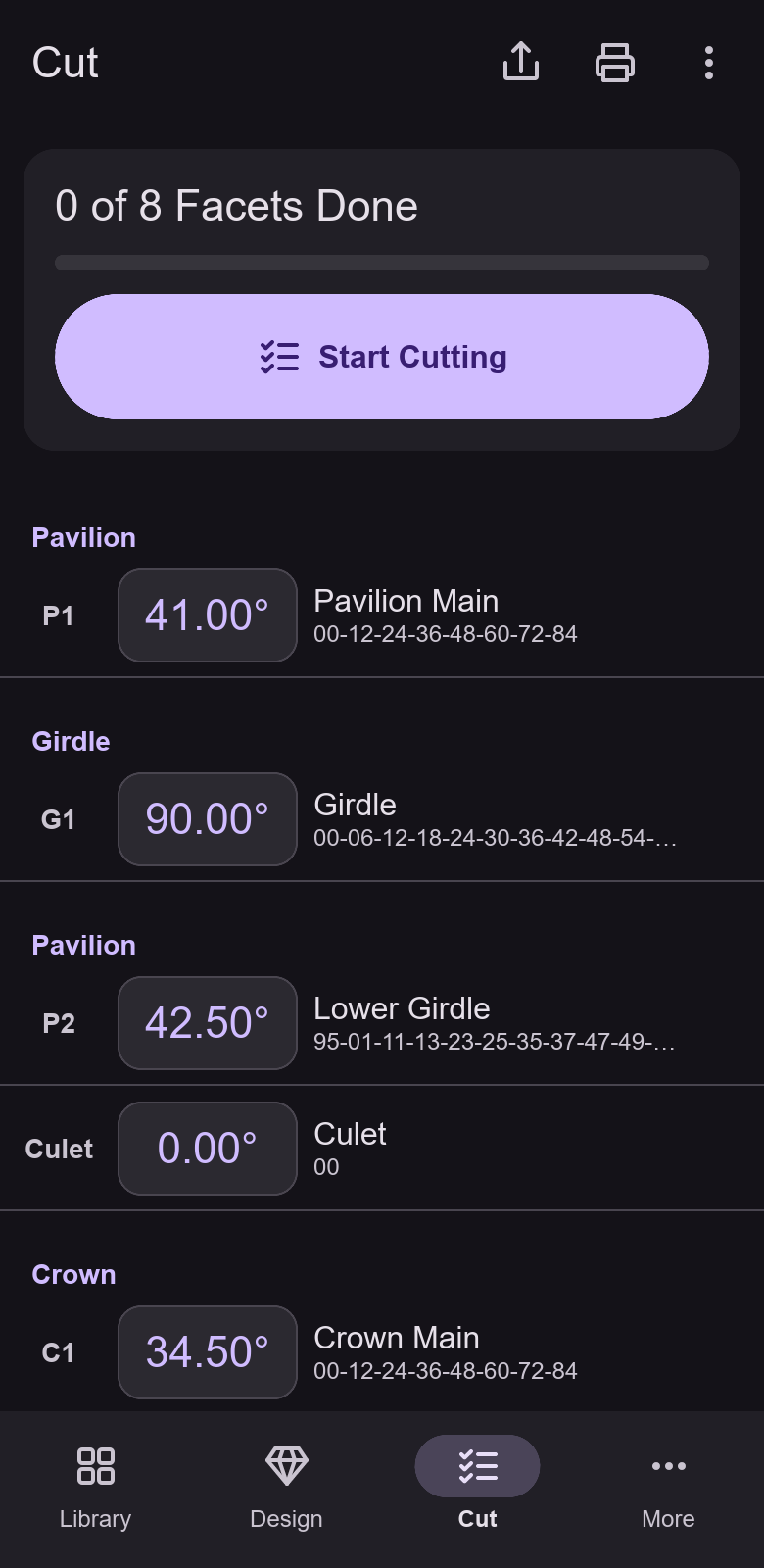
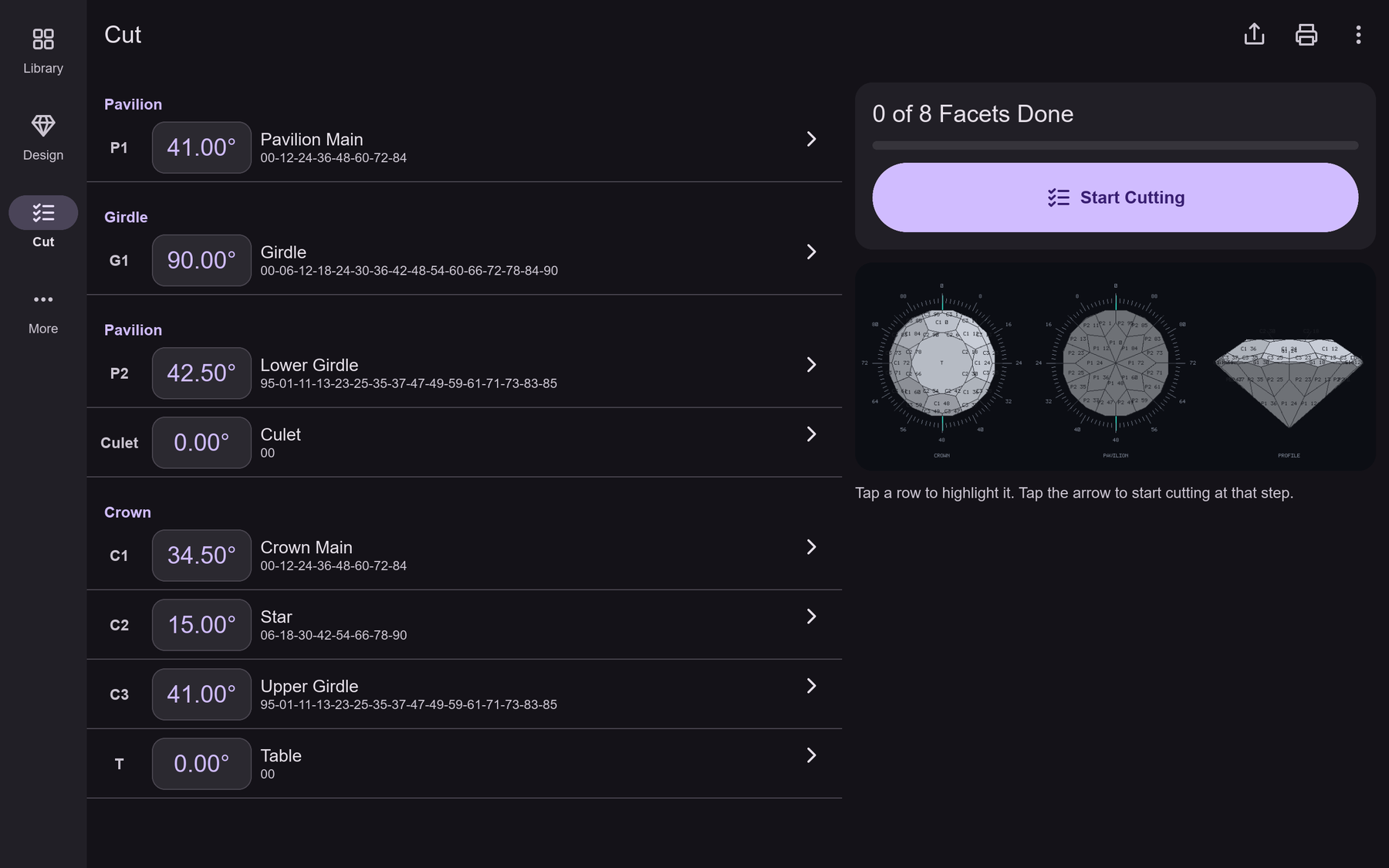
- The Cut page lists the cutting instructions in cutting order, with a progress card, the faceting diagram, and buttons to share or print the cutting sheet and to share the diagram. Start Cutting opens cutting mode, one step per page with the angle in large figures, the index chips, the stone after the step and the index wheel; the done marks are kept on the device and Reset Progress clears them.
- Preferences
- A theme, larger drag handles, snapping to the gear, and a battery saver that renders at Draft quality with two worker threads. The render also watches the device's thermal state and the battery and lowers its work when needed.
3What only the desktop does
The mobile app is a smaller program than the desktop studio. These are the differences as of today; each one was checked against the mobile crates.
| Feature | Mobile app | Desktop app |
|---|---|---|
| Remote library | No. Remote renders a scene on your endpoint; it does not browse the endpoint's catalogue. | Browse a coordinator's catalogue and hand sample tracing to it (distributed page). |
| GPU rendering | Partly. The device GPU traces Path-Traced pictures of up to 262,144 pixels (512 × 512), or Ray-Traced pictures of up to 1,048,576 pixels; larger pictures and some stones use the processor, on up to six worker threads (two in battery saver). | The GPU compute path, when the machine has a suitable adapter. |
| Angle sweep | No. The tilt curves are there. | Edit → Angle Sweep: a table, a chart and CSV for one tier's angle (studio page). |
| Rough planner and rough color | No. | Plan stones from a block, pebble or scanned rough, and take the color of the rough from photos (studio page). |
| History pictures, snapshots and the Compare window | No. Session History lists the steps with a short text comparison and Saved Variants keeps named copies, but there is no picture of each step, no snapshot and no Compare window. | A History tab with a picture of every step, named variants and a compare window (studio page). |
| Tutorials, manual and help | No. More → Help is a placeholder page for a later version. | 90 short tutorials, Build This Design, the manual built into the program, and a command palette. Video tutorials are on the Pleochroma YouTube channel. |
| Tilt video, a local render-job queue and large stills | No tilt video and no local queue. One still at a time, as a PNG, up to the limits in the app's settings; a still can be sent to your own server as a job (see Remote rendering above). The tilt curves themselves are there. | Tilt video export, a queue of render jobs, and stills up to 8192 × 8192 pixels. |
| Command-line tool | No. It is a separate program. | pleochroma-cli (getting started). |
| Screen reader | No. The toolkit exposes no accessibility tree on Android yet (no TalkBack). | Keyboard reach and screen-reader names for the controls (studio page). |
4On a tablet
On a wide screen the same pages use the room. The bottom bar becomes a rail at the left, the Library shows more cards, and the Design page puts the picture beside the tier list and its tabs. The Cut page puts the instructions beside the progress card and the faceting diagram.
5Try it
On the desktop, in a window
The quickest way is to run the same interface in a desktop window at a phone or tablet size, from a checkout of the source (you need a Rust toolchain). File pickers come from the desktop. It exercises the interface and the shared core, not the Android services such as sharing and printing.
cargo run -p pleochroma-mobile-android --features desktop-preview --bin pleochroma-mobile-preview -- --size phone
--size takes phone (390 × 800, the default),
phone-land, tablet, tablet-land or
your own WIDTHxHEIGHT, such as 412x915.
On your own Android device
There is no installer yet. You build a debug APK from the source and
install it on your own phone or tablet. The app targets Android 9 or newer
(minSdk 28, targetSdk 36) on 64-bit ARM (arm64-v8a), and its
application id is com.indicatrixsuite.mobile. Condensed from
the README.md in apps/pleochroma-mobile-android, which has the full
steps:
- Install Android Studio and, from its SDK Manager, Android SDK Platform 37, the current Build-Tools and NDK r30. Gradle asks for a JetBrains JDK 21 and downloads it when none is installed; the JDK bundled with Android Studio also fits.
- Add the Rust target and the build helper:
terminal
rustup target add aarch64-linux-android cargo install cargo-ndk --version 4.1.2 --locked - Set
ANDROID_HOME,ANDROID_NDK_HOMEandJAVA_HOME(a JDK 17 or newer; the README also namesANDROID_JAR, which cargo commands you run yourself need), then restart Android Studio and your shells. - Open
apps/pleochroma-mobile-android/androidin Android Studio once and let it sync: that creates the Gradle wrapper. - Pick a device with USB debugging on and press Run. Android Studio builds the Rust library for you before every build. Or build from a terminal in that folder and install with
adb:terminal — from apps/pleochroma-mobile-android/androidgradlew assembleDebug adb install -r app\build\outputs\apk\debug\app-debug.apk
The first Rust build is slow, tens of minutes, because the drawing library
(Skia) is compiled from source, and it needs clang, Python
and ninja on your PATH. Later builds are
incremental. For an emulator, add the x86_64-linux-android
target and -PrustAbis=arm64-v8a,x86_64 to the Gradle command.
6Known limitations
- Not released. There is no store listing, no signed release and no automatic update. You build the app yourself.
- Not validated on devices. History and variants, concave editing, Deep Solve, Optimize, Retarget, device GPU rendering and remote rendering are in the source, written and read, but not yet run on a range of devices. The GPU kernels for concave tools have not been tried on Adreno and Mali chips, and remote rendering has not been tried against a real worker over Wi-Fi or mobile data. Optimize and Retarget are included by the default
validated-design-searchfeature; their device validation remains pending. - Rendering time. A few hundred samples per pixel take a while on a phone, and the render lowers its work when the device runs hot or the battery saver is on. A live remote render restarts from sample zero after an interruption, and does not survive the app process being killed; a server job does.
- No TalkBack. The interface toolkit exposes no accessibility tree on Android.
- External mouse wheel. The toolkit's Android adapter does not handle scroll events. The app ignores them, so a mouse wheel or trackpad scroll does nothing; scrolling by touch works.
- Back navigation. Android 13 (API 33) and newer use the app's own Back handling, with predictive back from Android 14 (API 34); Android 9 to 12 use the Back key route. It is not yet validated across Android versions, devices and navigation modes.
- Keyboard. The toolkit drives the soft keyboard through its own helper, and numbers are typed on the app's own keypad, not the system numeric keyboard.
- Printing. The cutting sheet is printed from an off-screen web view; check the system print preview that it came out right.
- Files from other apps. Reading is limited to 64 MiB per file, 256 MiB per request and 2,000 design files per picked folder.
7Get the desktop app
For the Rough planner, the tutorials and manual, tilt video, a remote library, the Compare window and the command-line tool, use the desktop application. On Windows the easiest way to install it is the Microsoft Store, which keeps it updated. It is also a ready-built download for Windows and Linux (see the downloads section), described on the studio and CAD page. Video tutorials are on the Pleochroma YouTube channel. The browser version needs nothing installed (web app page). All three open the same design files.
Ray-Traced and Path-Traced
The Render page selects Path-Traced or Ray-Traced. Draft, Normal and Fine use 1, 4 and 8 Ray-Traced AA taps; export uses 16. Ray-Traced device GPU pictures allow up to 1,048,576 pixels, versus 262,144 for Path-Traced, with CPU fallback for device limits. Remote mode carries the selected engine using protocol 29.
Ray-Traced is a deterministic approximation: one d-line index, or three fixed indices with Fire, RGB absorption tint and 1/4/8/16 AA taps. It finishes at the tap count without denoising. It omits polarization, birefringent doubling, scattering, zoning and edge rounding. Path-Traced retains the spectral model. Optical metrics, tilt sweeps and diagnostics keep their separate analytic tracer.