Pleochroma GitHub
Reference

Figures

Every figure used across this site. Click one to open the image file directly. Renders made before 2026-10 show a camera-only grey card behind the stone; current builds light the backdrop as a tray (physics page).
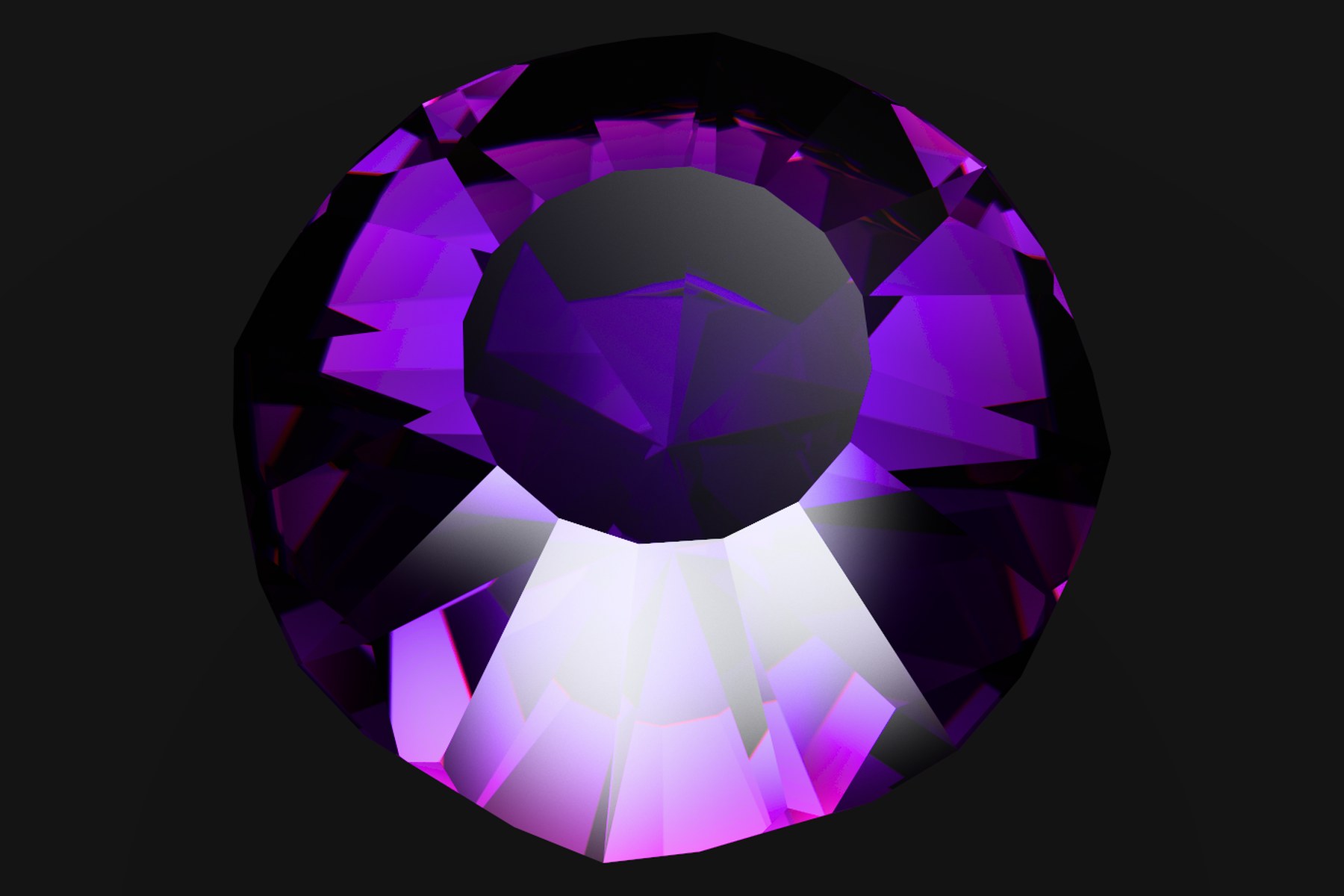
Rendered tanzanite gemstone
Fig. 1 — Tanzanite, 1920 × 1080, 32 768 samples per pixel. Rendered with Pleochroma.
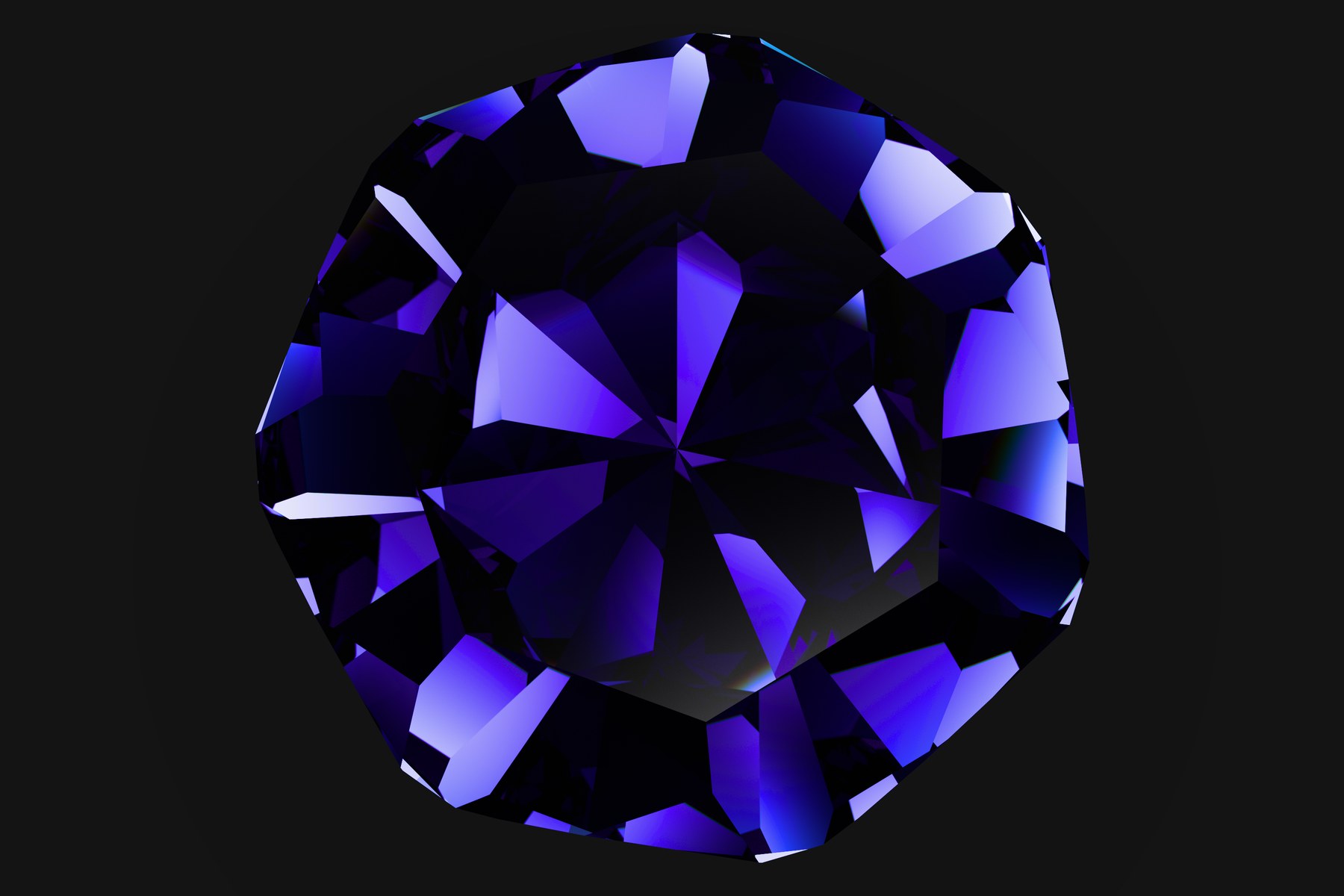
Rendered sapphire gemstone
Fig. 2 — Sapphire, 3840 × 2160, 8 192 samples per pixel. Rendered with Pleochroma.

Look at the dispersion fringes along the crown facet edges — continuous color, not banded RGB.
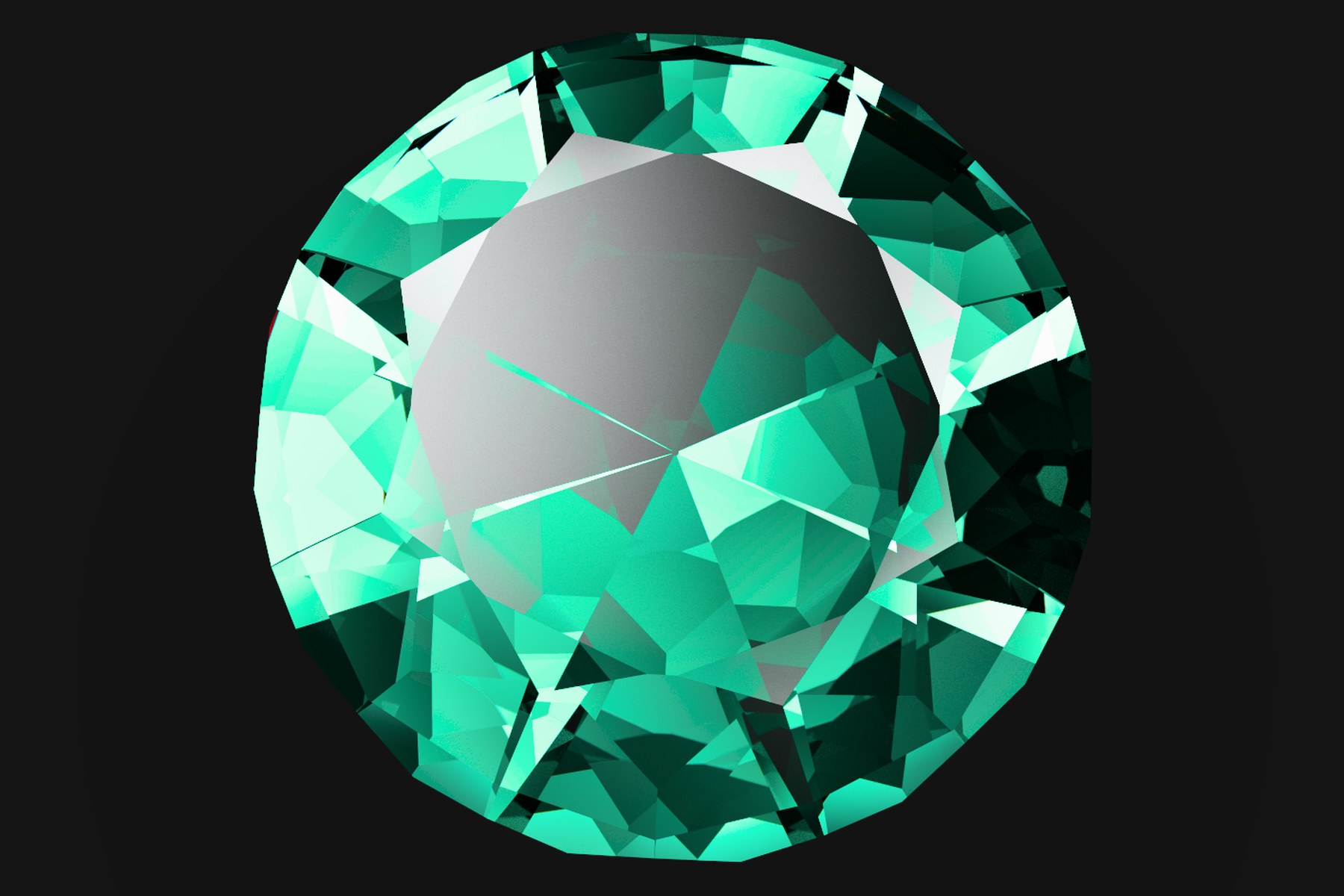
Rendered emerald gemstone
Fig. 3 — Emerald, 1920 × 1080, 16 384 samples per pixel. Rendered with Pleochroma.

Look at the extinction areas near the pavilion, where the long path through the stone darkens it (Beer–Lambert absorption along the ray).
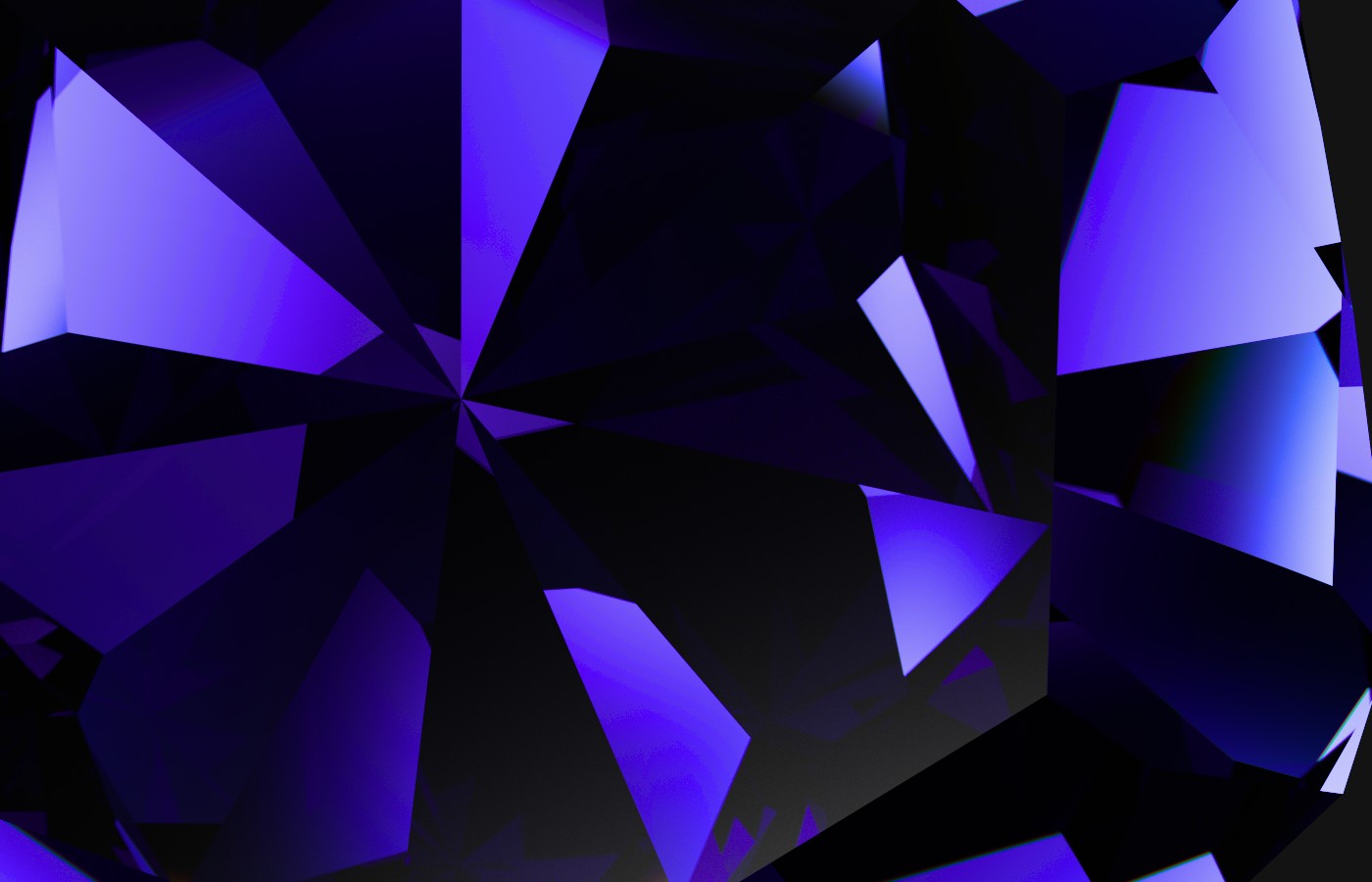
1:1 pixel crop of the sapphire render
Fig. 4 — 1:1 pixel crop of the sapphire render (fig. 2). Rendered with Pleochroma.

Look at the per-pixel noise level at this sample count — no denoiser applied.
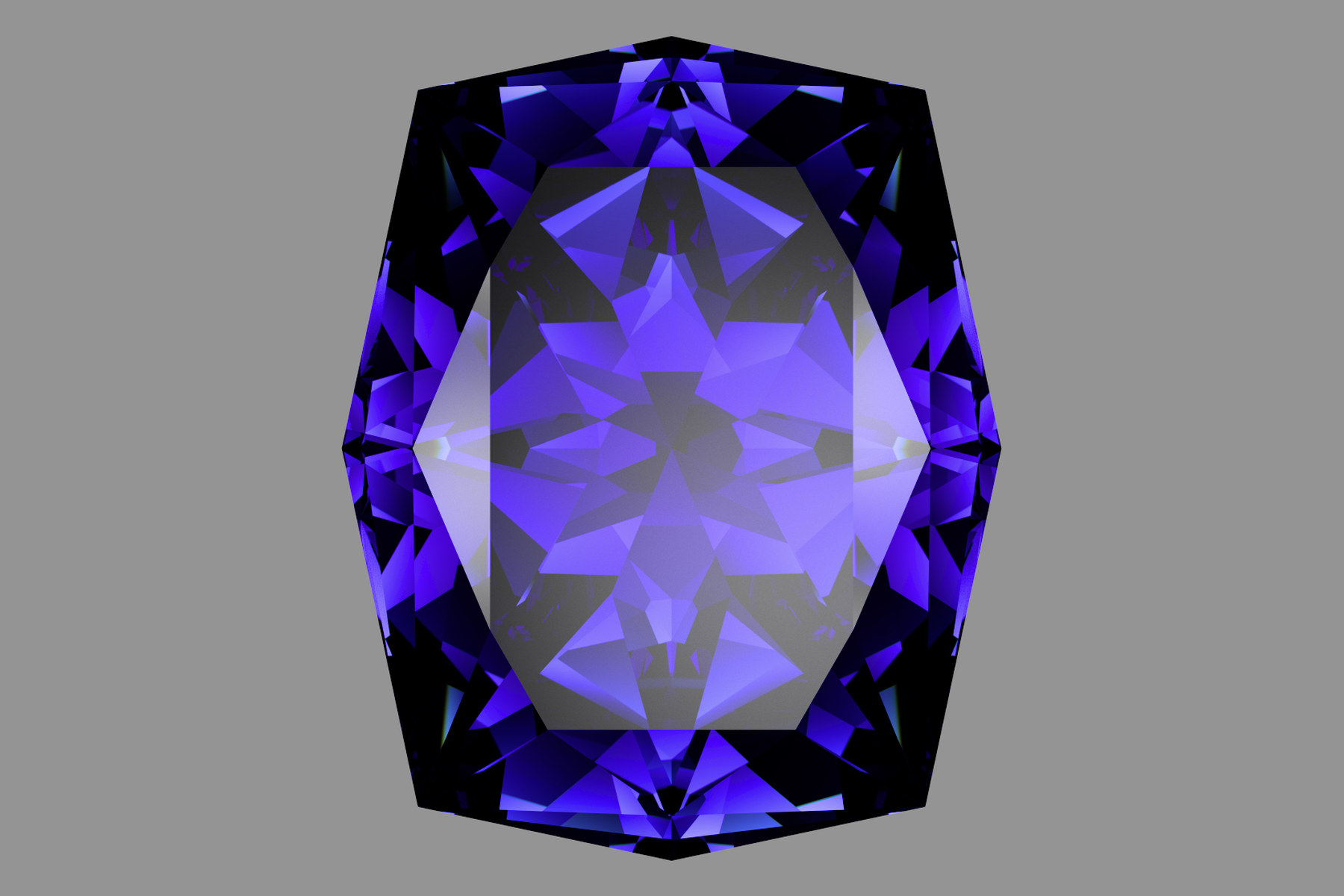
41.029B FVS-65 (Long Octagon) rendered as sapphire on the grey backdrop card
Fig. 5 — Sapphire, 41.029B FVS-65 (Long Octagon), 1920 × 1080, 32 768 samples per pixel, cropped around the stone. Rendered with Pleochroma.
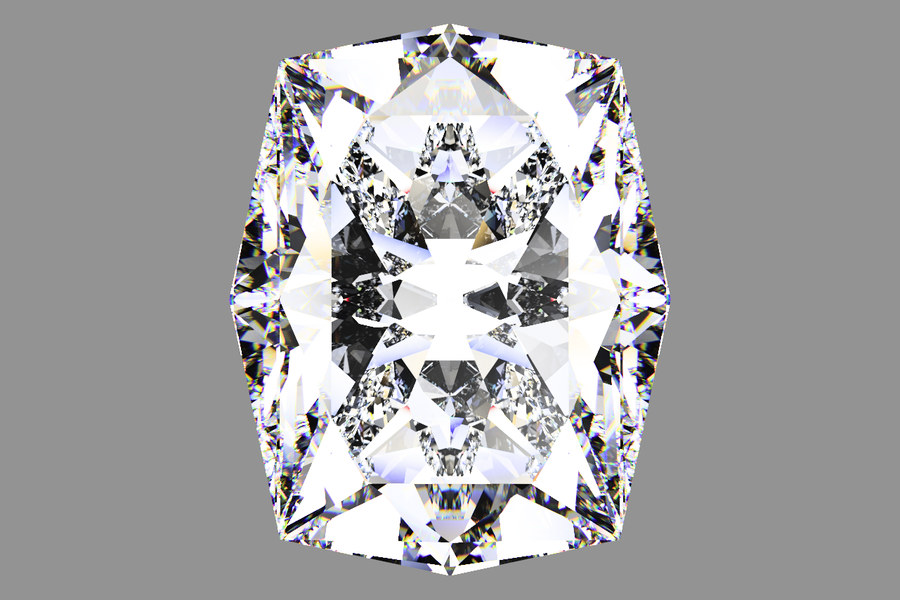
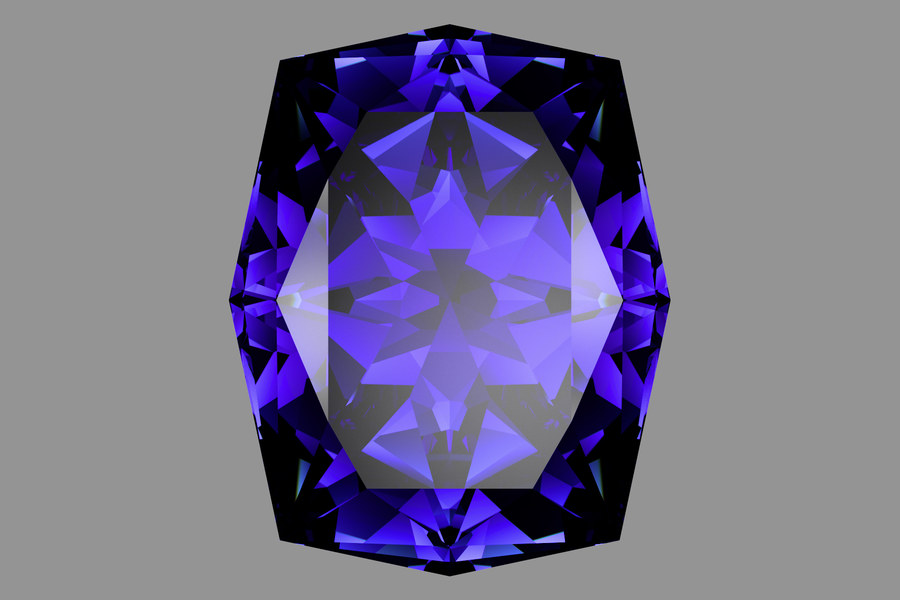
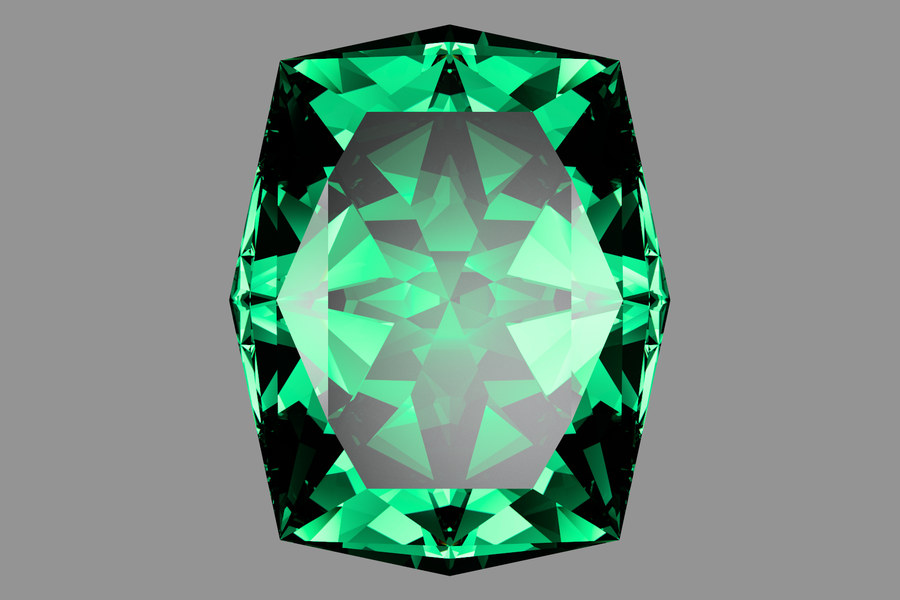
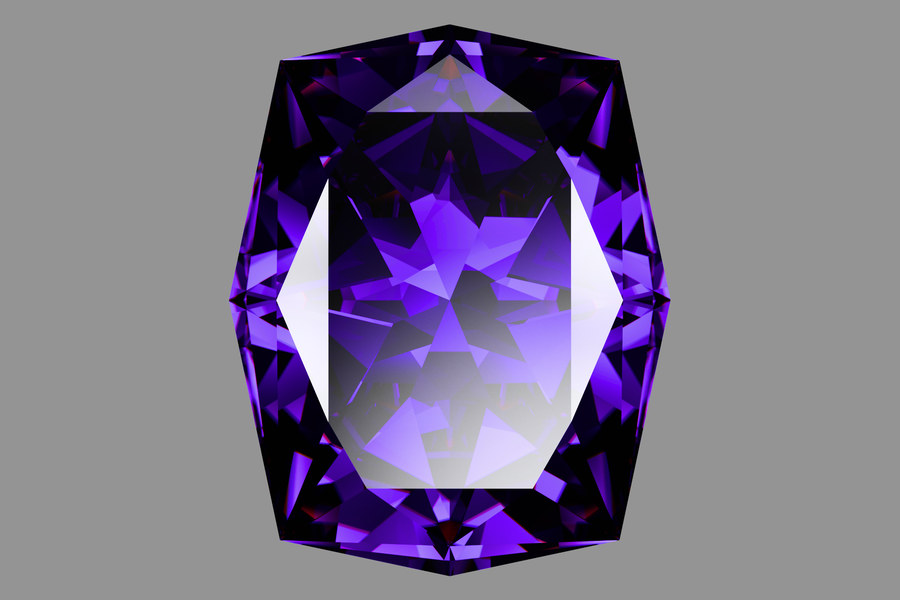
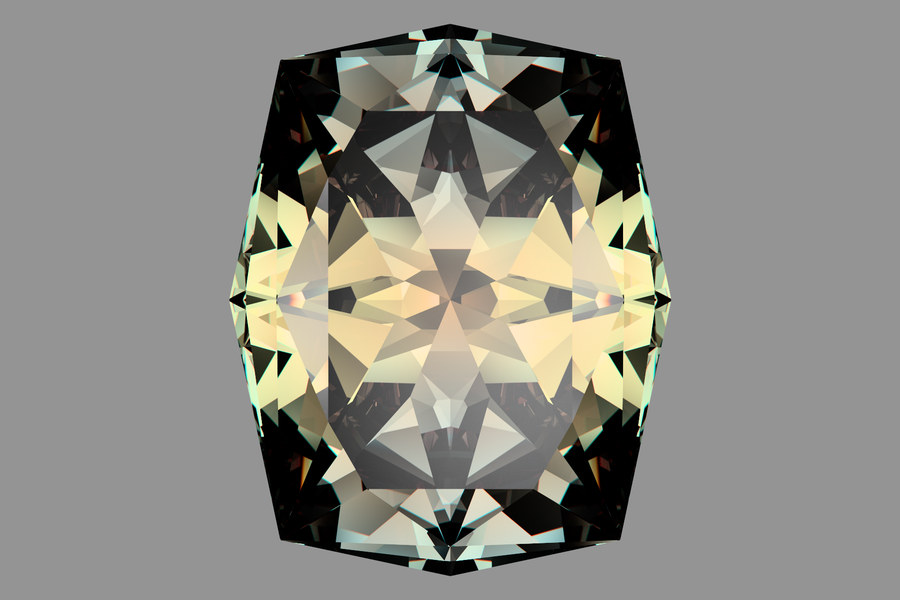
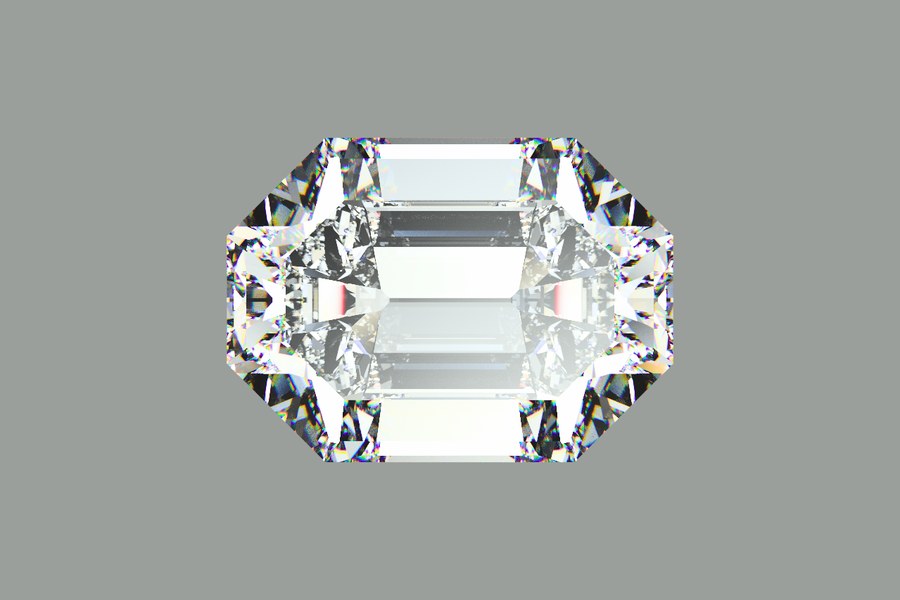
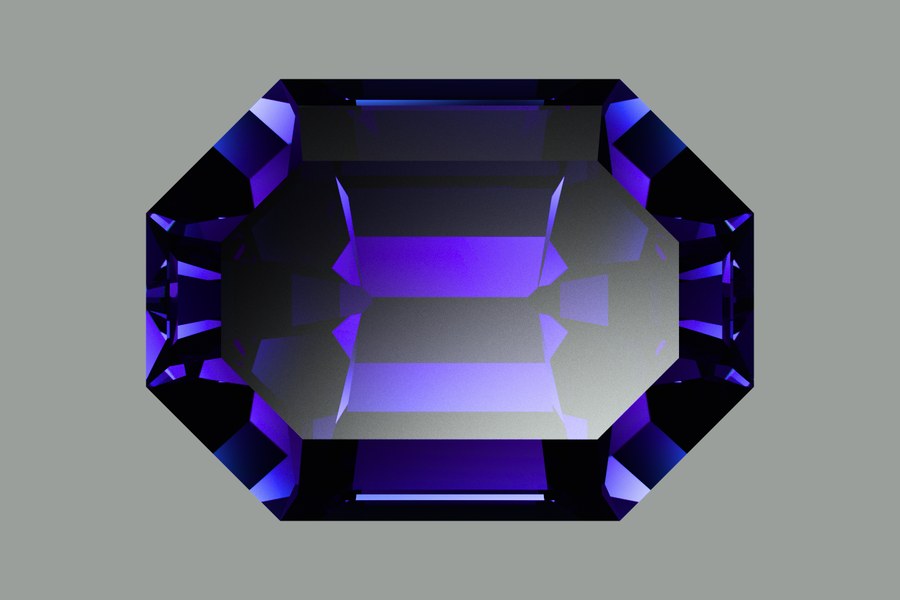
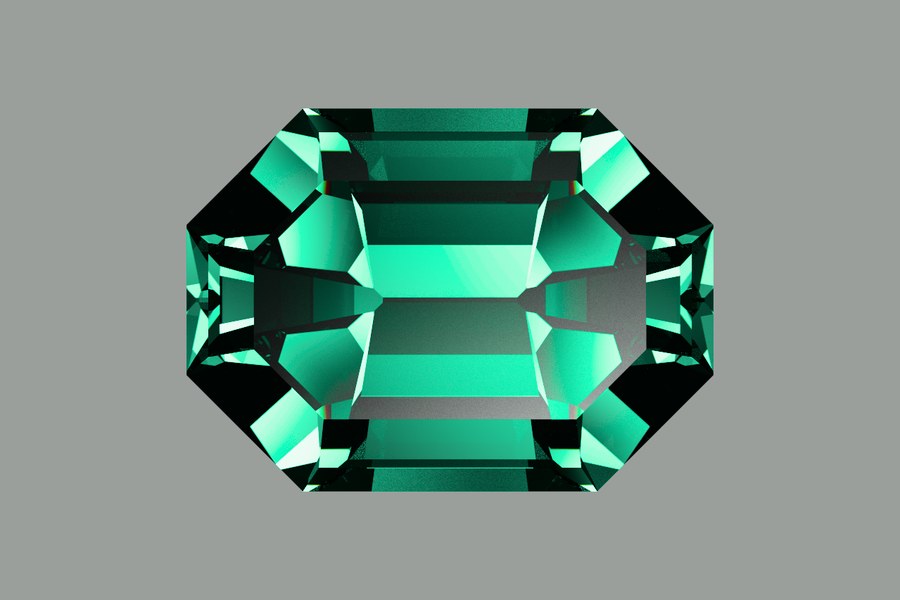
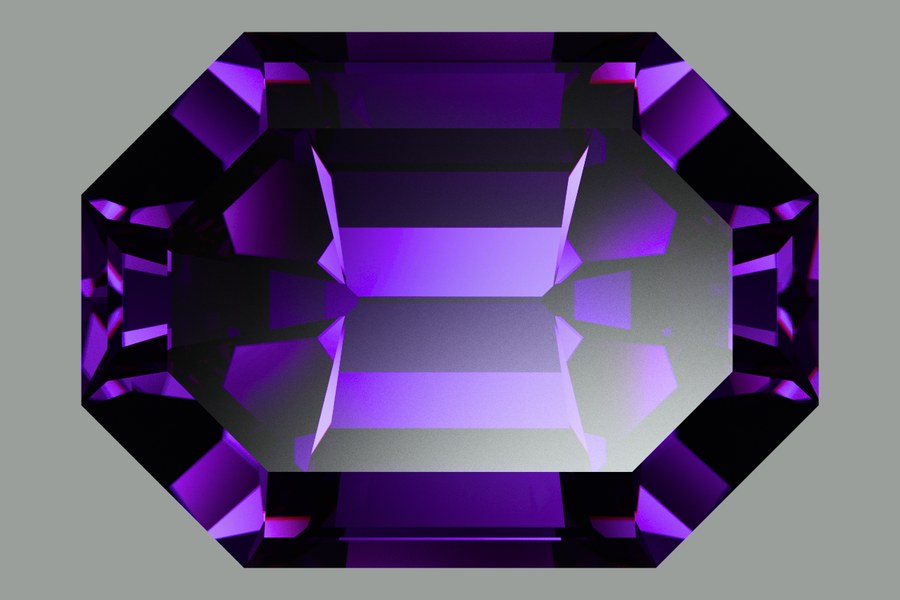
41.029B FVS-65 (Long Octagon) rendered as diamond The same design rendered as sapphire The same design rendered as emerald The same design rendered as tanzanite The same design rendered as rutile The same design rendered as alexandrite in daylight
Fig. 6 — One design, 41.029B FVS-65 (Long Octagon), in six materials, in reading order: diamond, sapphire, emerald, tanzanite, rutile and alexandrite in daylight. 1920 × 1080 renders on the grey backdrop card at 32 768 samples per pixel (rutile 16 384), each cropped around its own stone.
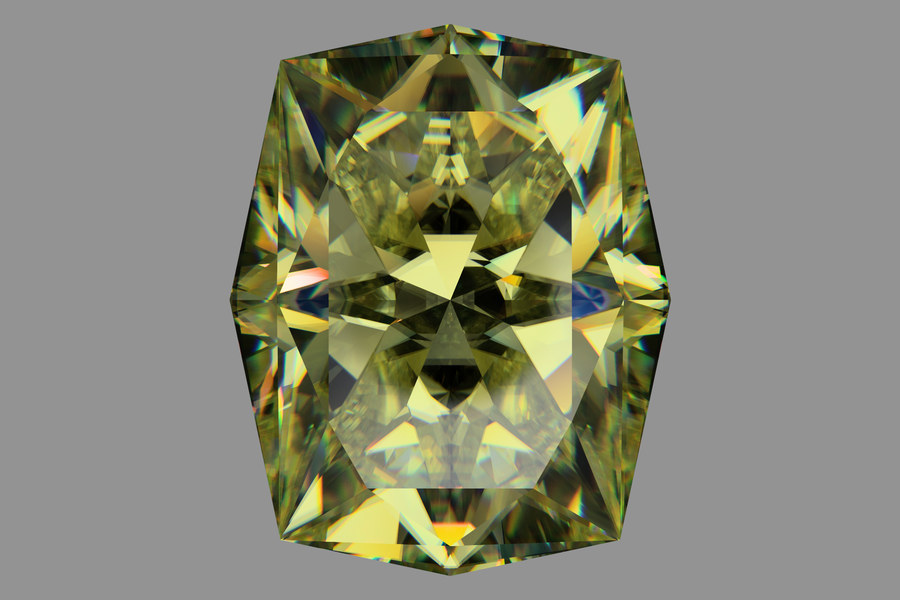
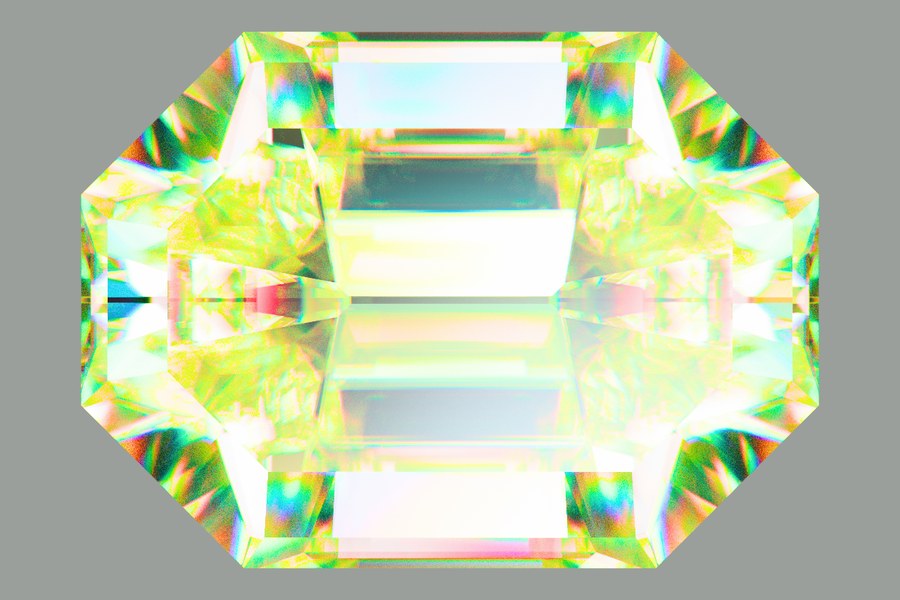
Alexandrite rendered in daylight: the faceted stone reads green-yellow
Fig. 7 — Alexandrite in daylight: the same 41.029B FVS-65, 32 768 samples per pixel, cropped around the stone.
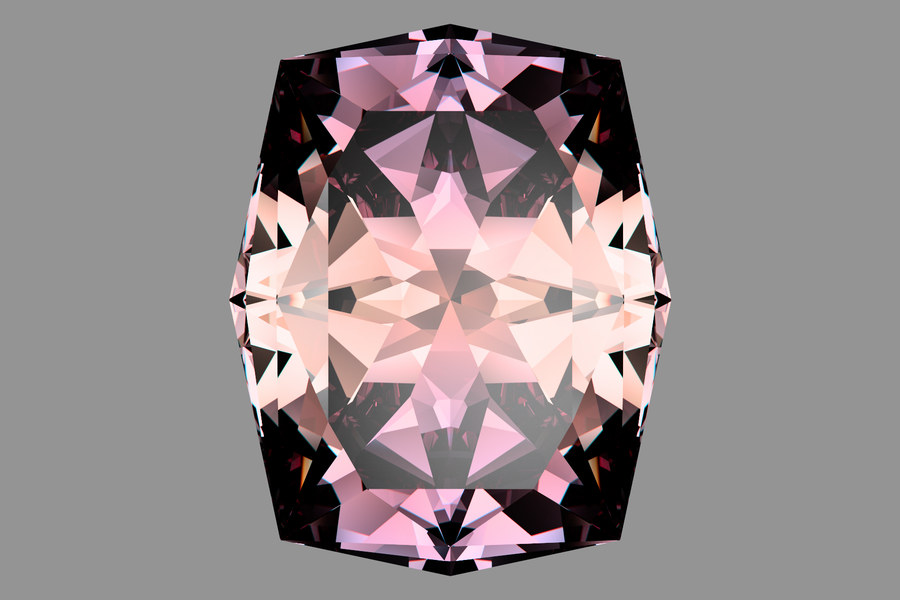
The same alexandrite rendered in a warmer light: the stone reads pink
Fig. 8 — The same stone under a warmer light (the export file does not record which): 32 768 samples per pixel.
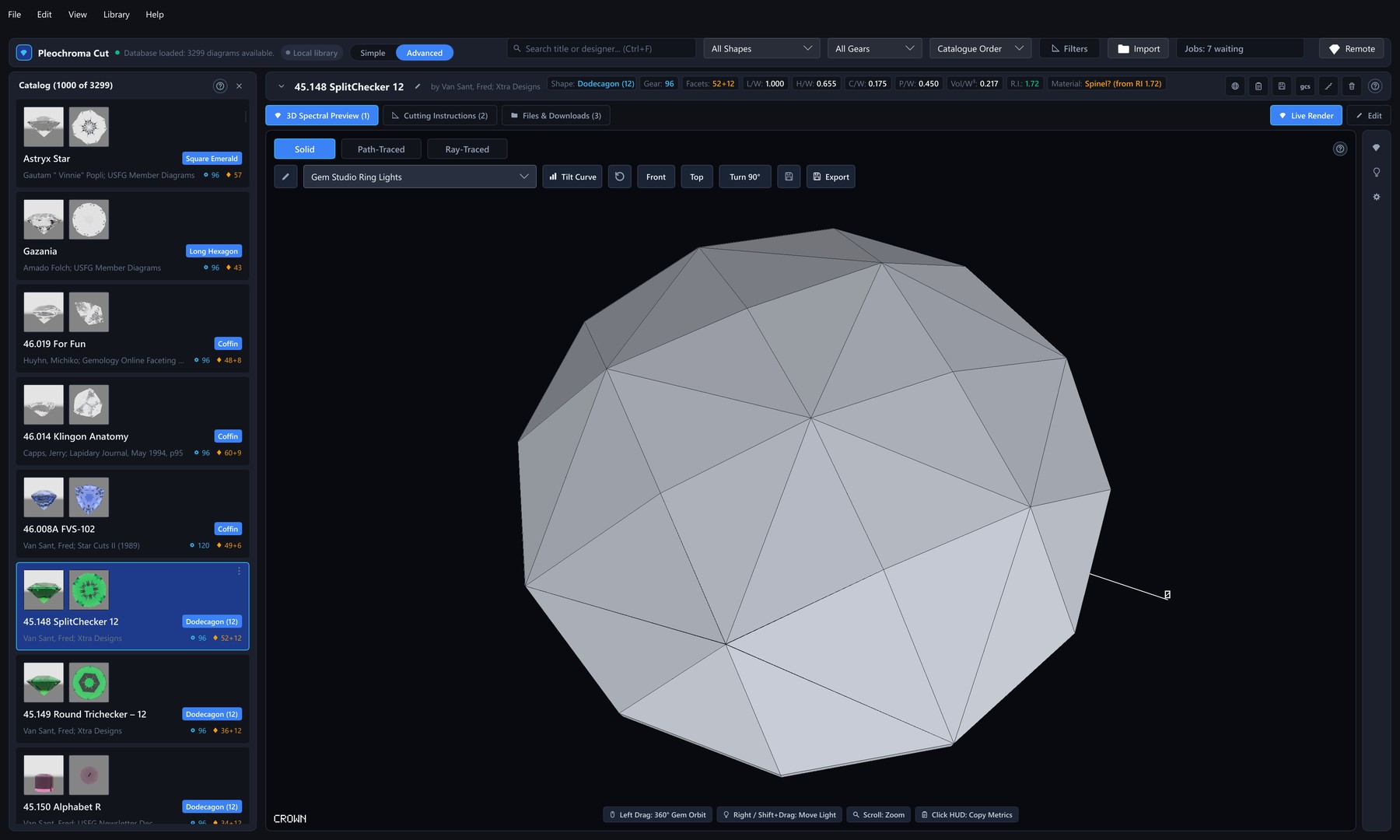
Studio main window: design library on the left, the Solid view of the stone on the right with the Solid, Path-Traced and Ray-Traced switch above it
Fig. 9 — Design library on the left, live viewport on the right: the 45.148 SplitChecker 12 design in the Solid view, with the Solid, Path-Traced and Ray-Traced switch above the stone and the lighting-preset picker, Tilt Curve and Export beside it.
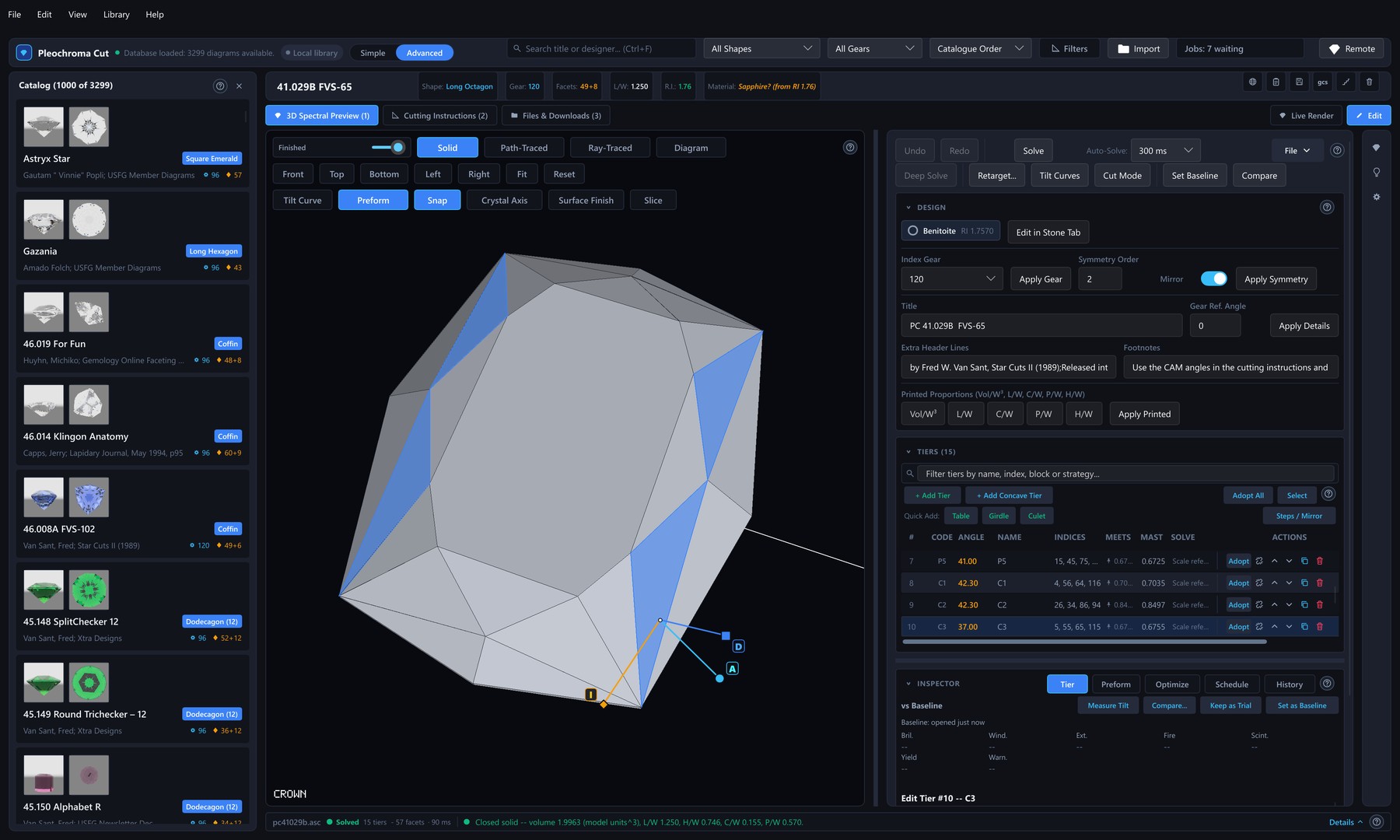
Edit mode: solid view with a selected facet, tier table and tier inspector
Fig. 10 — Edit mode: the solid view with a selected crown facet and its drag handles, the tier table and the tier inspector, here on 41.029B FVS-65 (CAD).
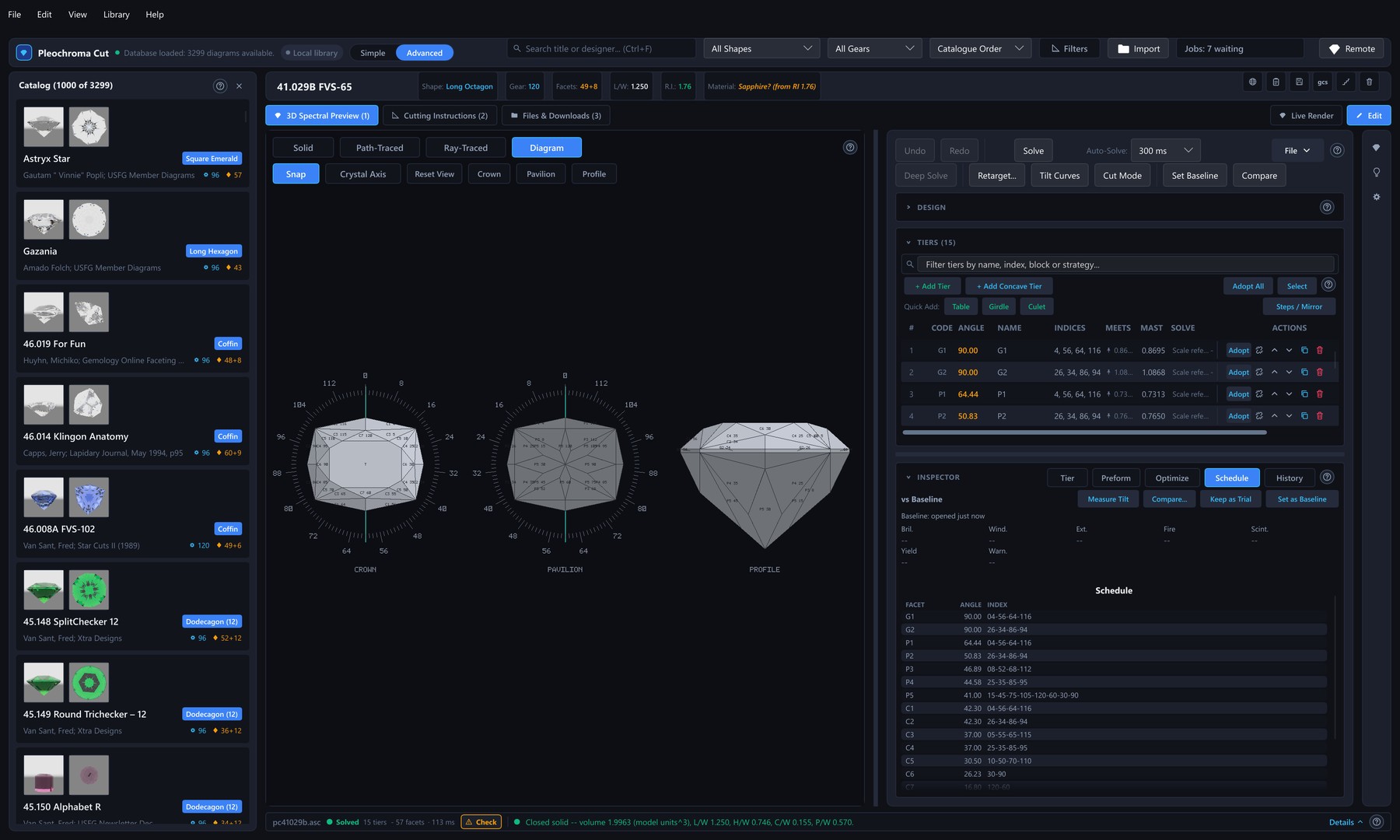
Diagram view: crown, pavilion and profile panels beside the tier table
Fig. 11 — The Diagram view: crown, pavilion and profile on the index-gear scale, with the tier table and the inspector's Schedule tab beside them (CAD).
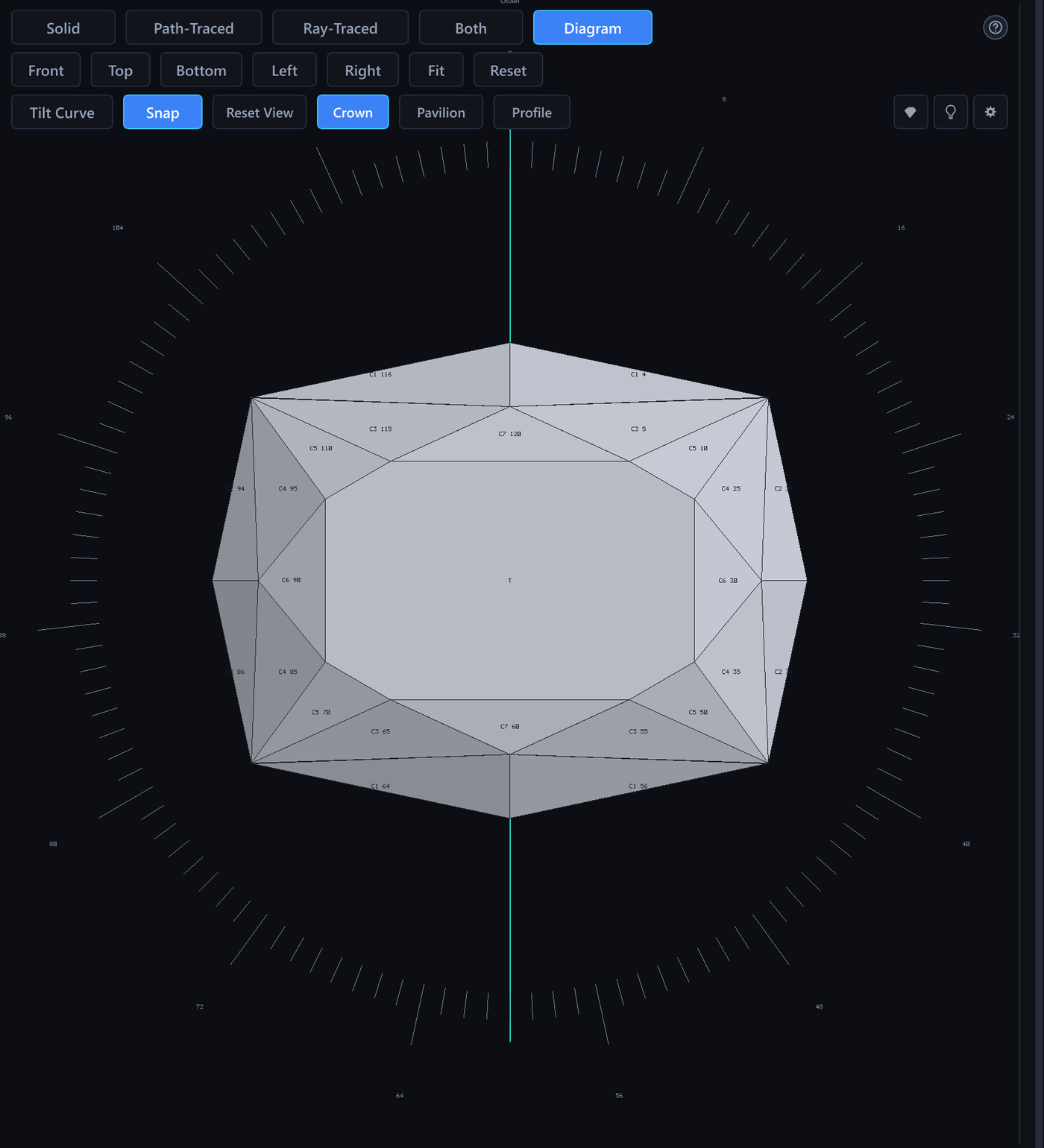
Crown panel of the faceting diagram with facet labels
Fig. 12 — The crown panel alone (Crown in the view bar), every crown facet labelled with its tier code and index position (CAD).
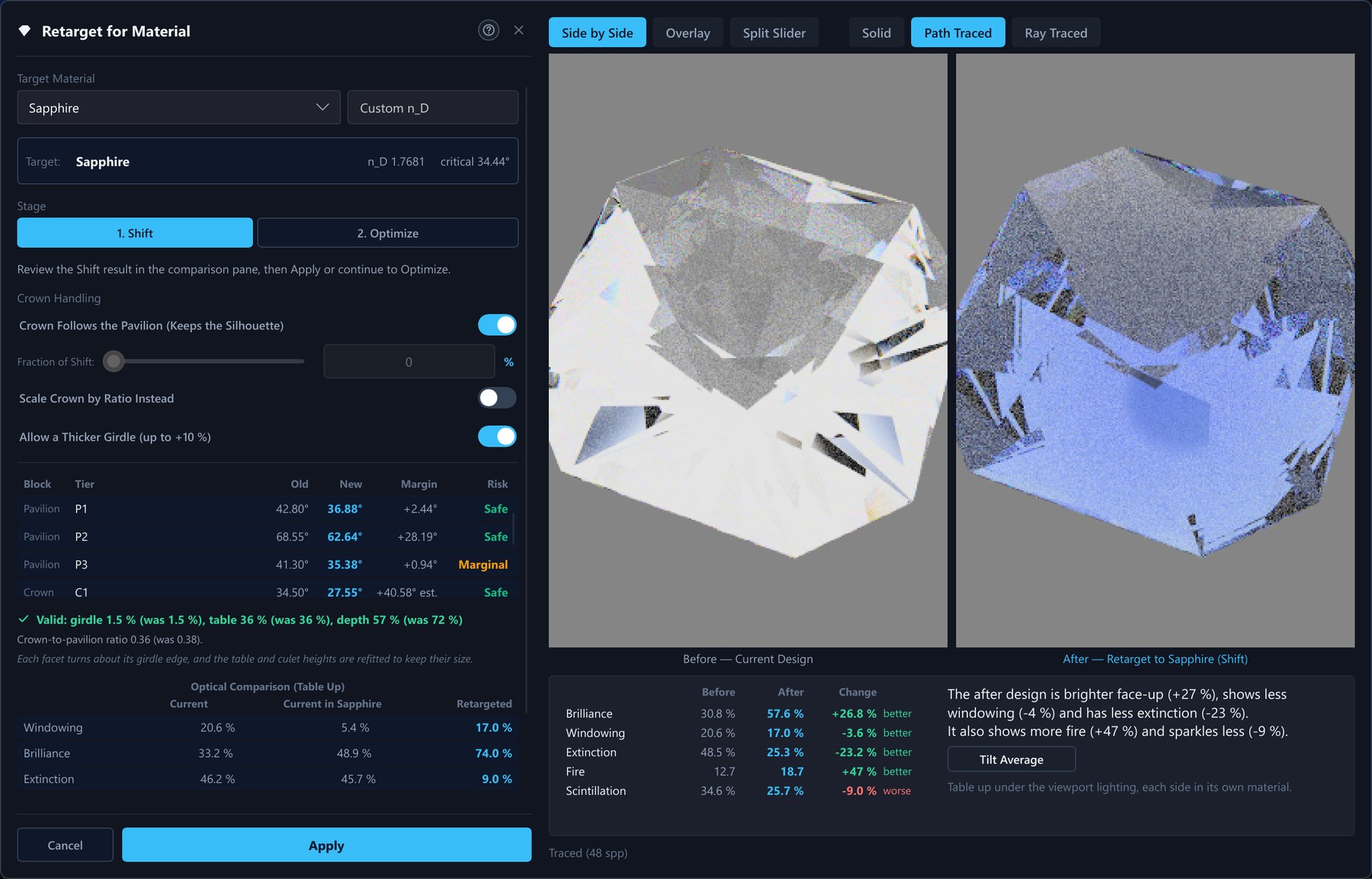
Retarget for Material dialog
Fig. 13 — Retarget for Material: the Astryx Star design retargeted to Sapphire in Shift mode, each tier's old and new angle with its margin to the critical angle and a Safe or Marginal verdict, and the stone before and after, side by side and path traced (CAD).
The editor's view bar with the tilt dialog open over the Diagram view
Fig. 14 — The view bar in Edit mode: Solid, Path-Traced, Ray-Traced or the faceting diagram, fixed directions, Fit and Reset, and Tilt Curve, here opened over the Diagram view.
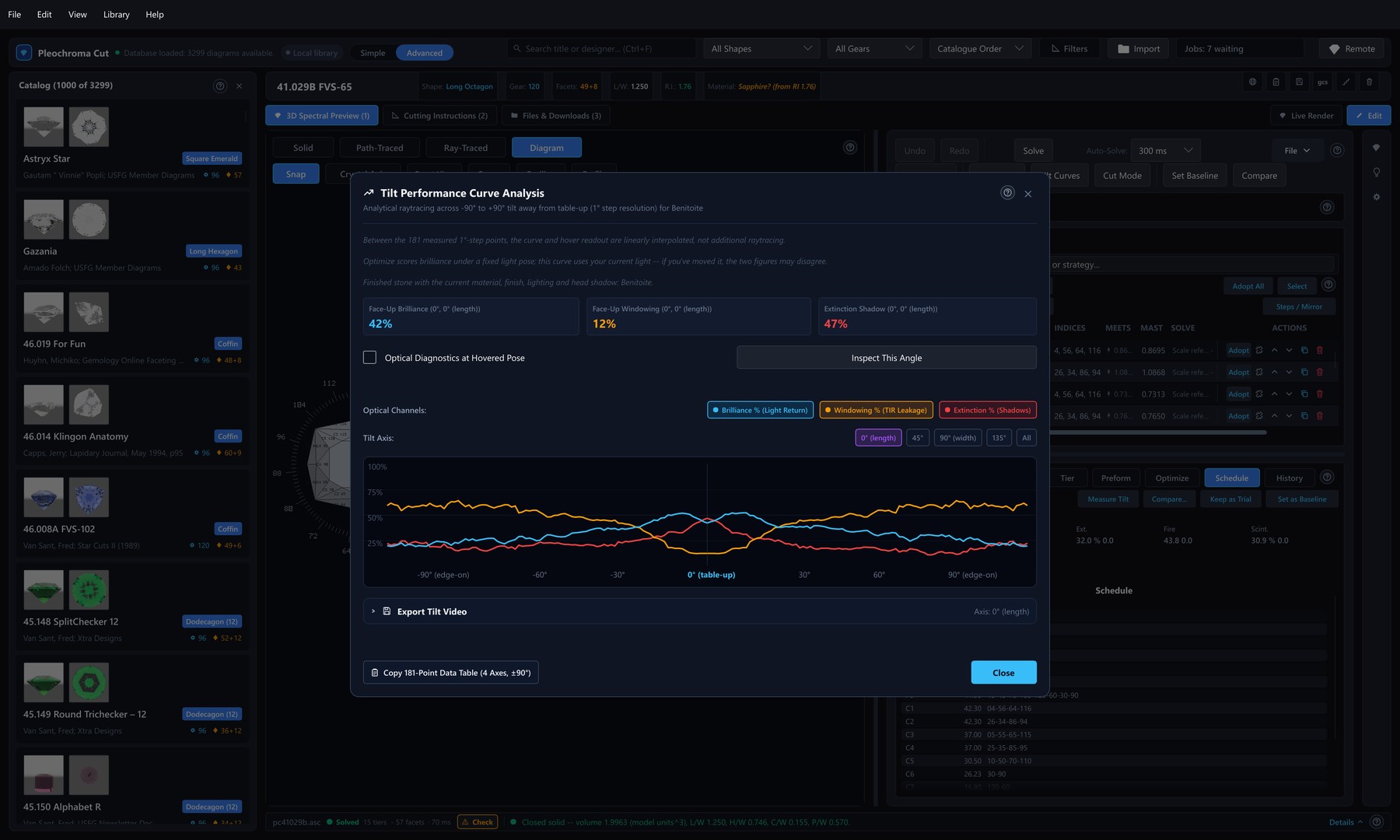
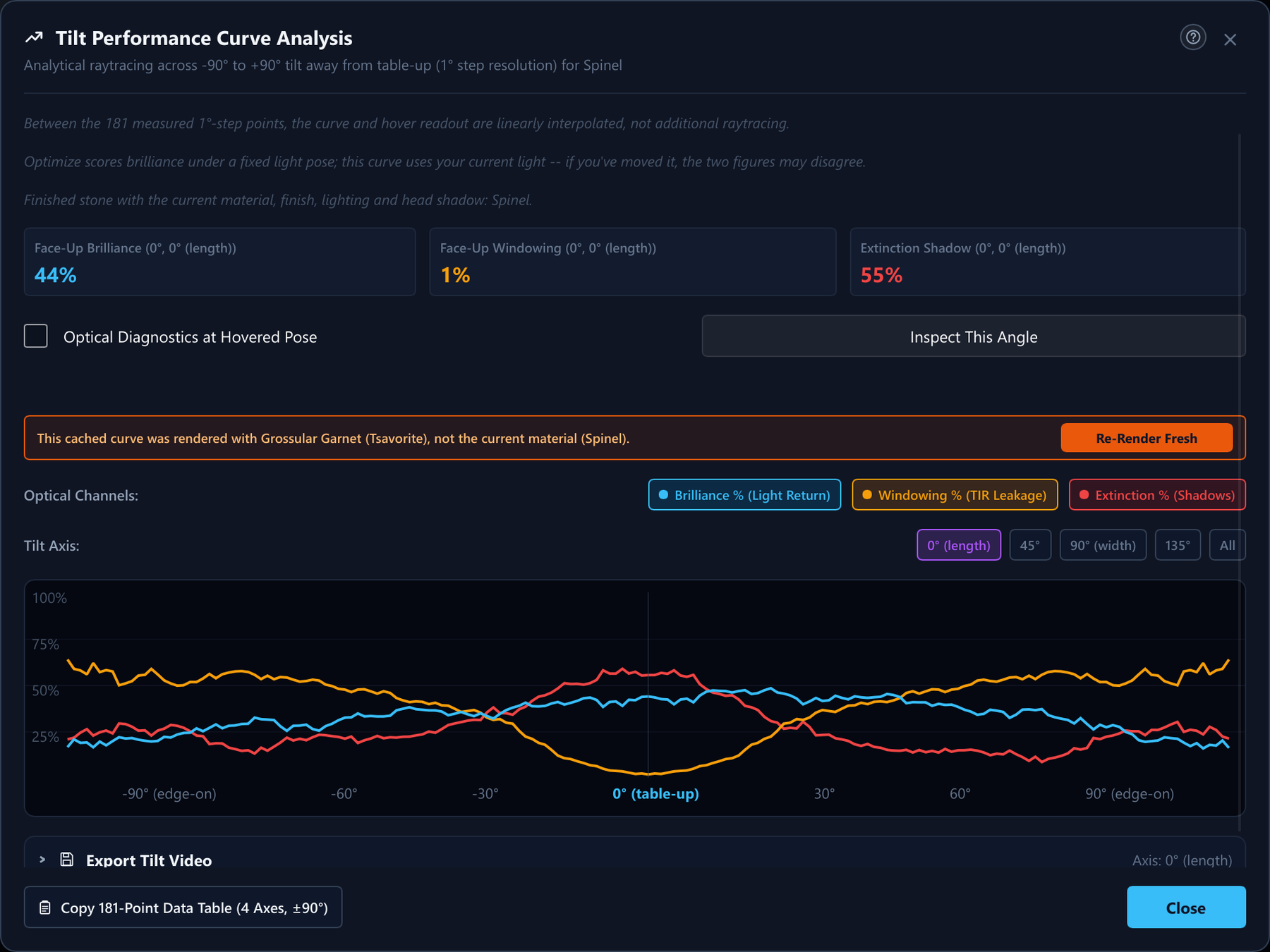
Tilt Performance Curve Analysis dialog
Fig. 15 — Brilliance, windowing and extinction across a tilt sweep: 181 points from −90° to +90° on one of four camera azimuths, with the face-up figures above the chart and, for a cached curve from another material, a Re-Render Fresh banner.
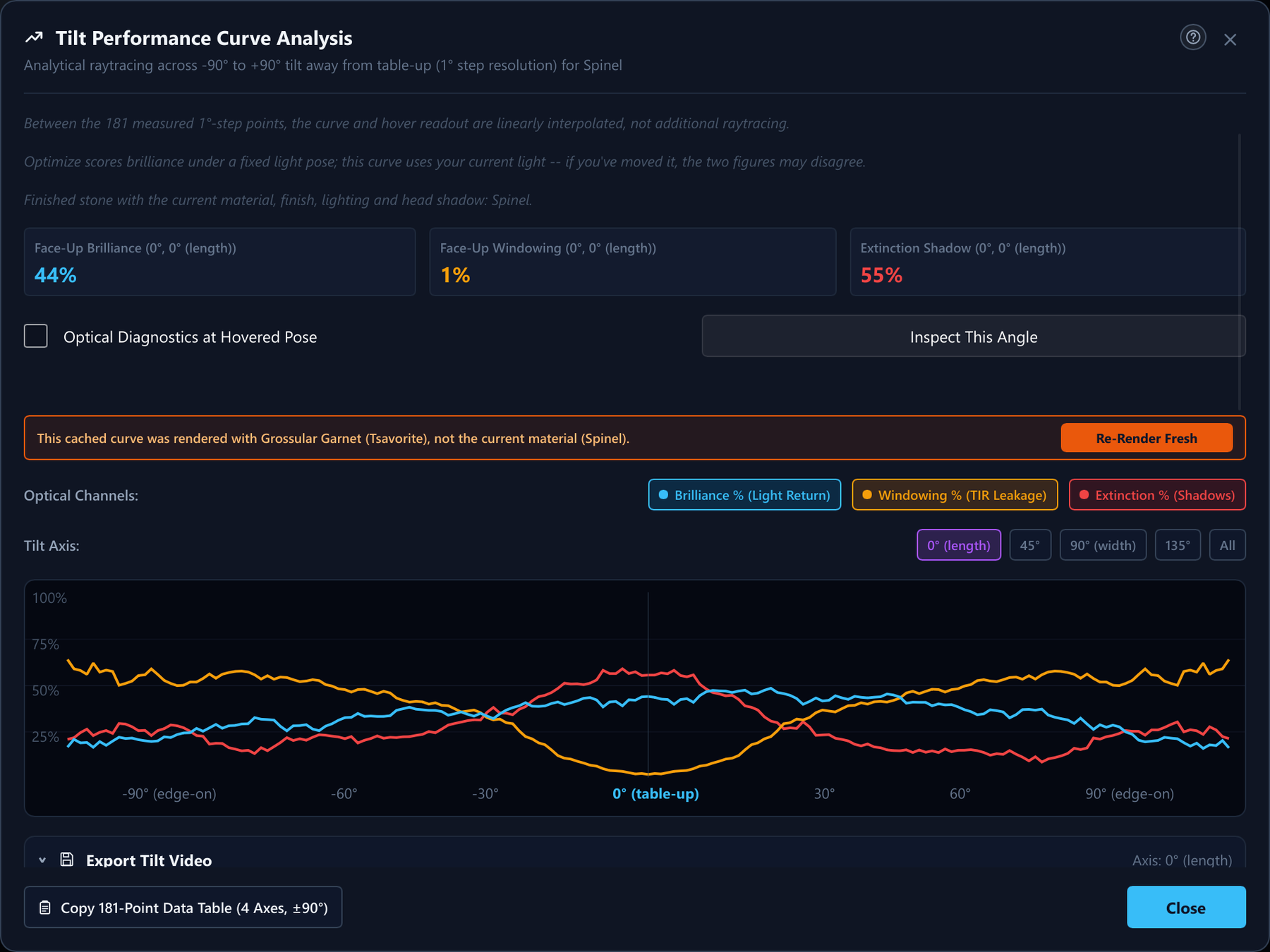
Export Tilt Video panel of the tilt dialog
Fig. 16 — Export Tilt Video, unfolded below the chart: only its header row is in view because the panel scrolls (the Include Optical Diagnostics box, material, angle range and step, frame rate, resolution, samples, bounces, color space and transfer follow).
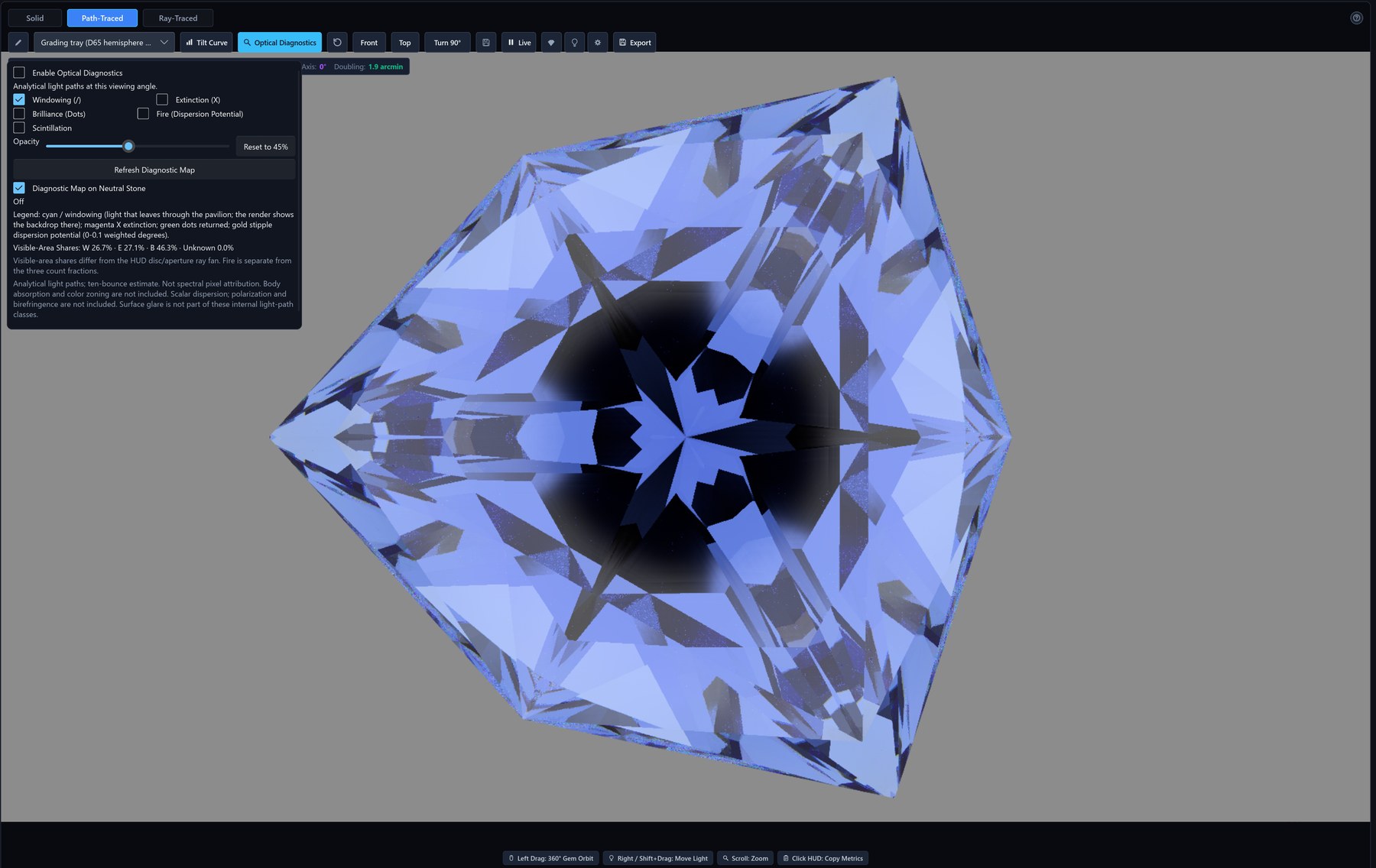
Live Render with the Optical Diagnostics panel open and the layer off
Fig. 17 — 46.008A FVS-102 in sapphire under the grading tray with the Optical Diagnostics panel open and the layer off: the layer boxes, the 45 % opacity, Refresh Diagnostic Map, Diagnostic Map on Neutral Stone, the legend and the visible-area shares (W 26.7 %, E 27.1 %, B 46.3 %).
Optical Diagnostics with Windowing on: cyan hatching over the render
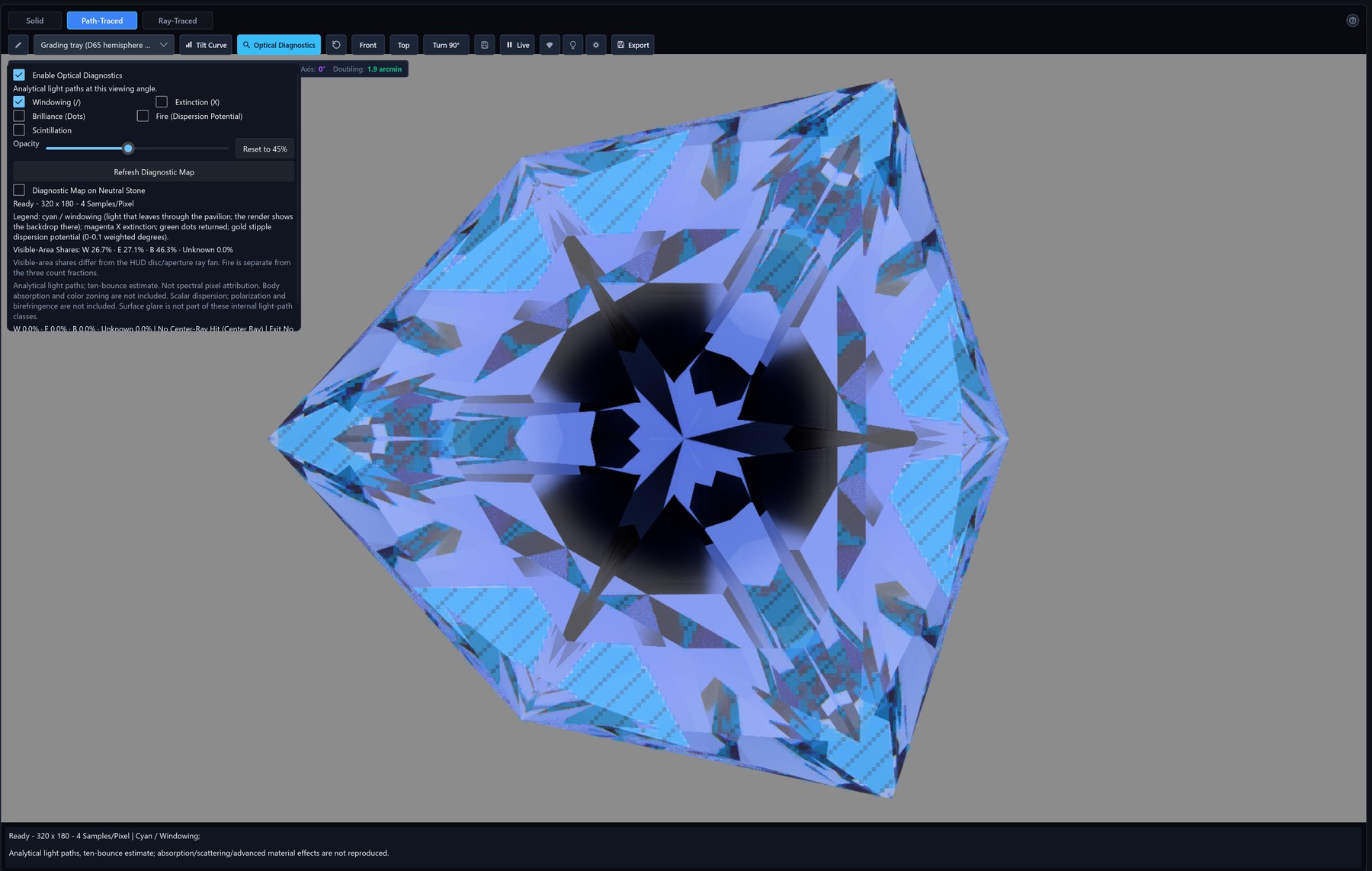
Fig. 18 — Windowing (/) on: cyan hatching over the render where light leaves through the pavilion and the backdrop shows through. The status line reads Ready · 320 × 180 · 4 samples per pixel.
Optical Diagnostics with Windowing and Extinction: cyan hatching and magenta crosses over the render
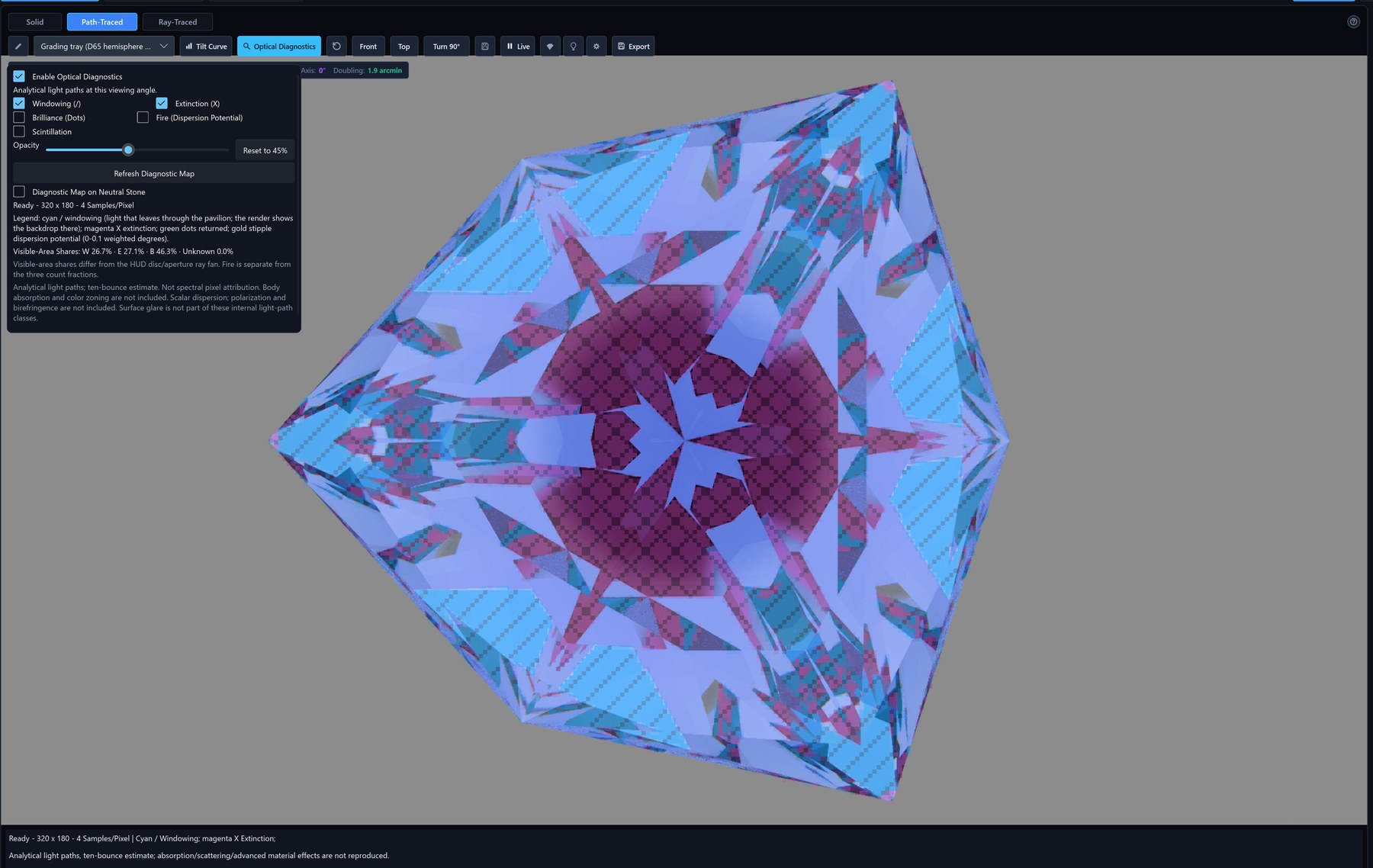
Fig. 19 — Windowing and Extinction (X) together: magenta crosses where light is trapped or lost, cyan hatching where it leaks; the render stays visible under the layer.
Windowing and Extinction on a neutral grey stone
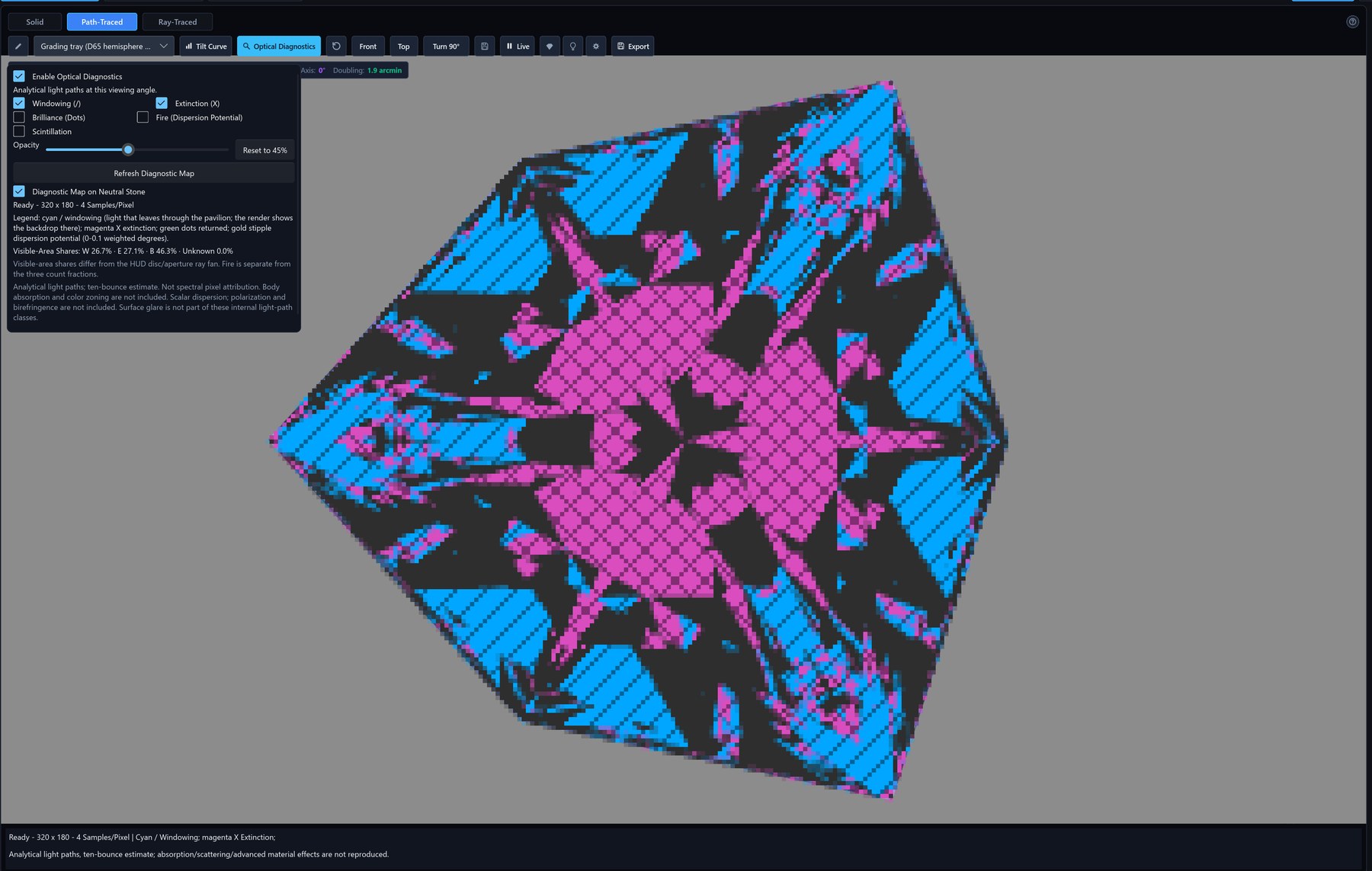
Fig. 20 — The same two layers with Diagnostic Map on Neutral Stone: the stone is drawn neutral grey, so only the chosen classes carry color.
Fire (Dispersion Potential) alone on the neutral stone, in gold
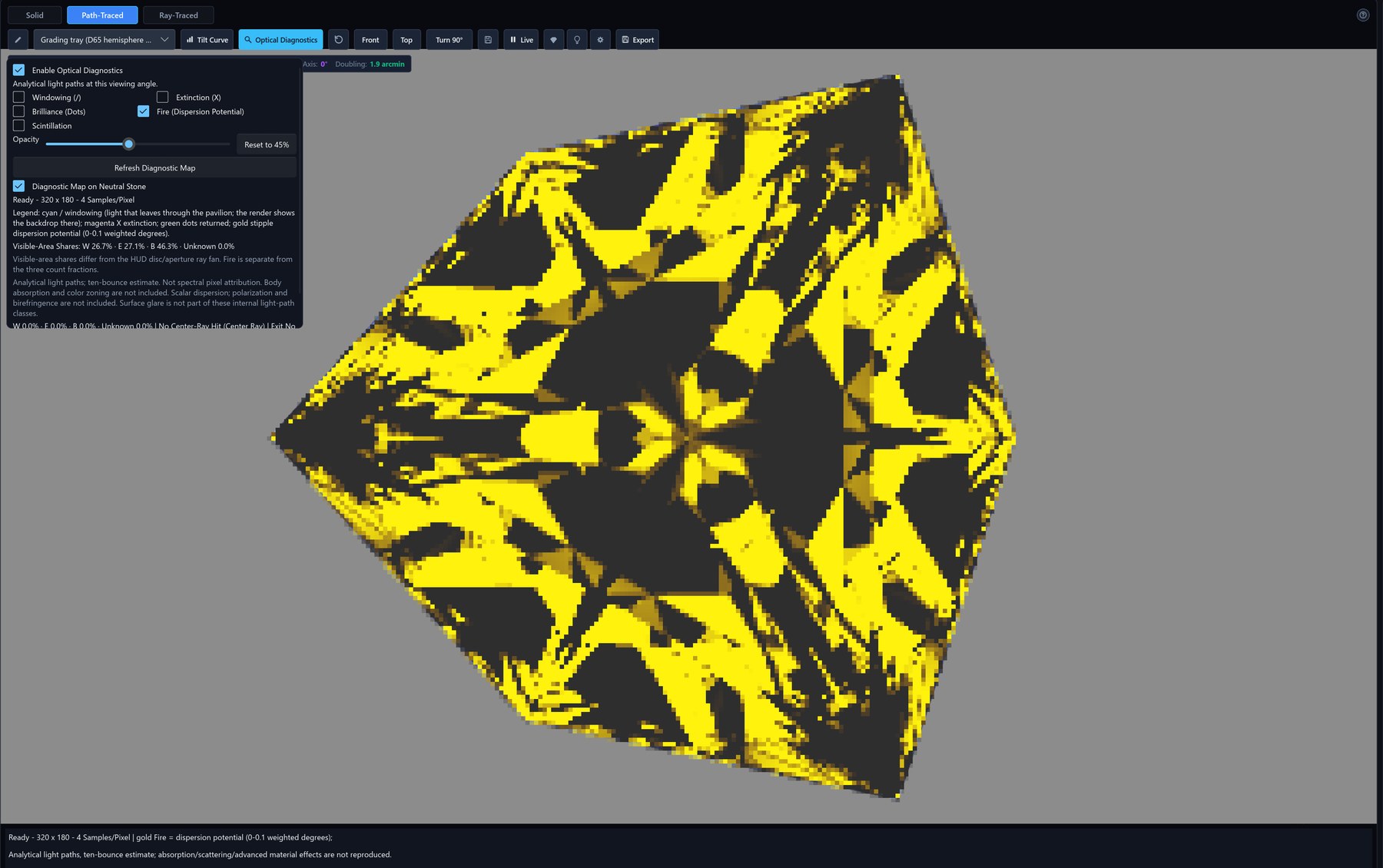
Fig. 21 — Fire (Dispersion Potential) alone on the neutral stone: gold where the dispersion potential is high, on the 0–0.1 weighted-degree scale of the legend.
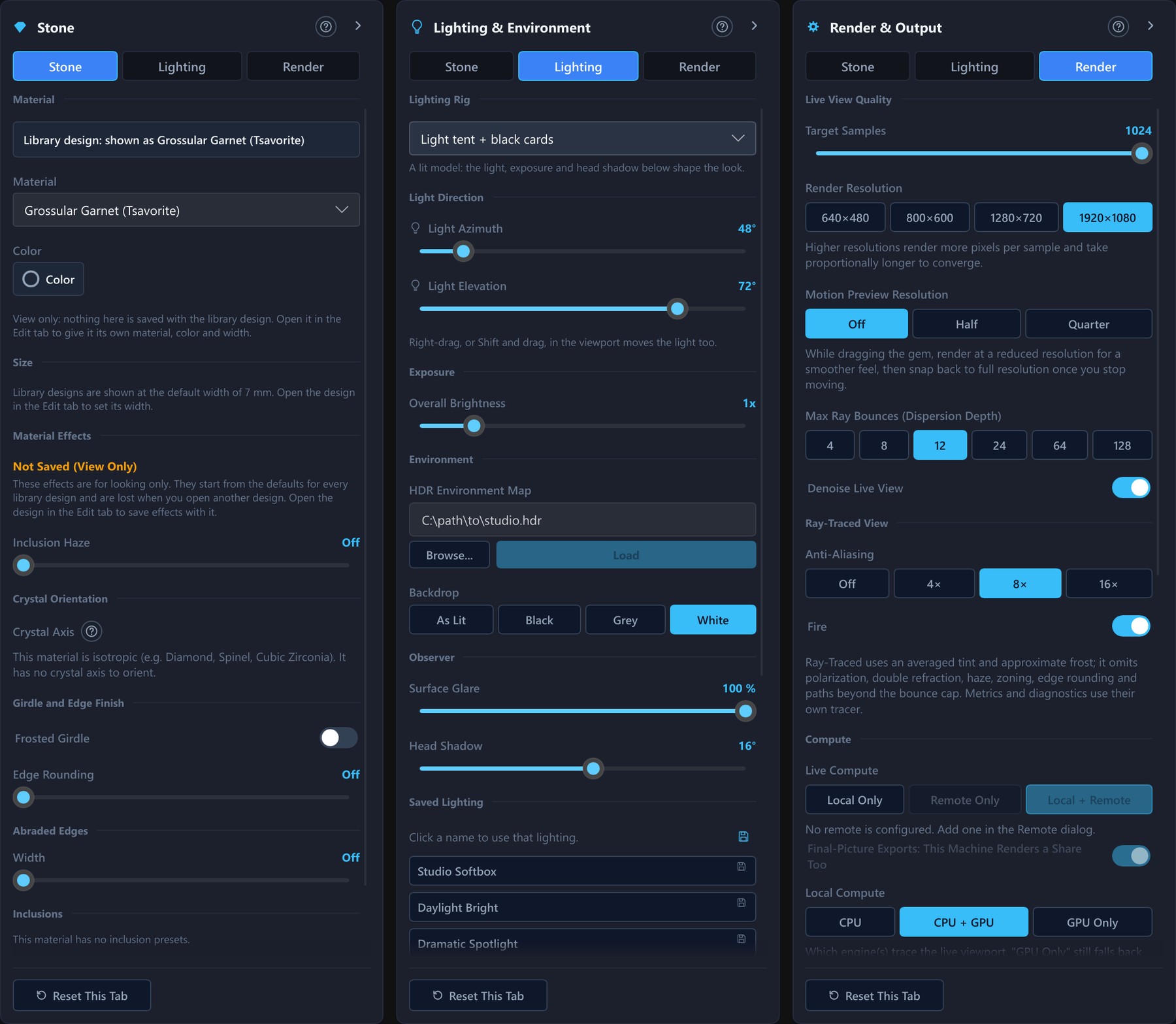
The Stone, Lighting and Render and Output settings panels side by side, with the four Backdrop choices and the Ray-Traced View settings
Fig. 22 — Render and optics settings: the Stone, Lighting and Render & Output panels side by side. The Stone panel shows a library design's material and view-only effects; the Lighting panel has the lighting rig, light direction, exposure, HDR map, a four-way Backdrop choice (As Lit, Black, Grey, White), surface glare, head shadow and saved lighting; the Render panel has live quality, resolution, motion preview, bounces, denoise, the Ray-Traced View settings (Anti-Aliasing and Fire), live compute and output defaults.
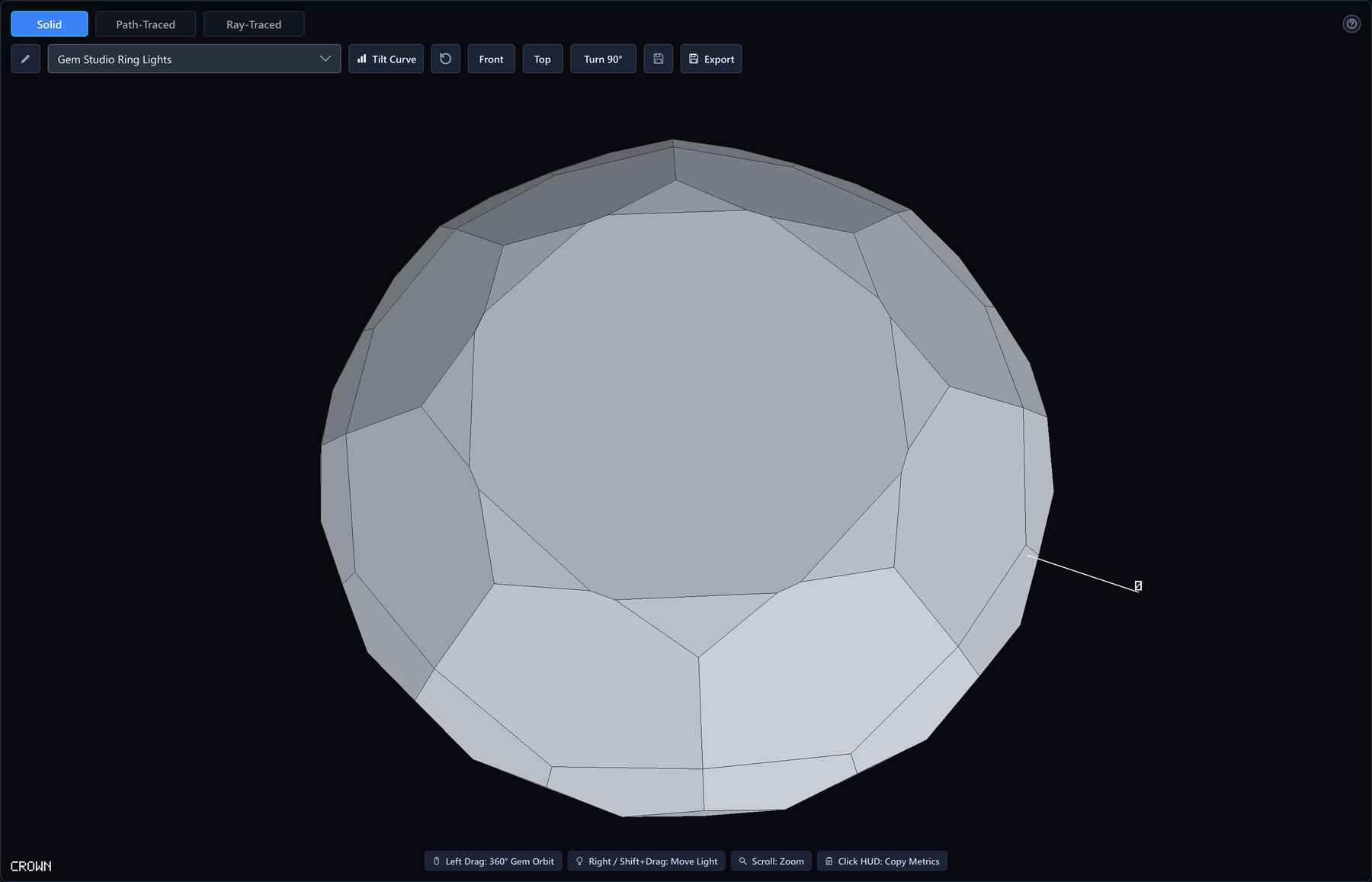
Solid shading in the Live Render panel, with the Solid, Path-Traced and Ray-Traced switch
Fig. 23 — Solid shading in the Live Render panel: the stone drawn flat and untextured, here seen from above and zoomed in, beside the Solid, Path-Traced and Ray-Traced switch. In the Edit tab, click a facet to jump to its row in the schedule.
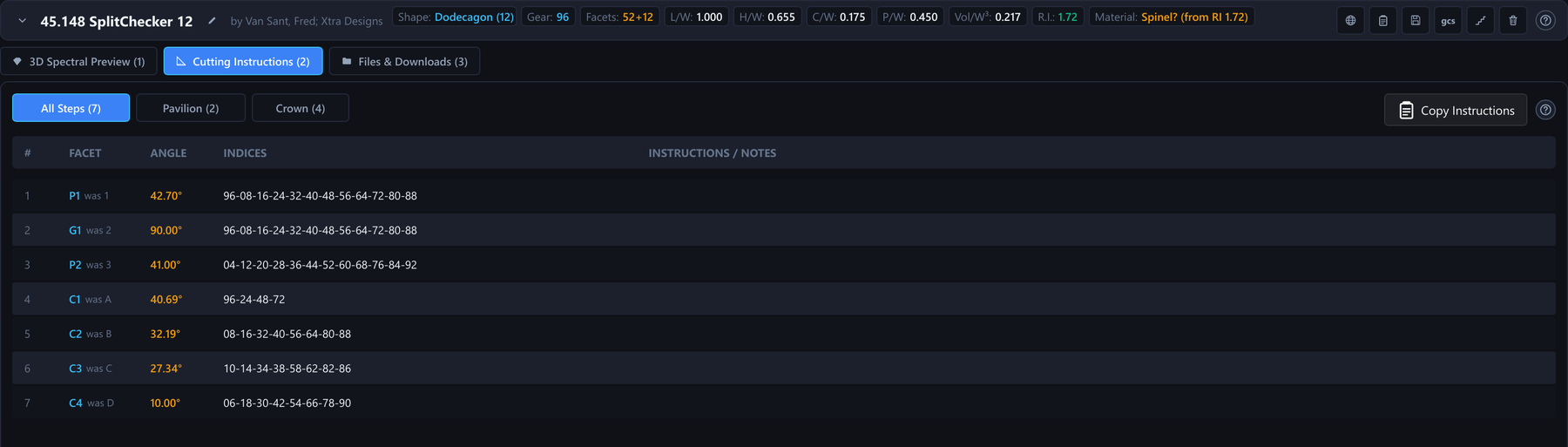
Cutting instructions table
Fig. 24 — The cutting instructions: one row per step with facet, angle and index-gear positions, split into All Steps, Pavilion and Crown.
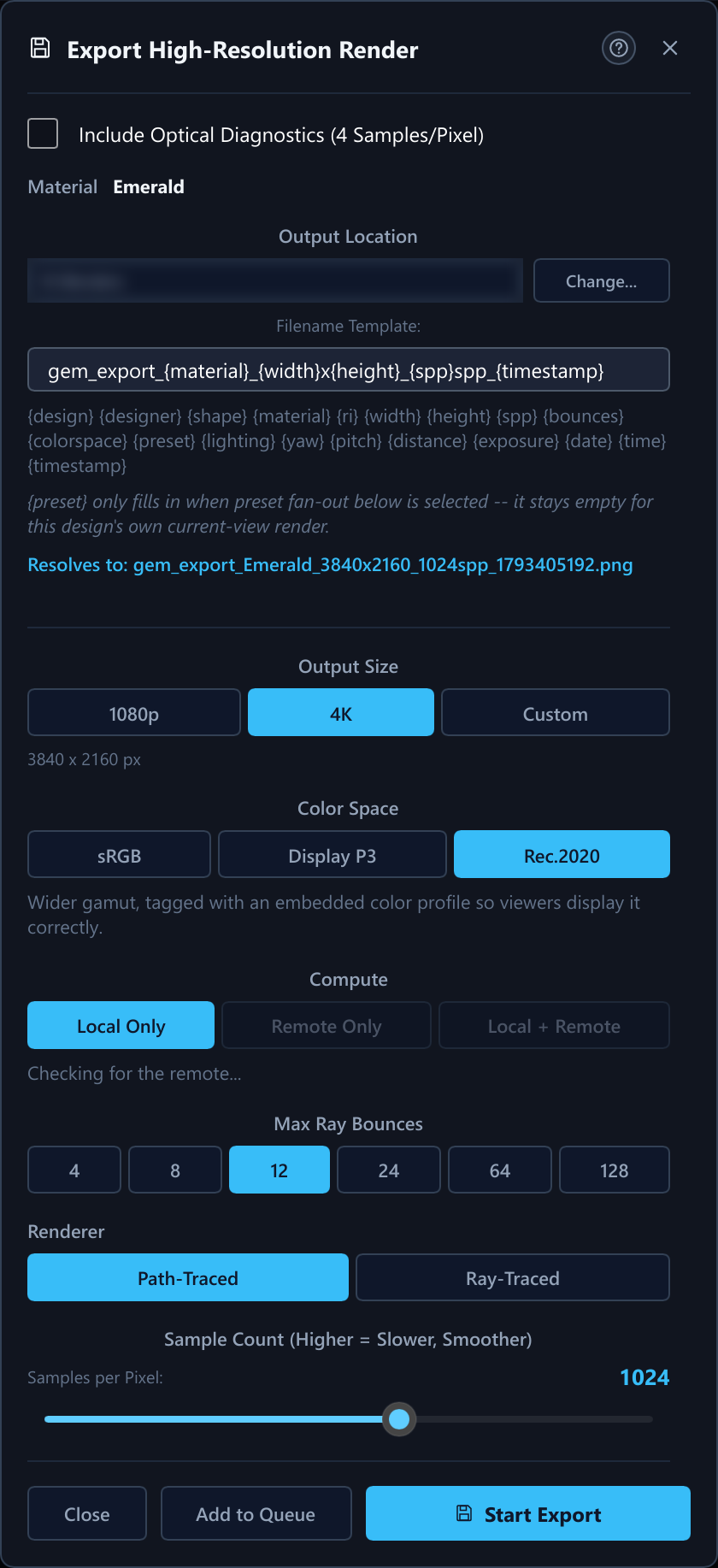
Export High-Resolution Render dialog before an export, with the Renderer row
Fig. 25 — Export High-Resolution Render before an export: output folder and file name template, 4K, Rec.2020, Local Only (the remote choices are dimmed while the app checks for the remote), 12 bounces, the Renderer row (Path-Traced or Ray-Traced) and 1024 samples per pixel, with Add to Queue and Start Export.
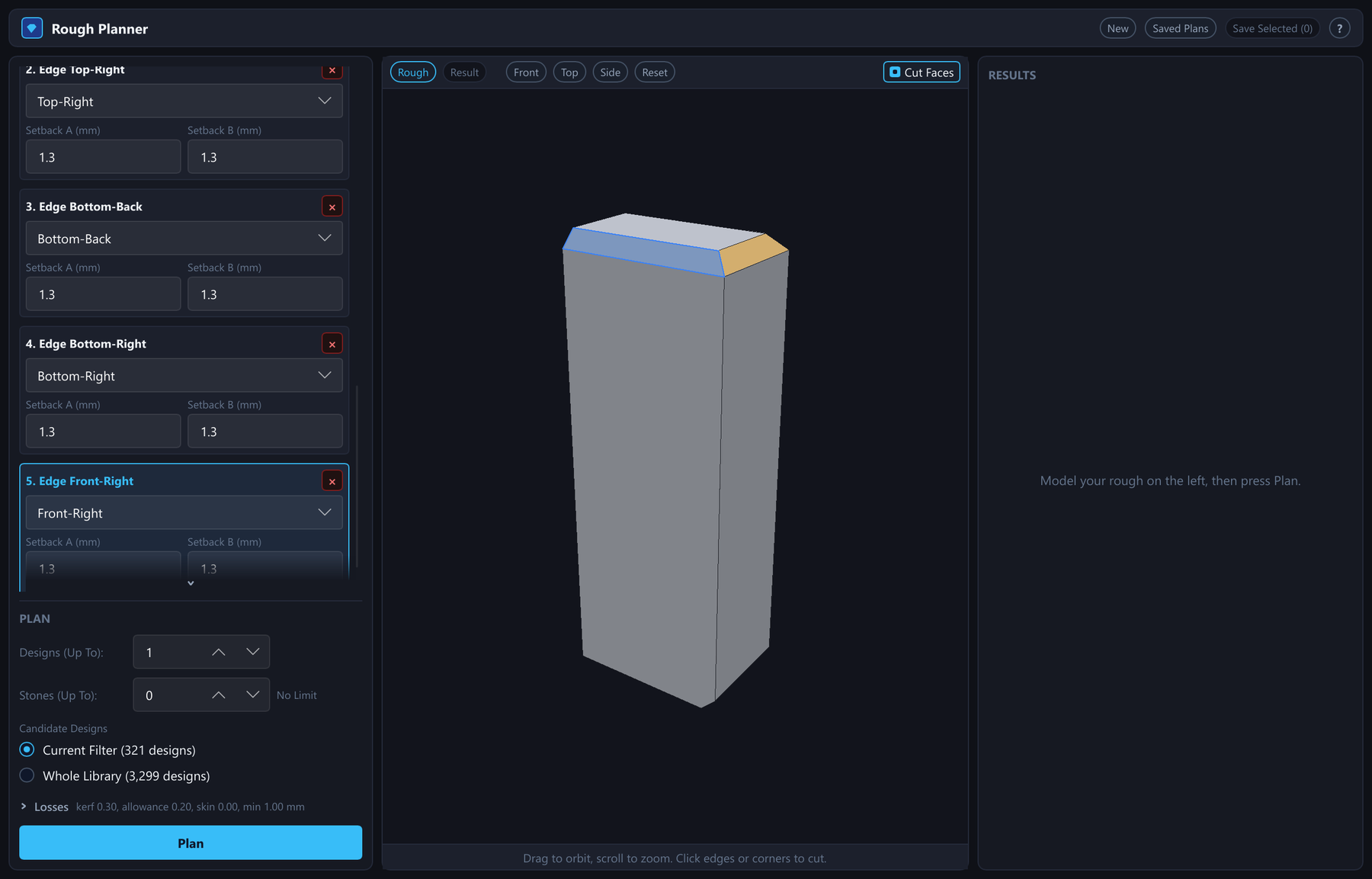
Rough Planner window before planning: the list of edge cuts, the bare rough in the 3D view and the plan controls
Fig. 26 — The Rough Planner before planning: the list of edge cuts, the 3D view showing only the bare rough and the Results column still empty, and the Plan controls below, set to try the 321 designs of the current library filter (Rough planner).
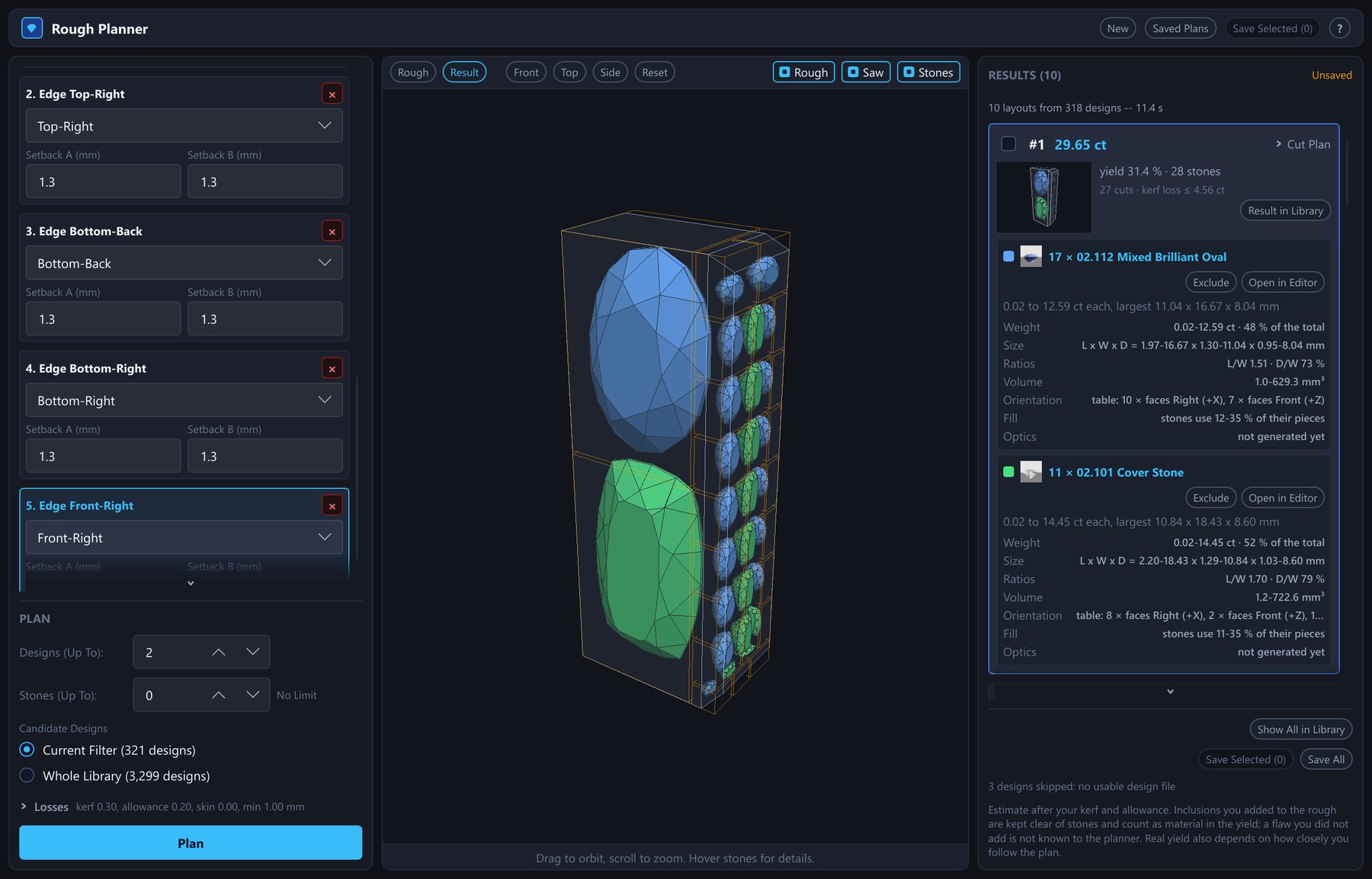
Rough Planner result: 28 stones of two oval designs drawn inside the rough and the result card
Fig. 27 — A result with the library filtered to ovals: 10 layouts from 318 designs in 11.4 s; the selected layout, with at most two designs, 29.65 ct at 31.4 % yield, cuts 28 ovals of two designs drawn in their saw pieces, with each design's weight, size, ratios, volume, orientation, fill and optics in the card (Rough planner).
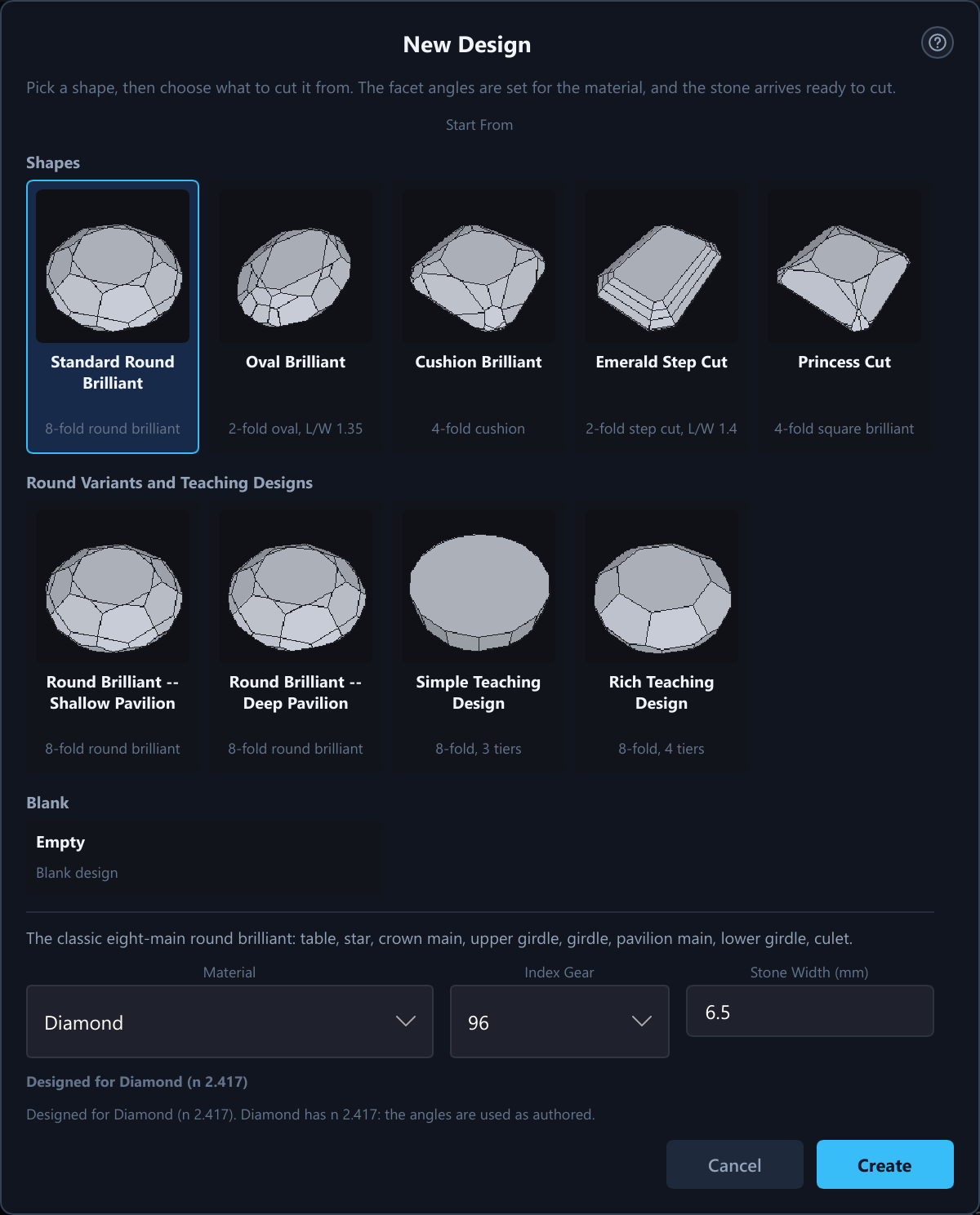
The New Design dialog
Fig. 28 — The New Design dialog: a gallery of shapes, round variants and teaching designs and a blank design, with the material, index gear and stone width (CAD).
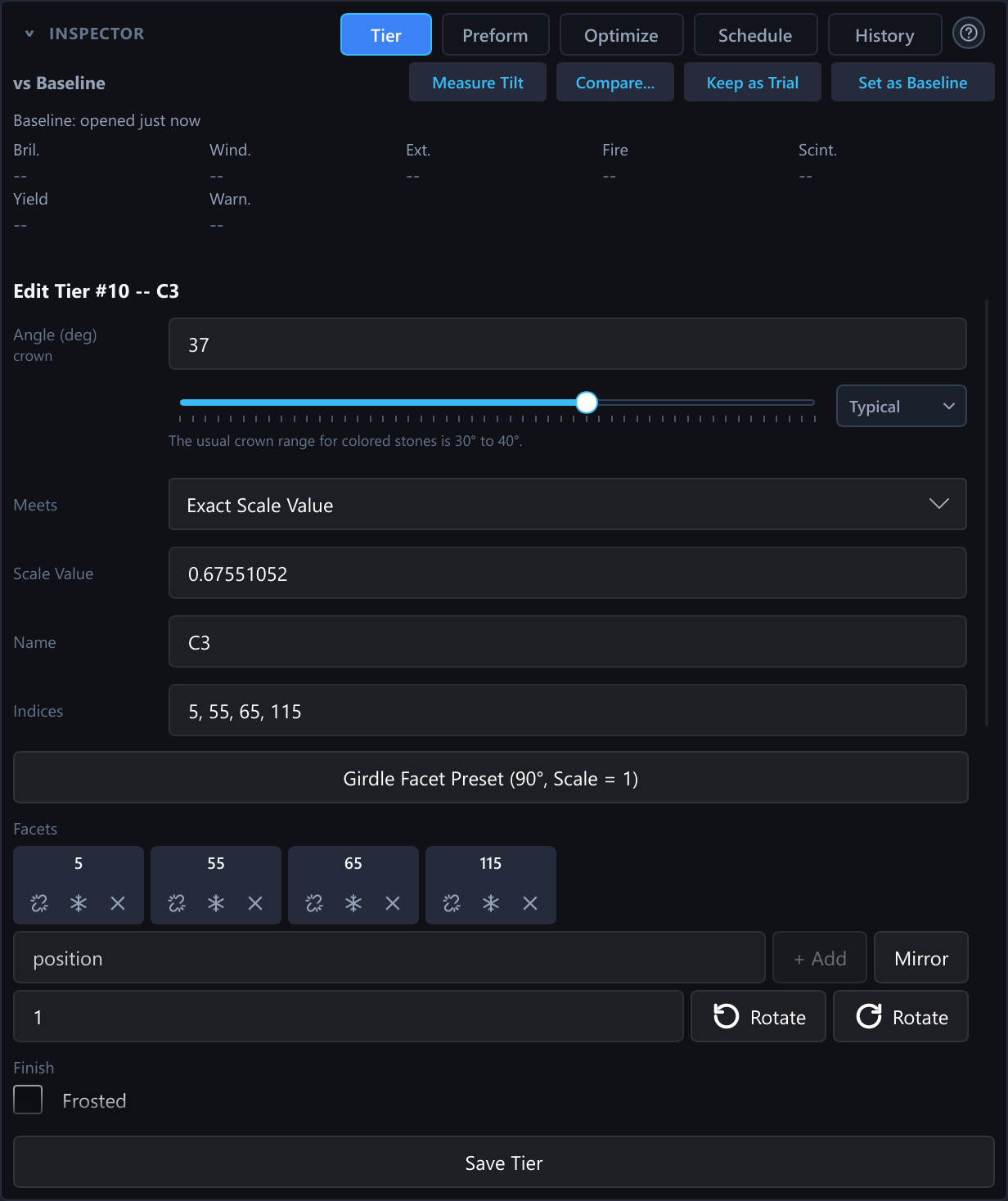
The Tier tab of the inspector editing tier C3
Fig. 29 — The Tier tab of the inspector editing tier C3: angle with slider and Typical menu, Meets, name, indices and facet chips (CAD).
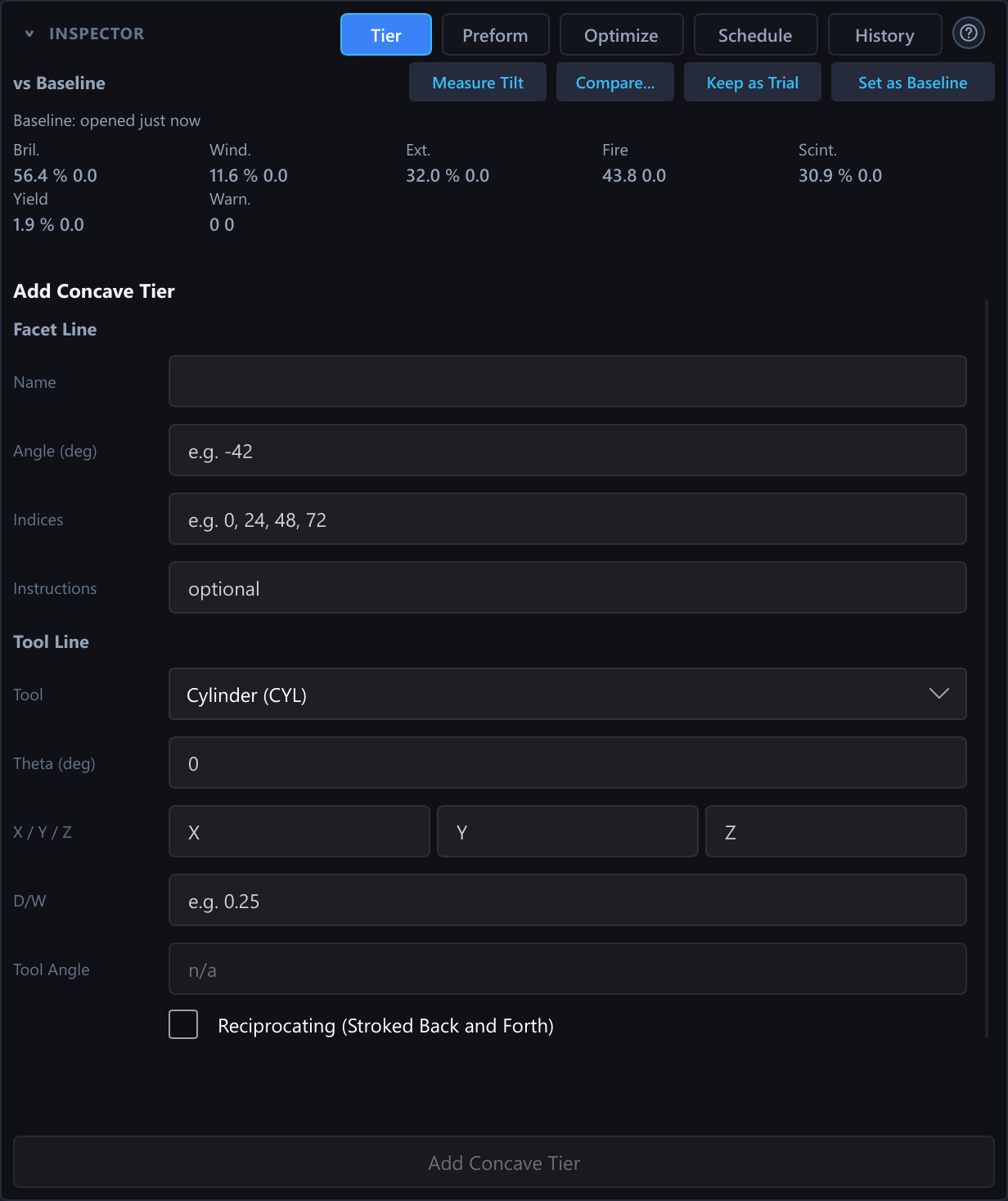
The Tier tab in Add Concave Tier mode
Fig. 30 — Add Concave Tier: the facet on one line and the tool (cylinder here) with its placement on the other (CAD).
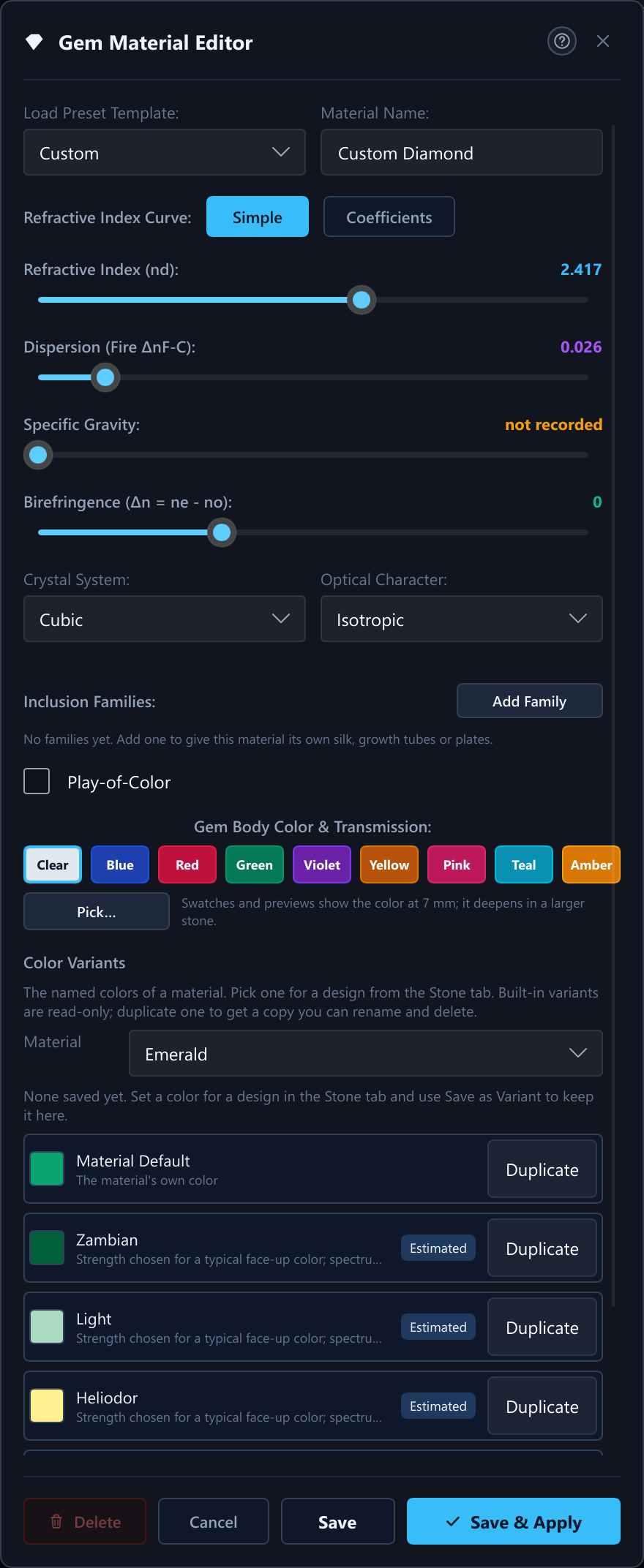
The Gem Material Editor
Fig. 31 — The Gem Material Editor in Simple mode: refractive index, dispersion, specific gravity, birefringence, inclusion families, play of color, body color swatches and color variants.
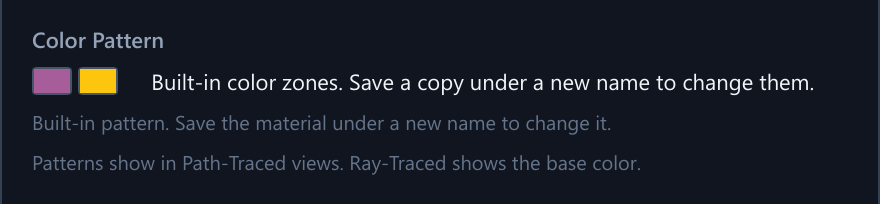
The Color Pattern section of the Material Editor for Ametrine
Fig. 32 — The Color Pattern section of the Material Editor for a color-zoned material such as Ametrine: two swatches and the note that built-in color zones are changed by saving a copy under a new name.
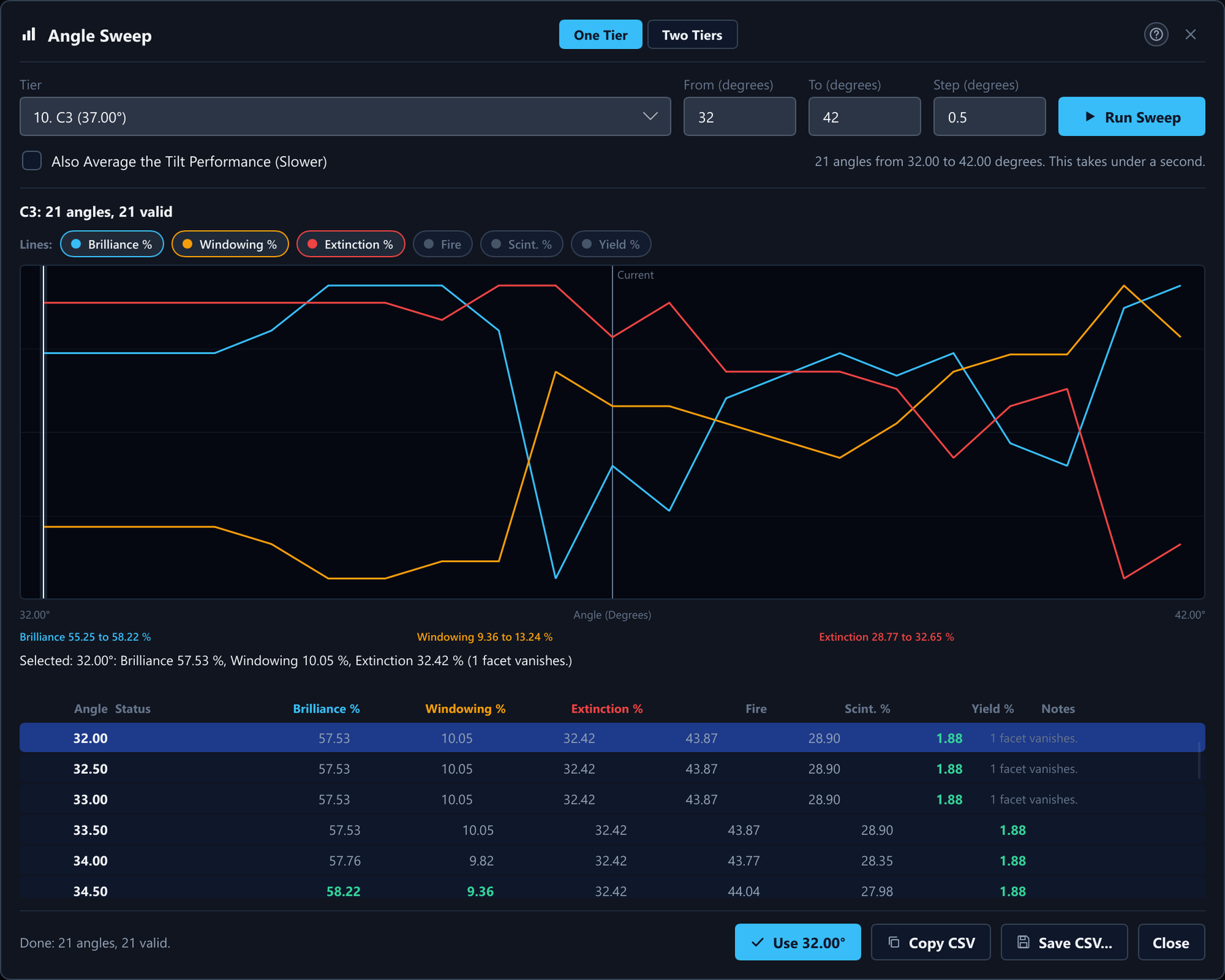
The Angle Sweep dialog
Fig. 33 — Angle Sweep (One Tier or Two Tiers) for tier C3, 32° to 42°: brilliance, windowing and extinction against the angle, with the table and Use this angle (CAD).
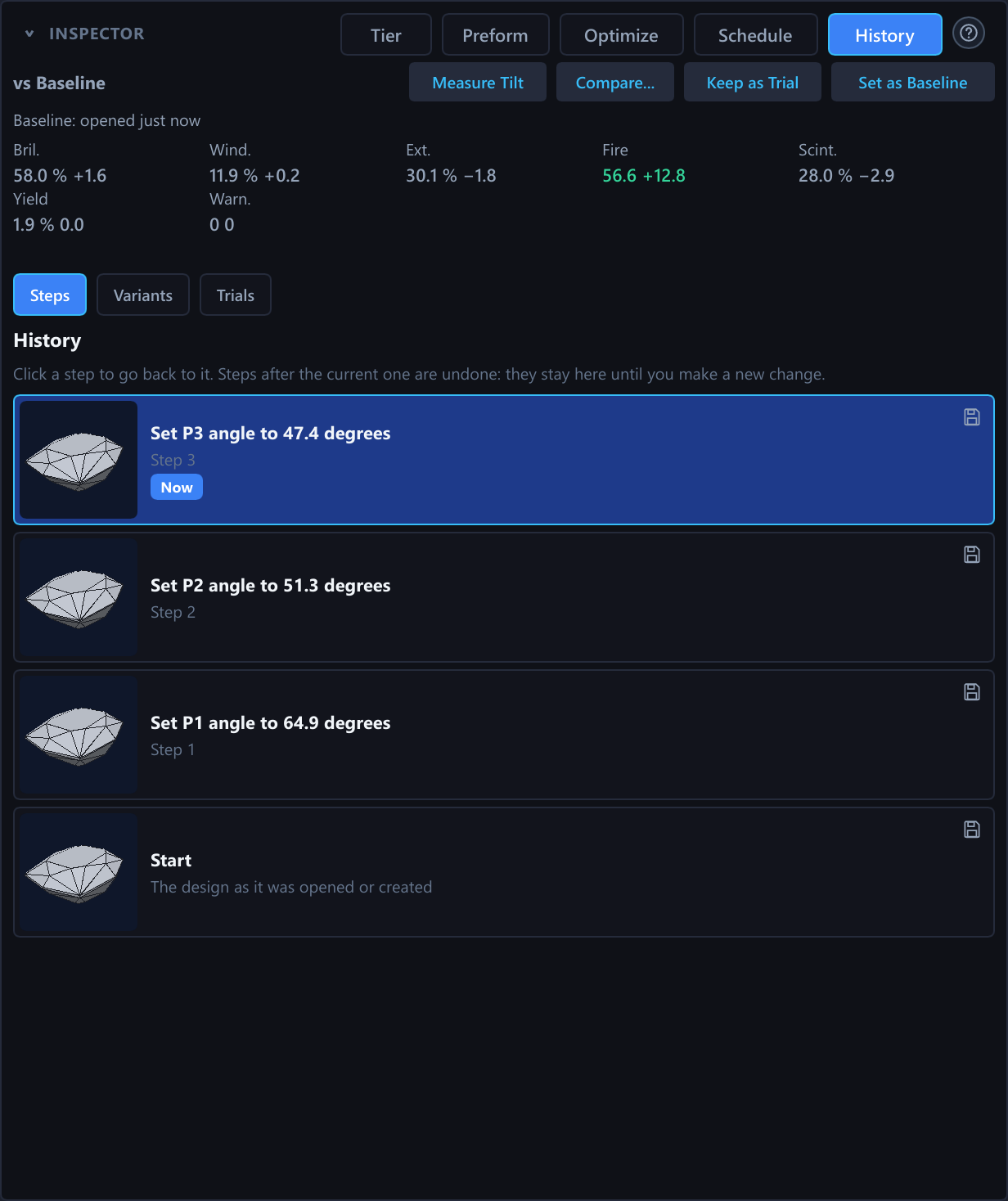
The History tab, Steps view
Fig. 34 — History, Steps view: every change to the open design, with the current step marked Now (CAD).
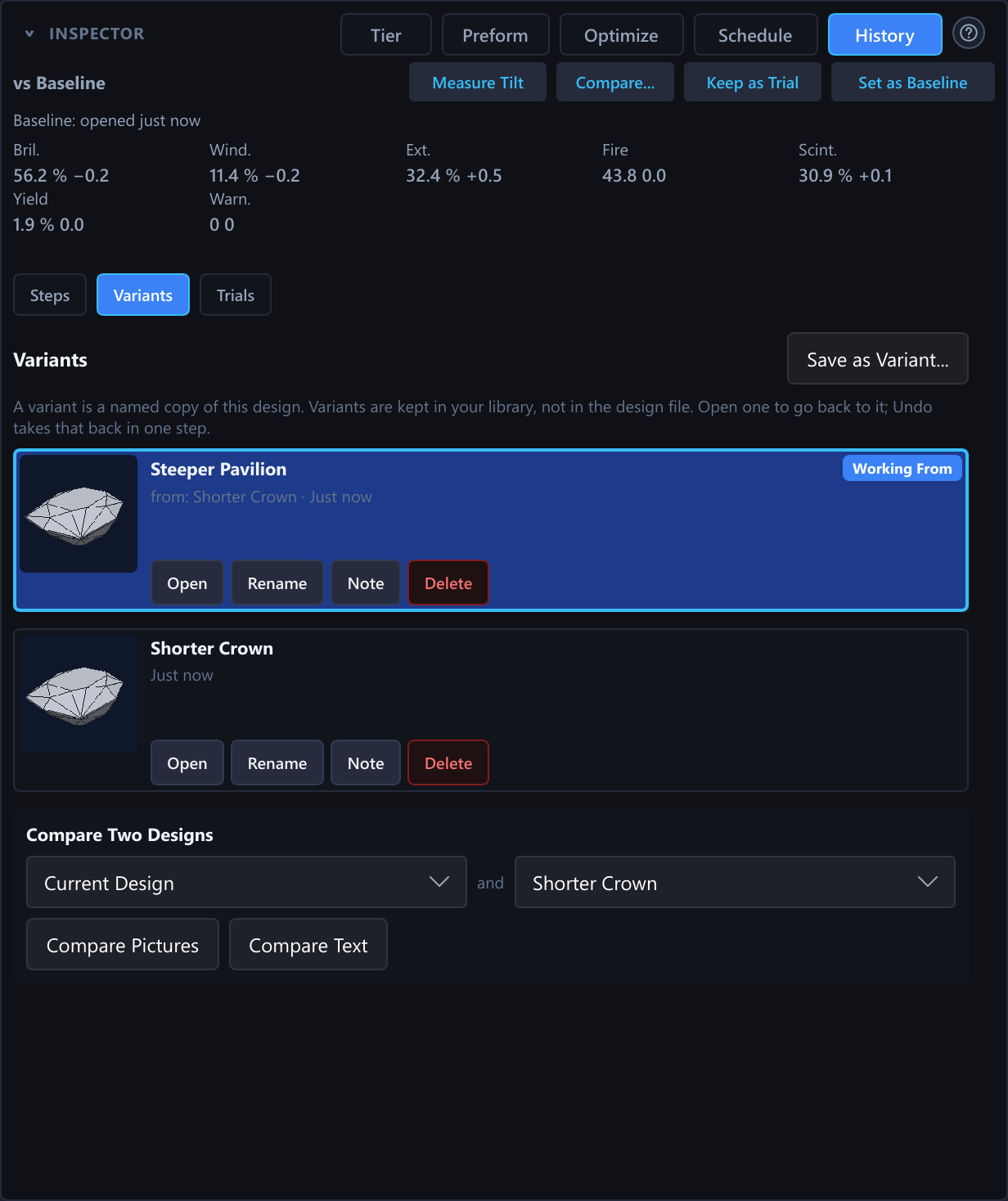
The History tab, Variants view
Fig. 35 — History, Variants view: named copies of the design, the Working From mark and the Compare Two Designs box (CAD).
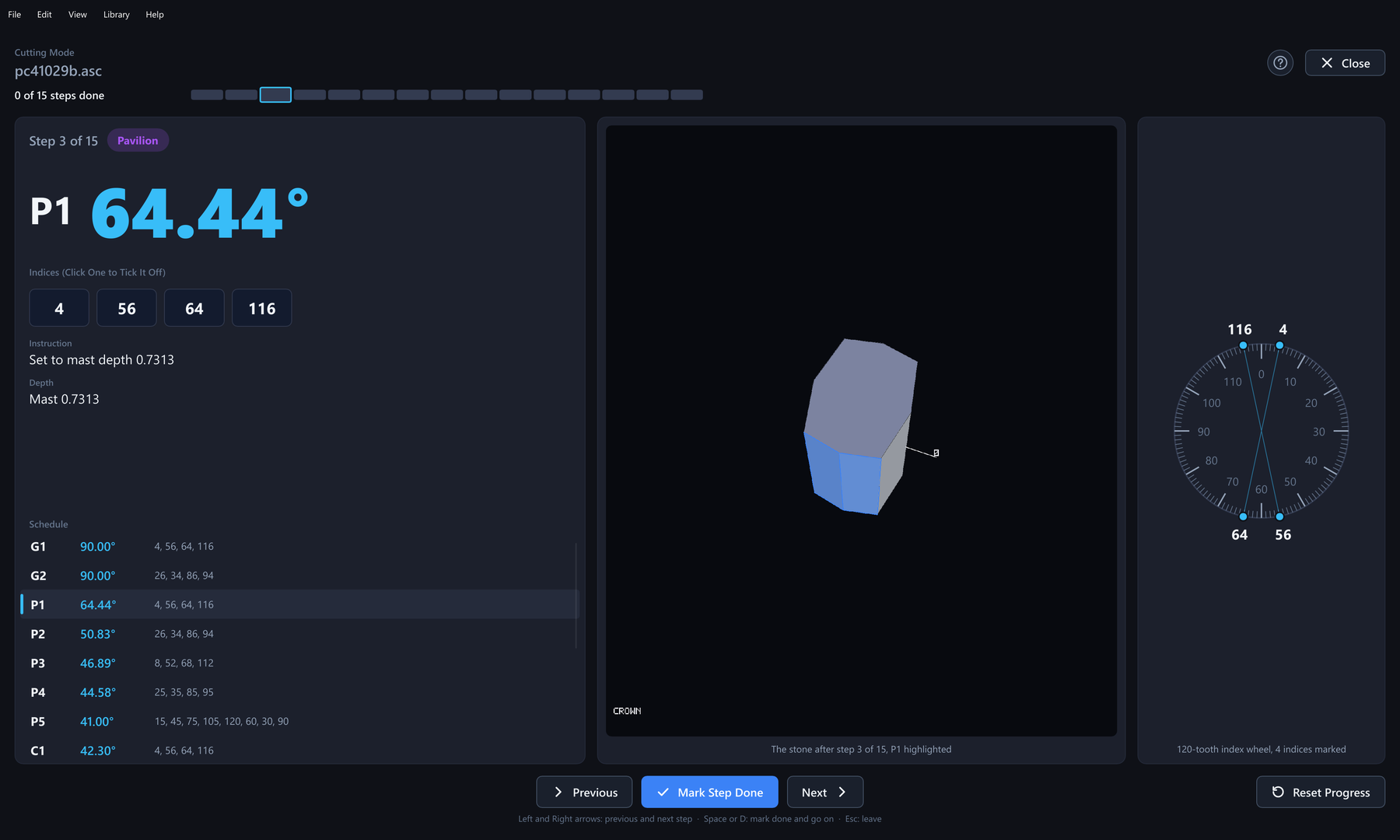
Cutting mode
Fig. 36 — Cutting mode, step 3 of 15 on 41.029B FVS-65: the angle in large figures, the index chips, the stone after the step and the index wheel (CAD).
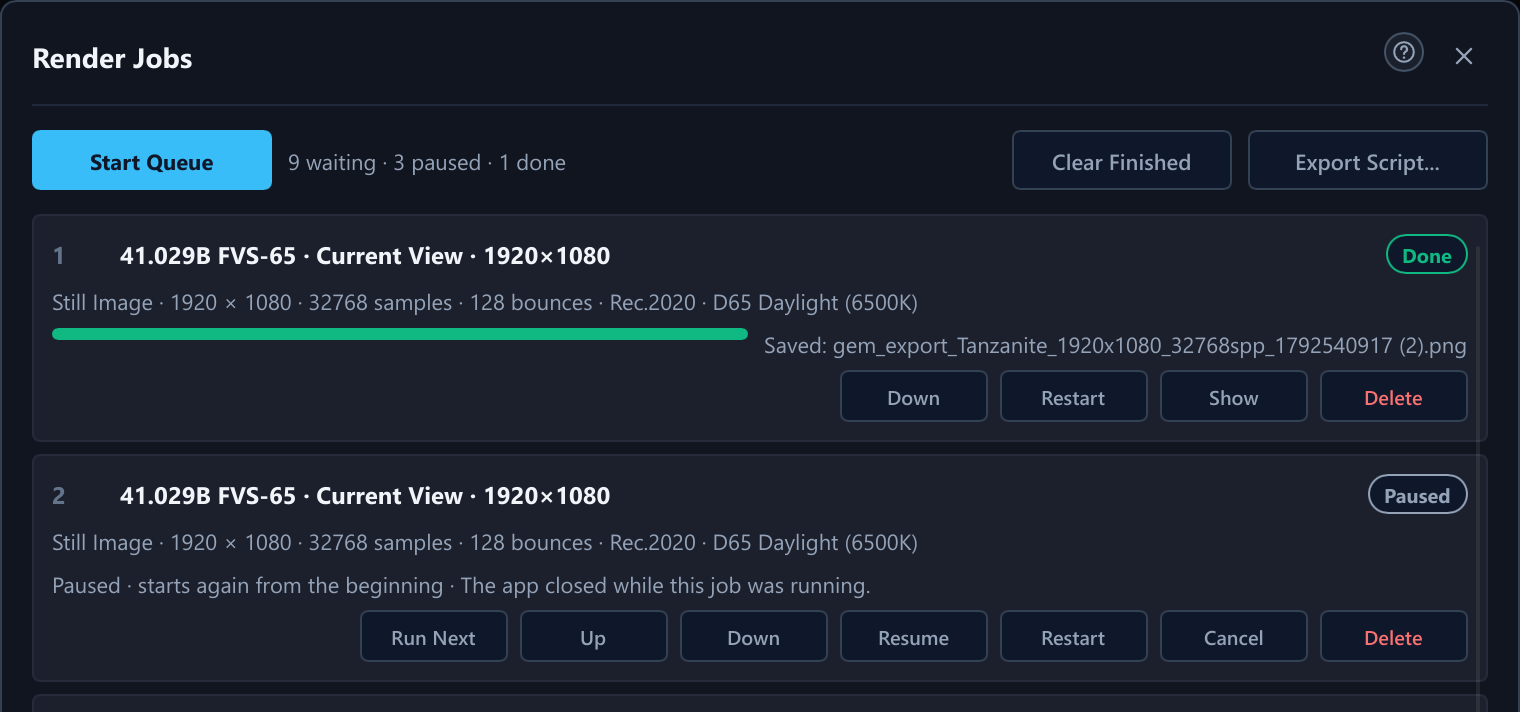
The Render Jobs window
Fig. 37 — The Render Jobs window with stills of 41.029B FVS-65: one Done, one Paused, among 9 waiting, 3 paused and 1 done.
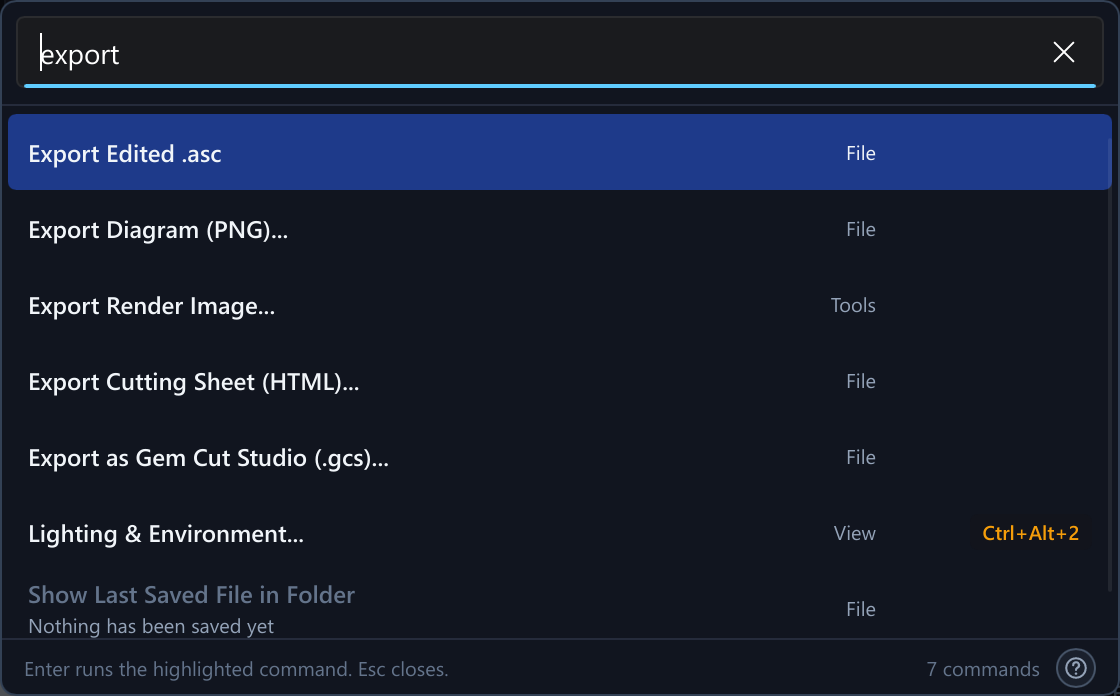
The command palette
Fig. 38 — The command palette with “export” typed, and a dimmed row with its reason.
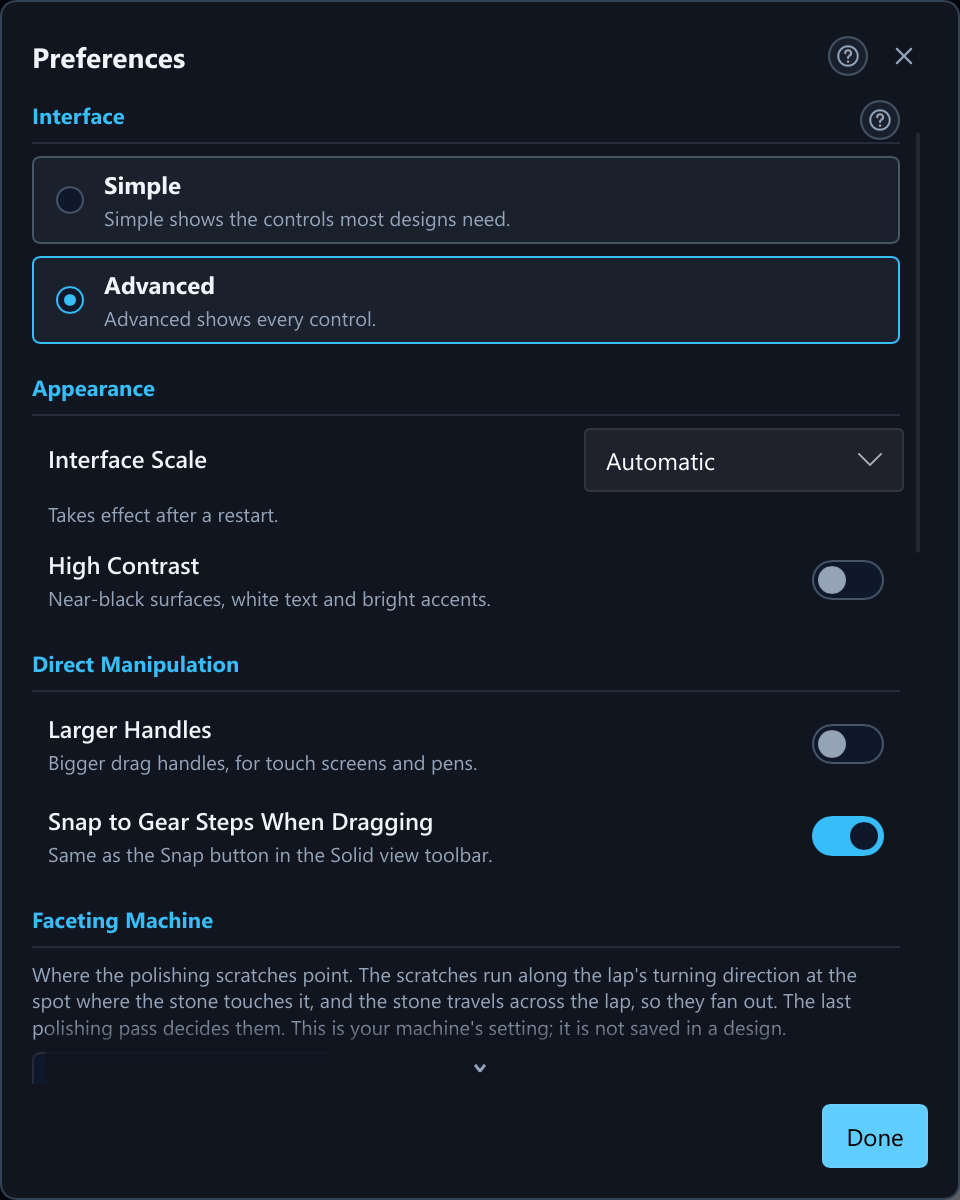
The Preferences dialog
Fig. 39 — The Preferences dialog: interface, appearance, direct manipulation and the Faceting Machine setting.
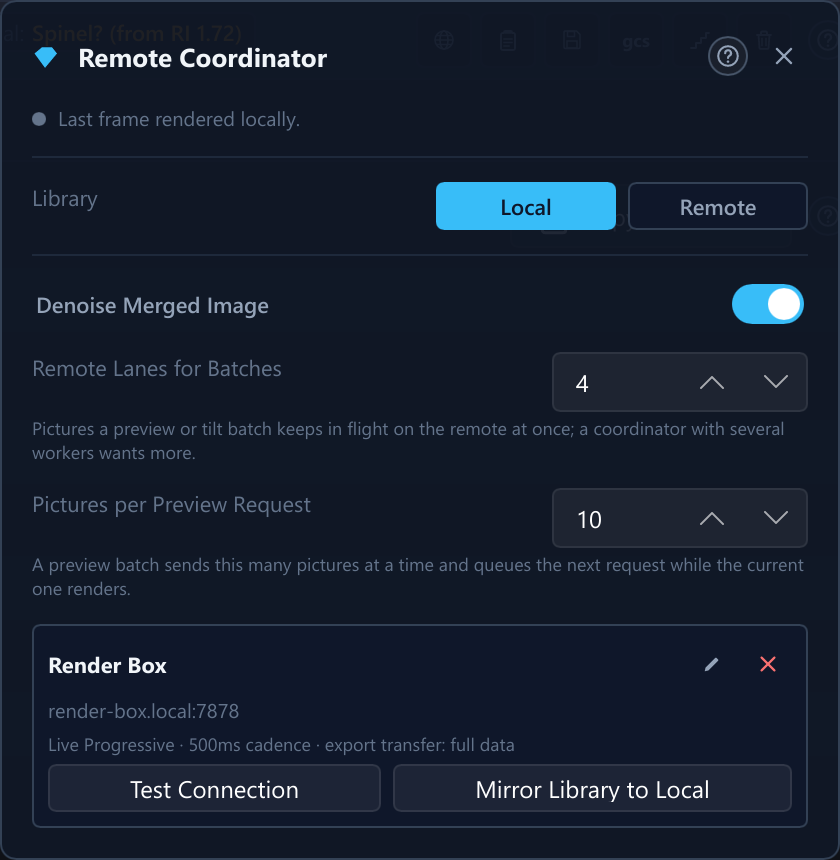
The Remote Coordinator dialog
Fig. 40 — The Remote Coordinator dialog with one saved remote (the host name is a placeholder).
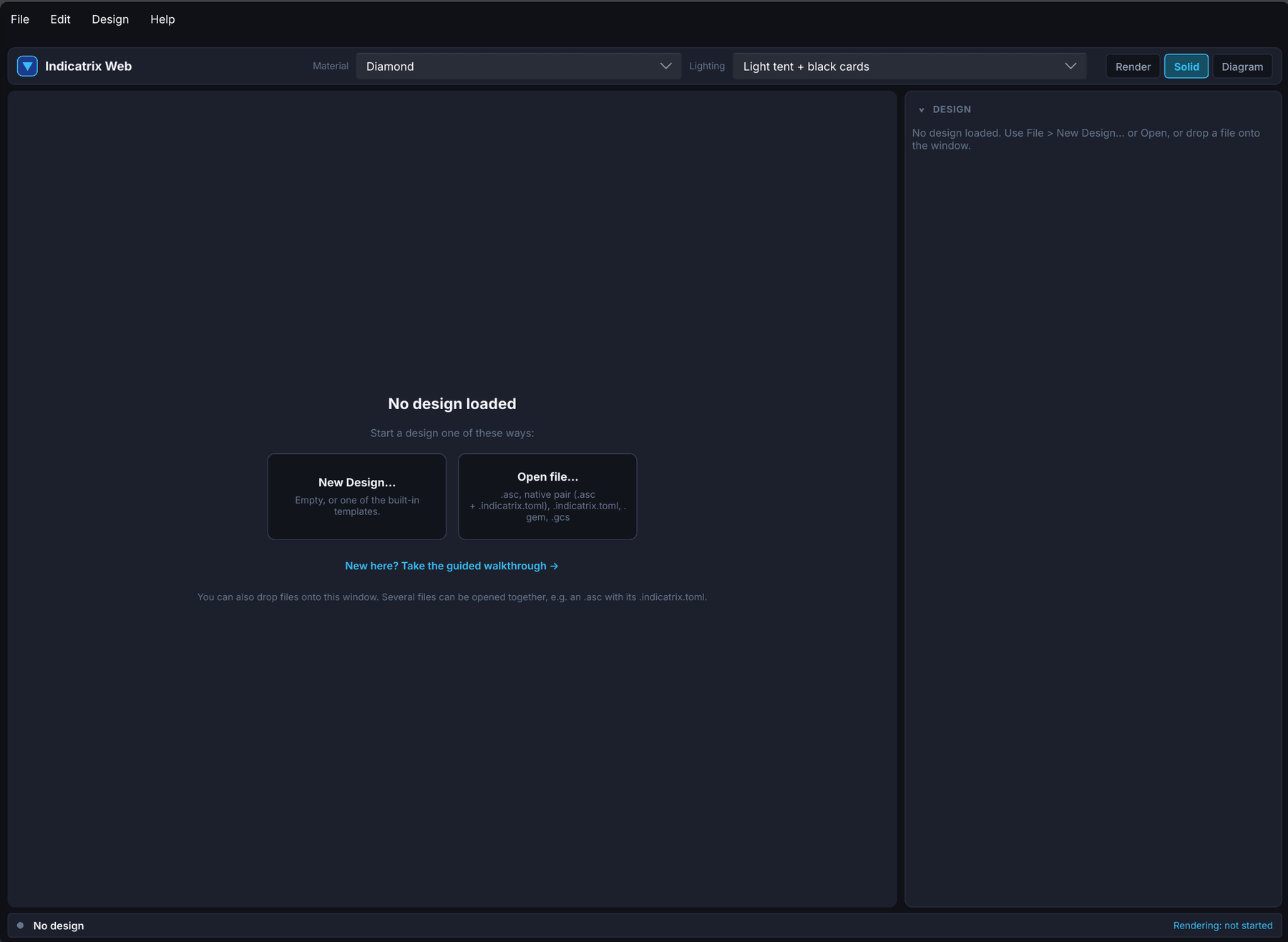
The web app's start screen in a desktop browser
Fig. 41 — The start screen in a desktop browser: material and lighting pickers, the Render, Solid and Diagram views, and the New Design and Open file cards (web app).
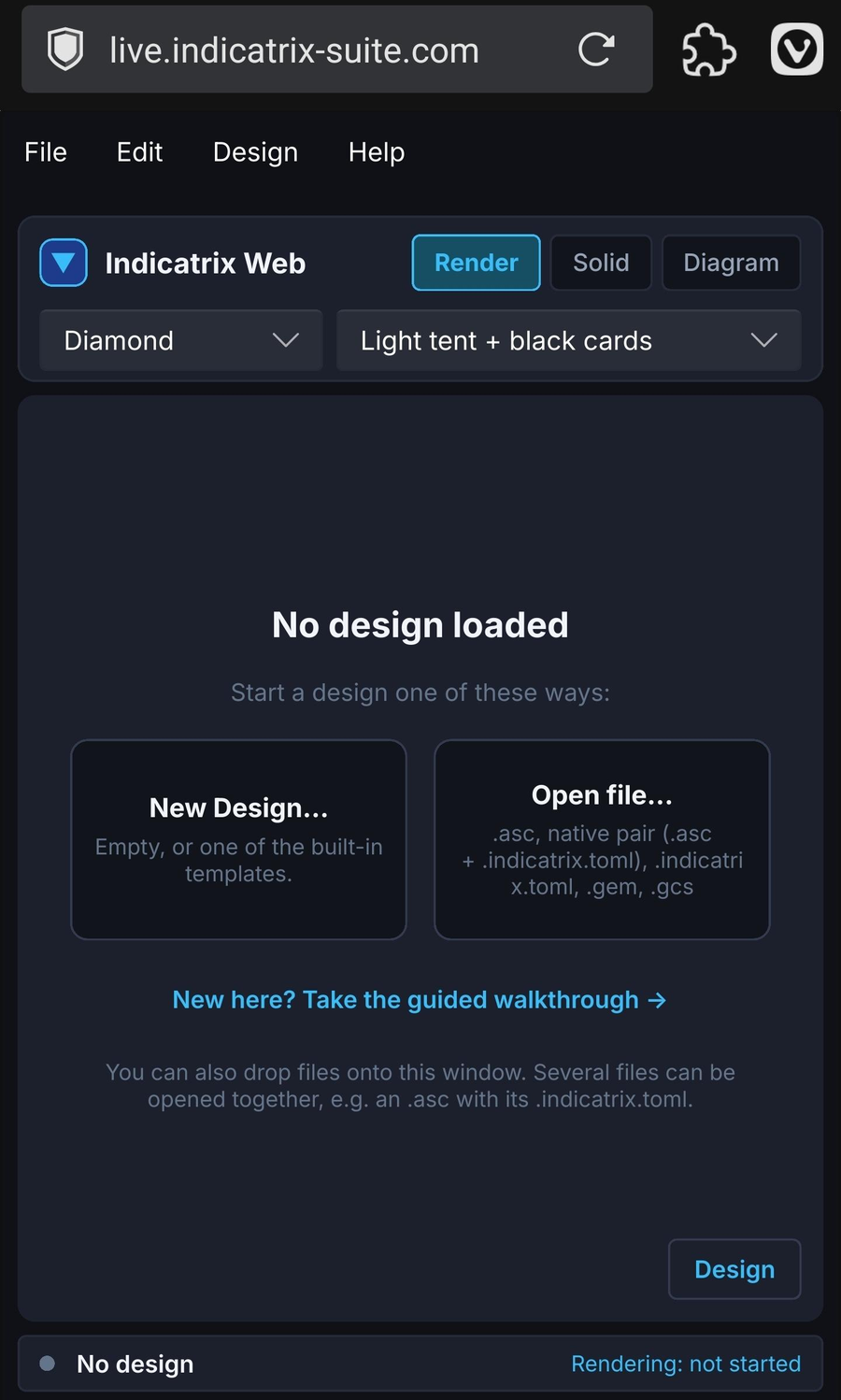
The web app's start screen on a phone
Fig. 42 — The same page on a phone at live.pleochroma.com; the toolbar wraps into two rows (web app).
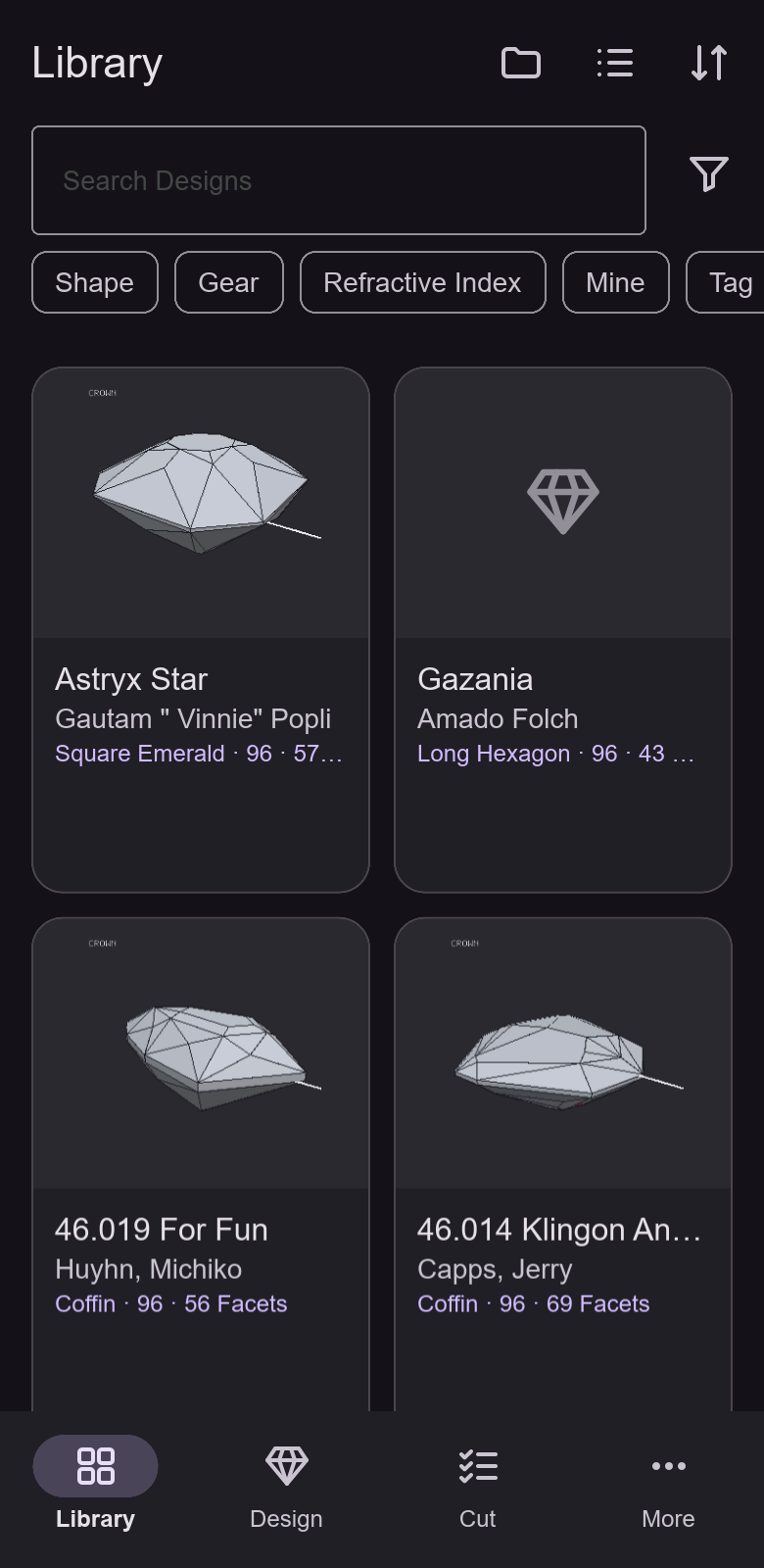
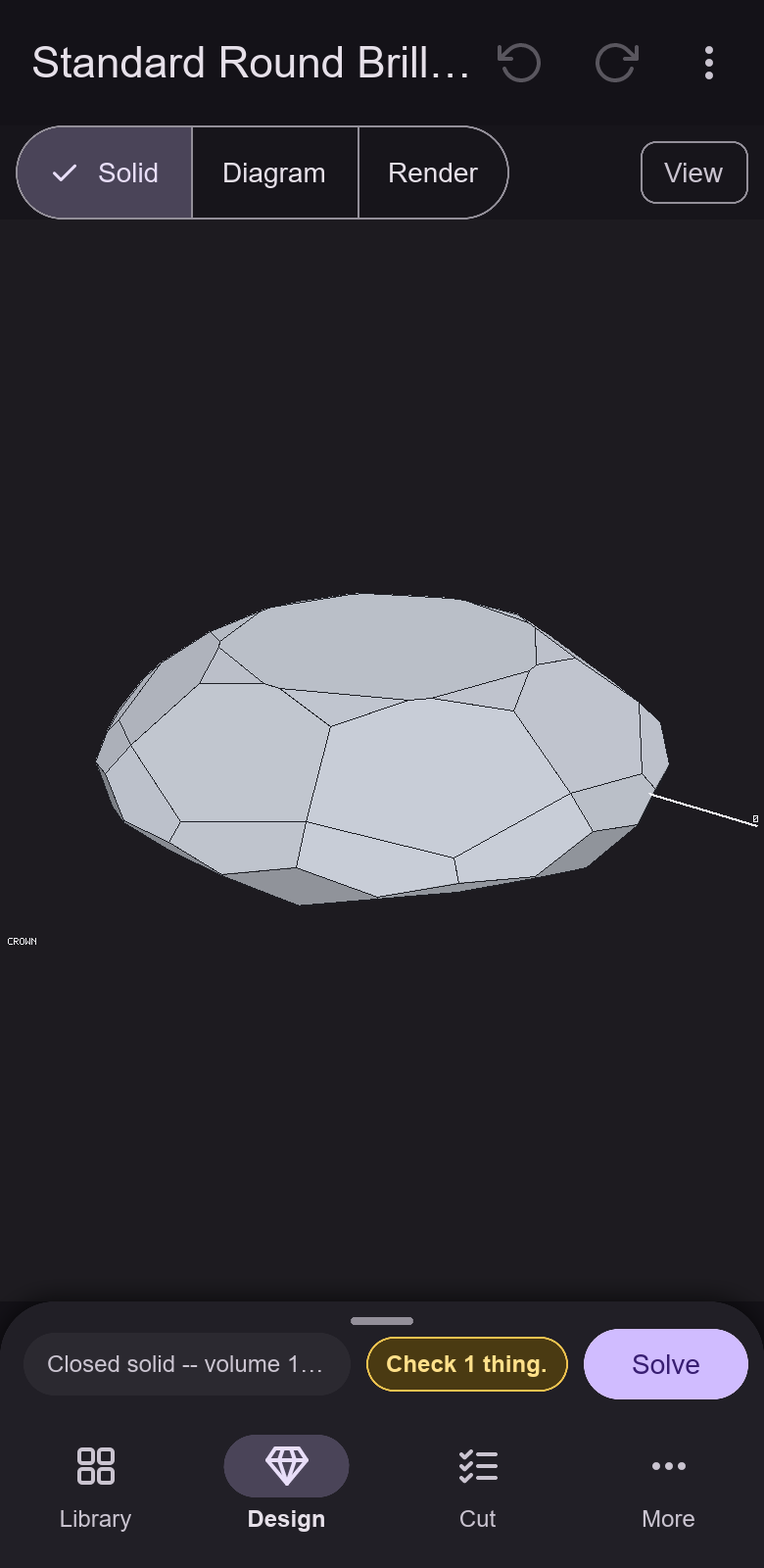
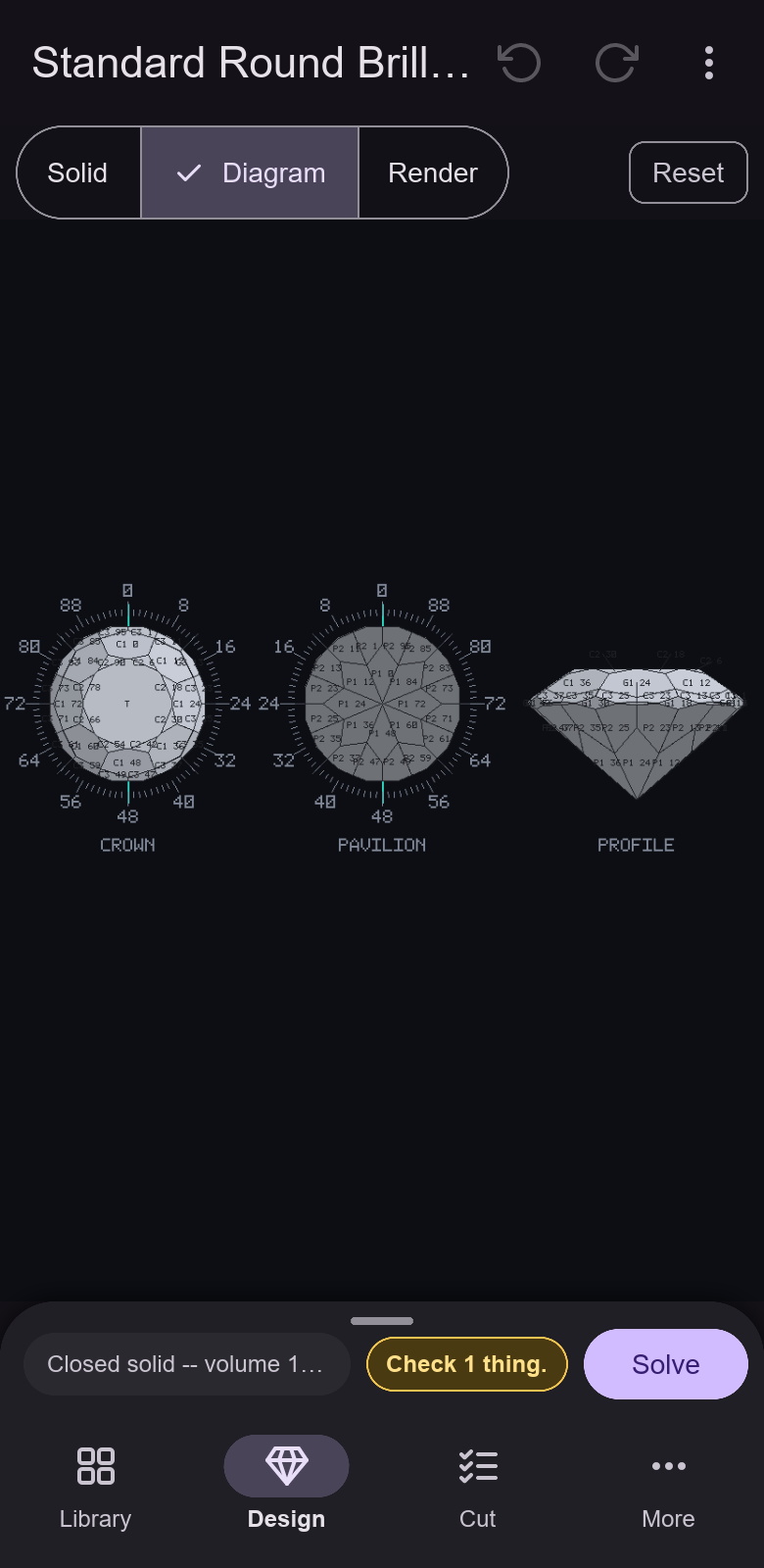
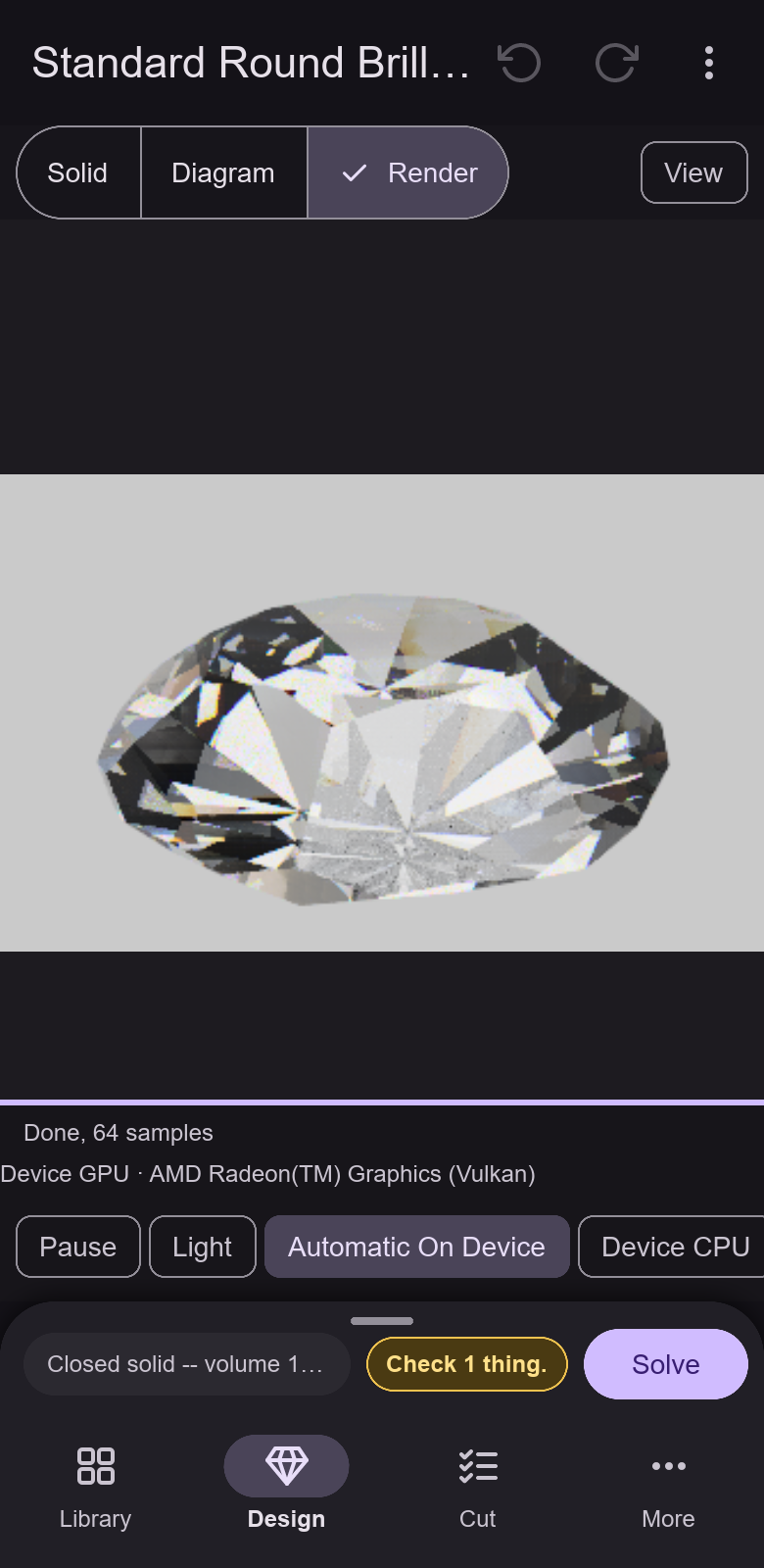
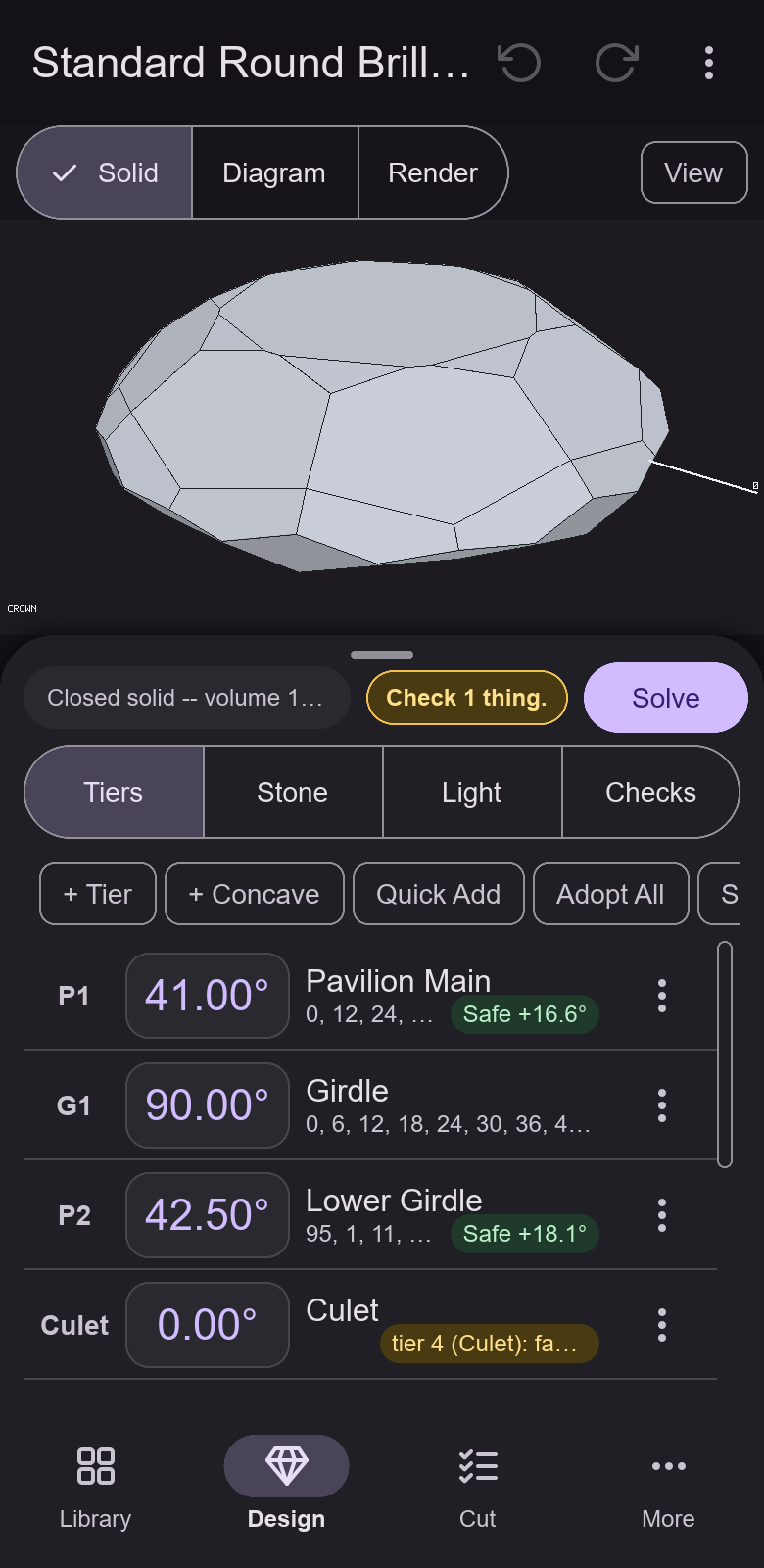
Mobile app: the Library page Mobile app: the Design page, Solid view Mobile app: the Design page, Diagram view Mobile app: the Design page, Render view Mobile app: the Tiers tab under the Solid view
Fig. 43 — The Android app on a phone, in reading order: the Library, the Design page in its Solid, Diagram and Render views, and the Tiers tab (mobile app, not in an app store yet).
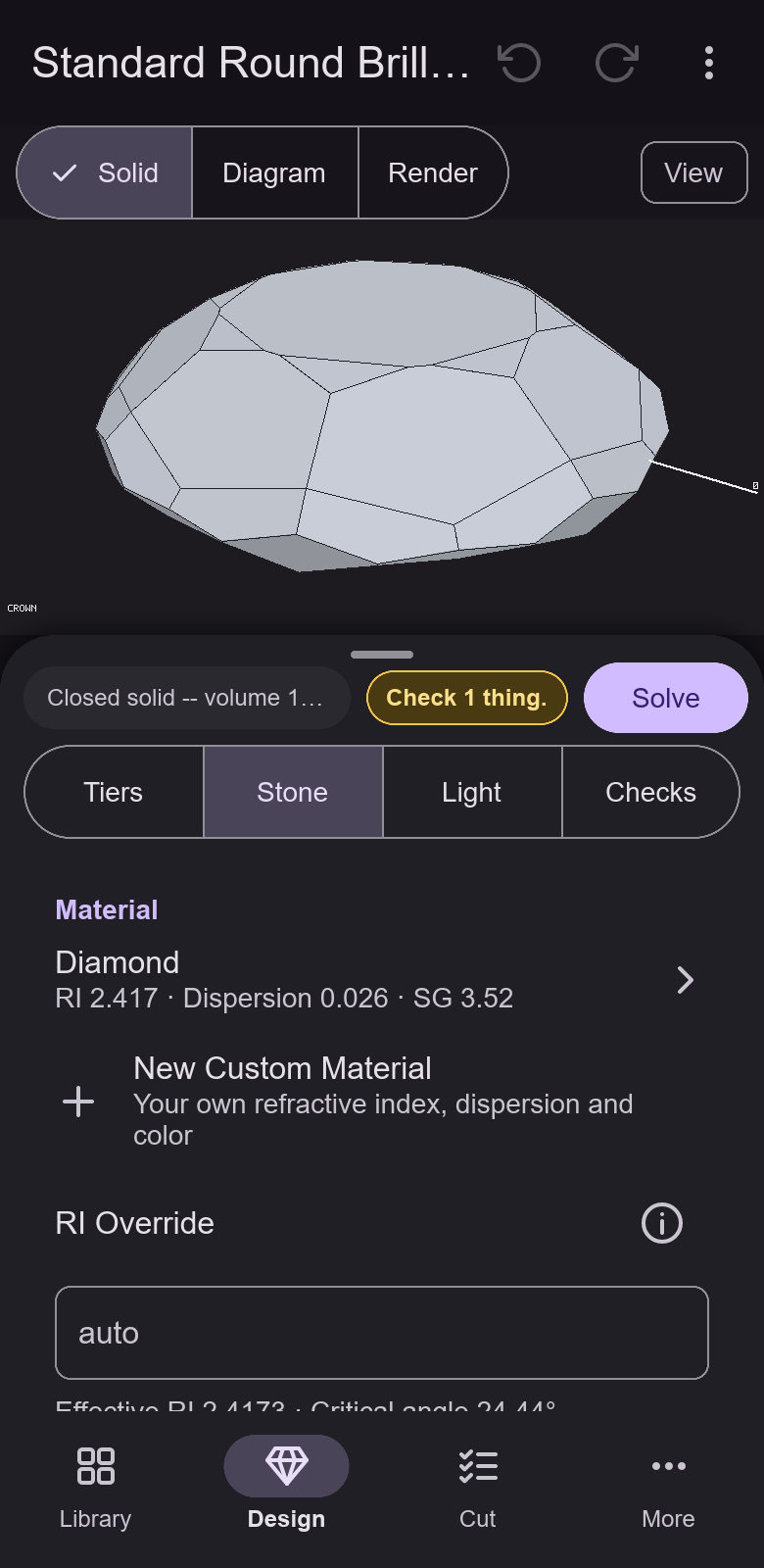
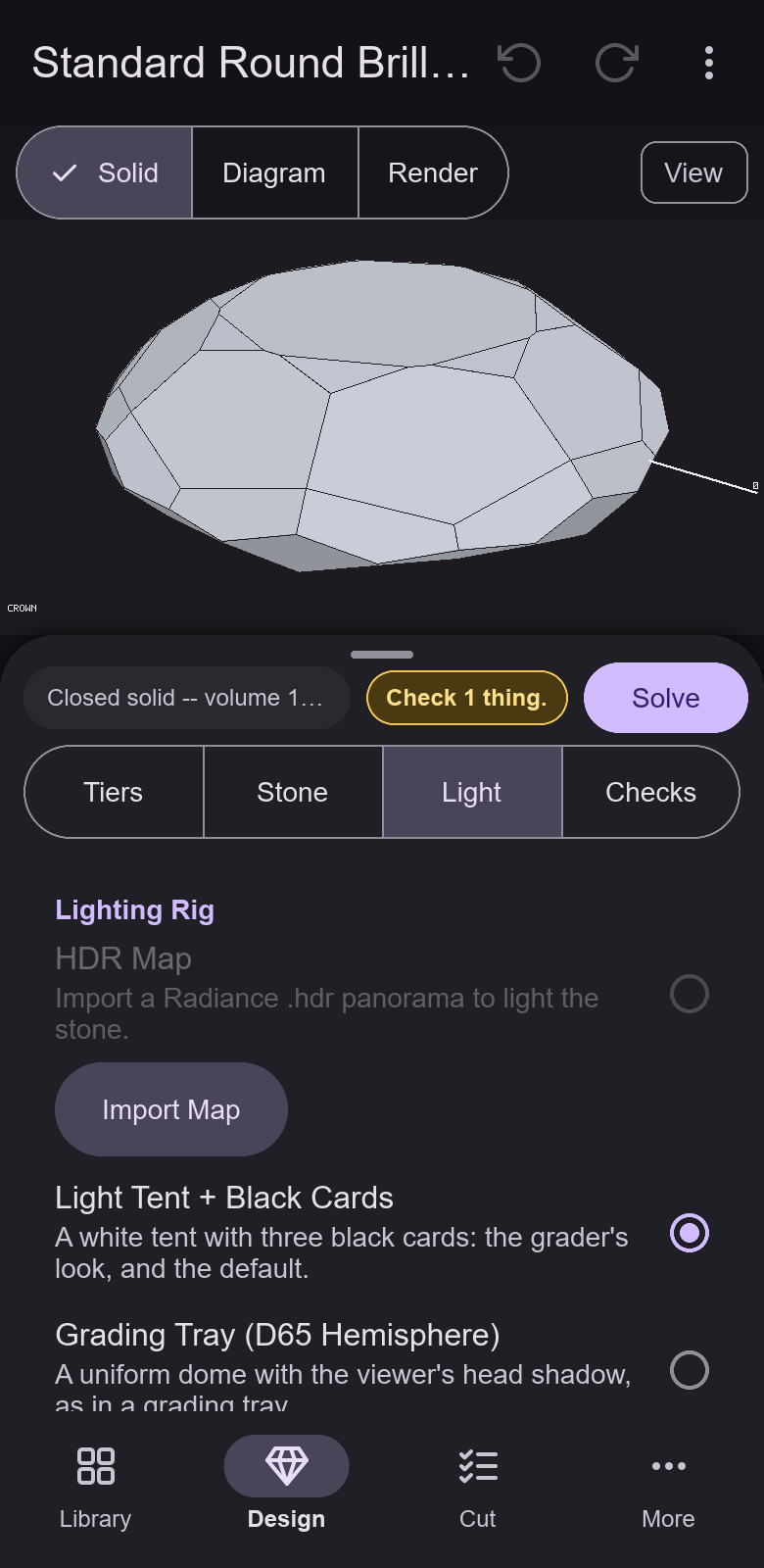
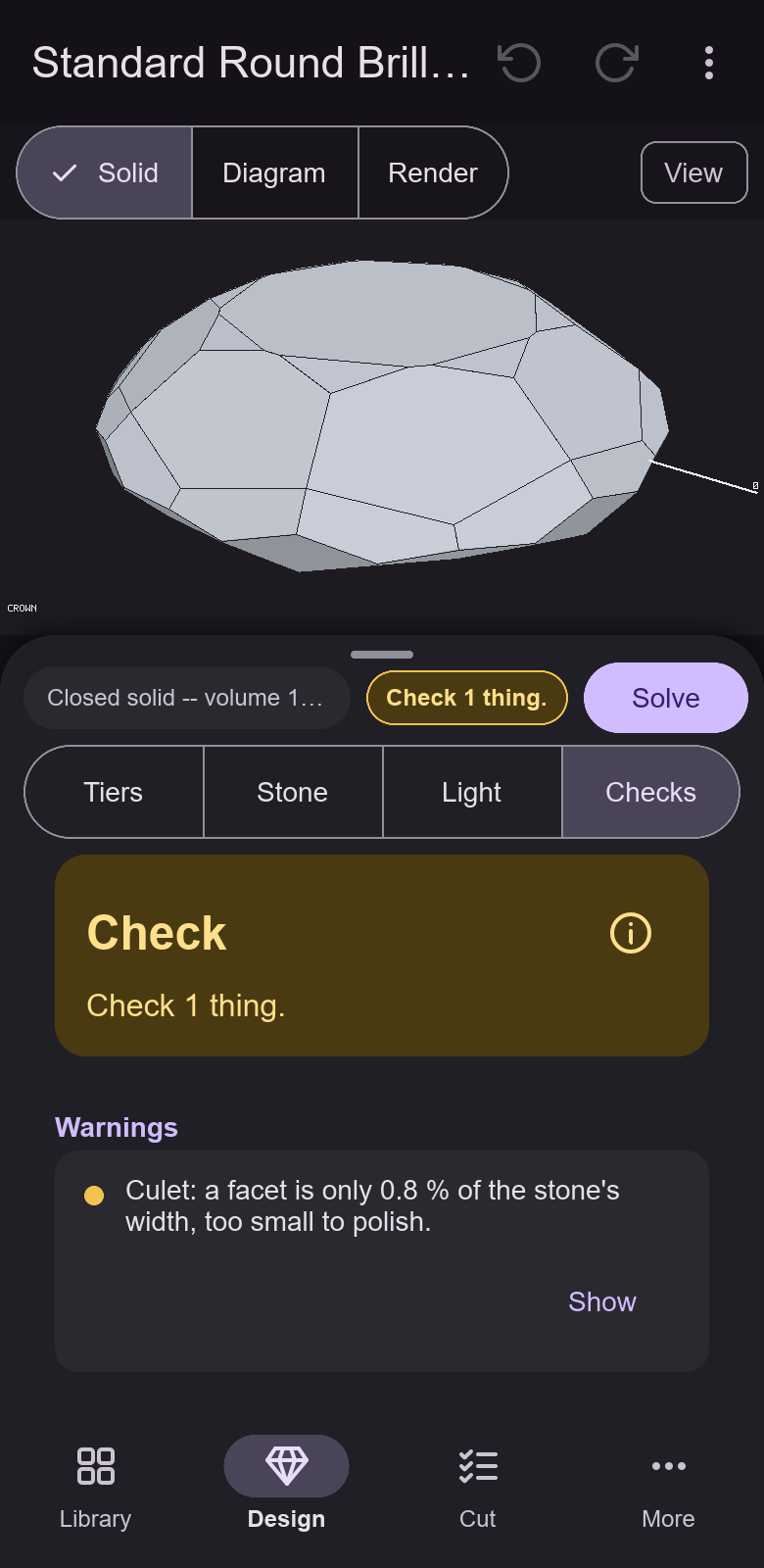
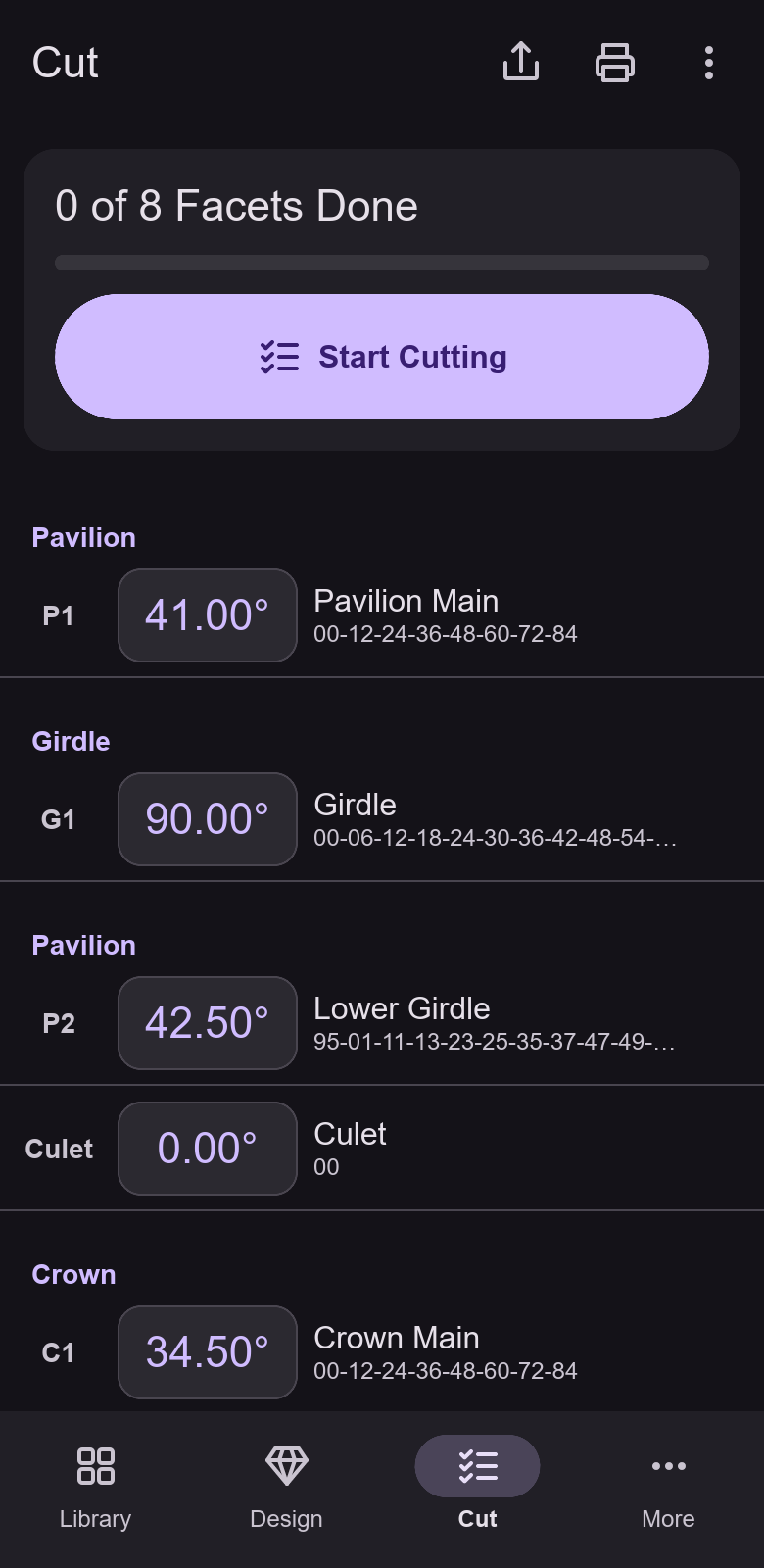
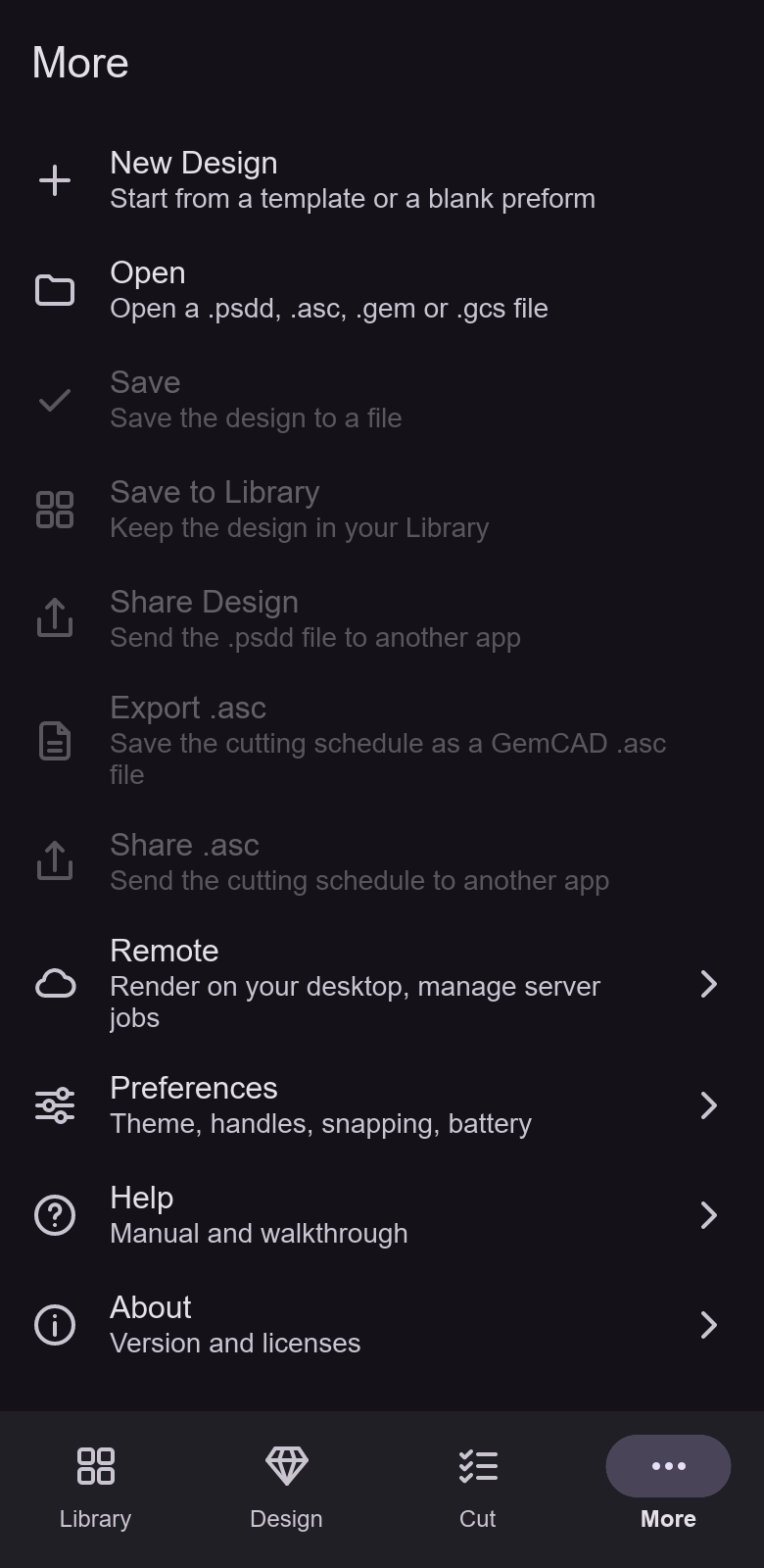
Mobile app: the Stone tab Mobile app: the Light tab Mobile app: the Checks tab Mobile app: the Cut page Mobile app: the More page
Fig. 44 — The Stone, Light and Checks tabs, the Cut page and the More page of the Android app on a phone.
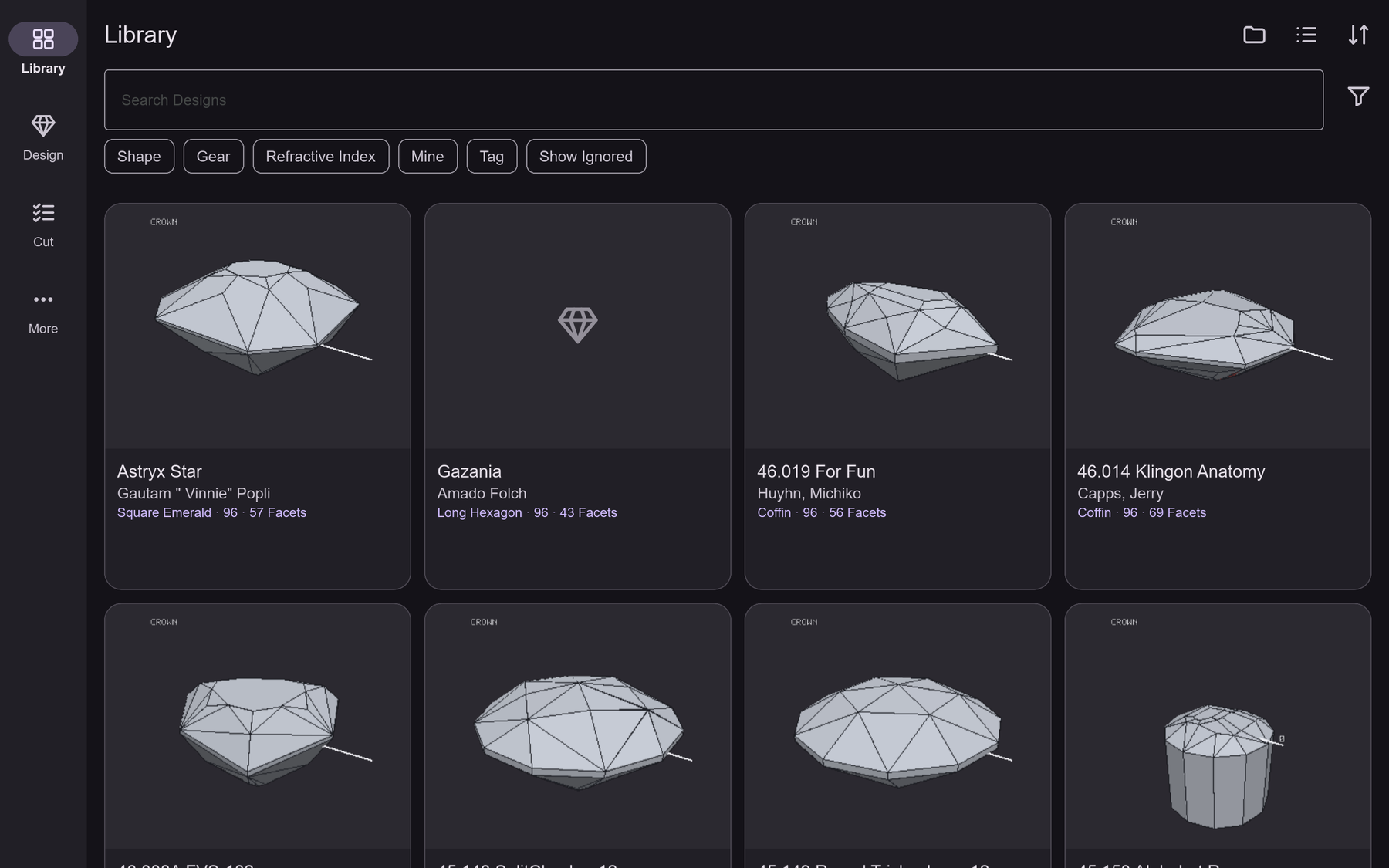
Mobile app: the Library on a tablet
Fig. 45 — The Library on a tablet in landscape (mobile app).
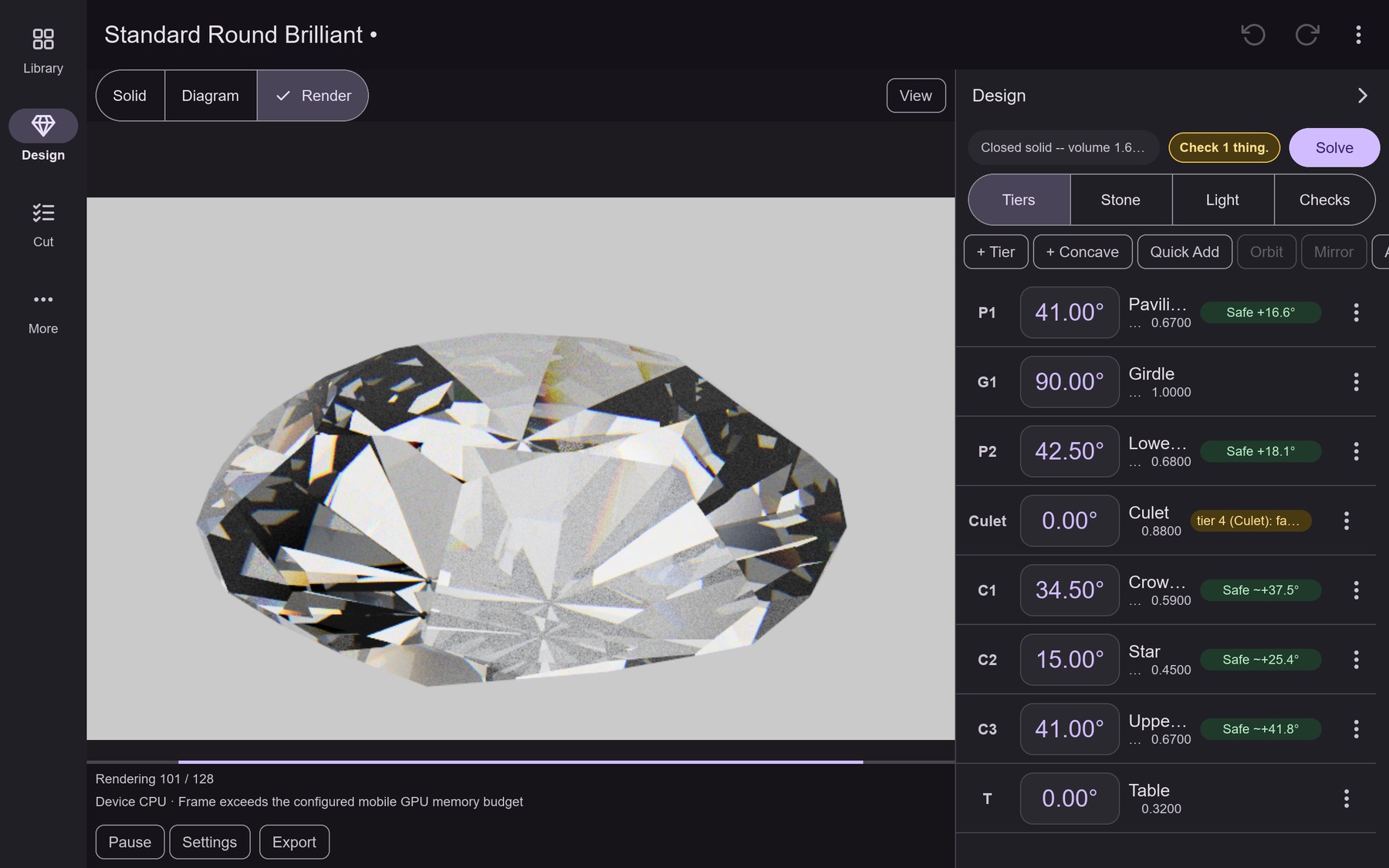
Mobile app: the Design page, Render view, on a tablet
Fig. 46 — The Design page in the Render view on a tablet, the picture beside the Tiers tab, with the render progress and the Pause, Settings and Export buttons under the picture (mobile app).
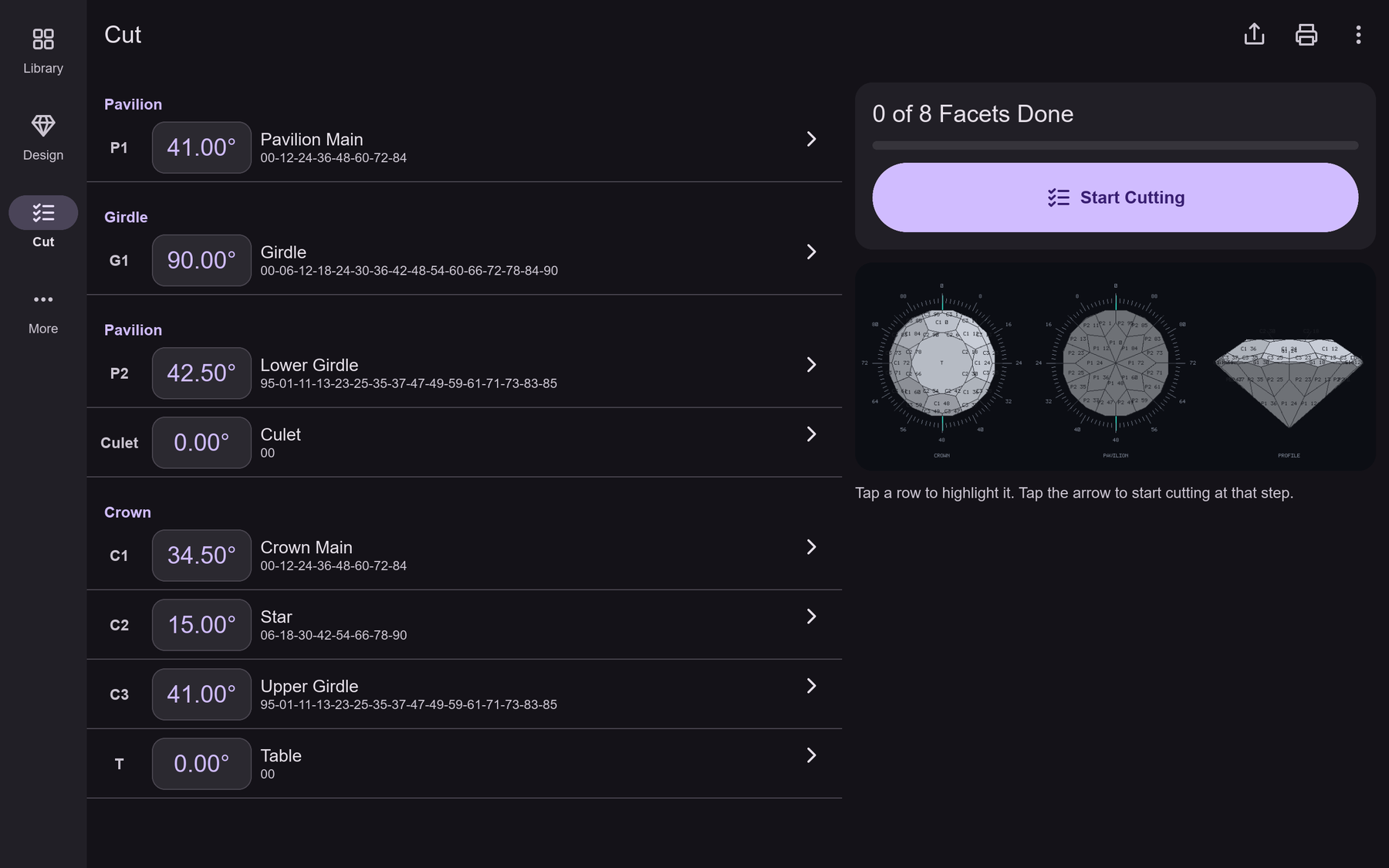
Mobile app: the Cut page on a tablet
Fig. 47 — The Cut page on a tablet: the cutting rows beside the progress card and the faceting diagram (mobile app).
Preview-then-handoff: the desktop renders a local preview while the camera moves, then hands sample tracing to a coordinator, which traces sample-index ranges itself (with --render) and across the render workers that have joined it; every range is summed into the desktop's one accumulator. DESKTOP · pleochroma-cut camera moving local CPU / GPU preview, few samples, immediate camera settled hand sample tracing off to the coordinator COORDINATOR · worker serve splits the image into sample-index ranges, not screen tiles own lane with --render a lost worker's ranges go to the other lanes WORKERS · worker join (×N) GPU / CPU path tracer claims chunks sized to its measured rate dials out to coordinator no inbound port needed, works behind NAT scene samples chunks ranges :7878 · mTLS 1.3 :7880 · worker dials in ACCUMULATOR · ON THE DESKTOP local and remote samples are summed per pixel; the ranges are disjoint, so arrival order never matters
Fig. 48 — Preview-then-handoff: local preview while the camera moves; once it settles, the coordinator traces sample-index ranges itself and across its joined workers, and every range lands in the desktop's one accumulator.
The step cut rendered as diamond The same step cut rendered as sapphire The same step cut rendered as emerald The same step cut rendered as tanzanite The same step cut rendered as rutile
Fig. 49 — One octagon step cut in five materials: diamond, sapphire, emerald, tanzanite, rutile. 1920 × 1080, 4 096 samples per pixel each, identical camera, light tent and backdrop card.
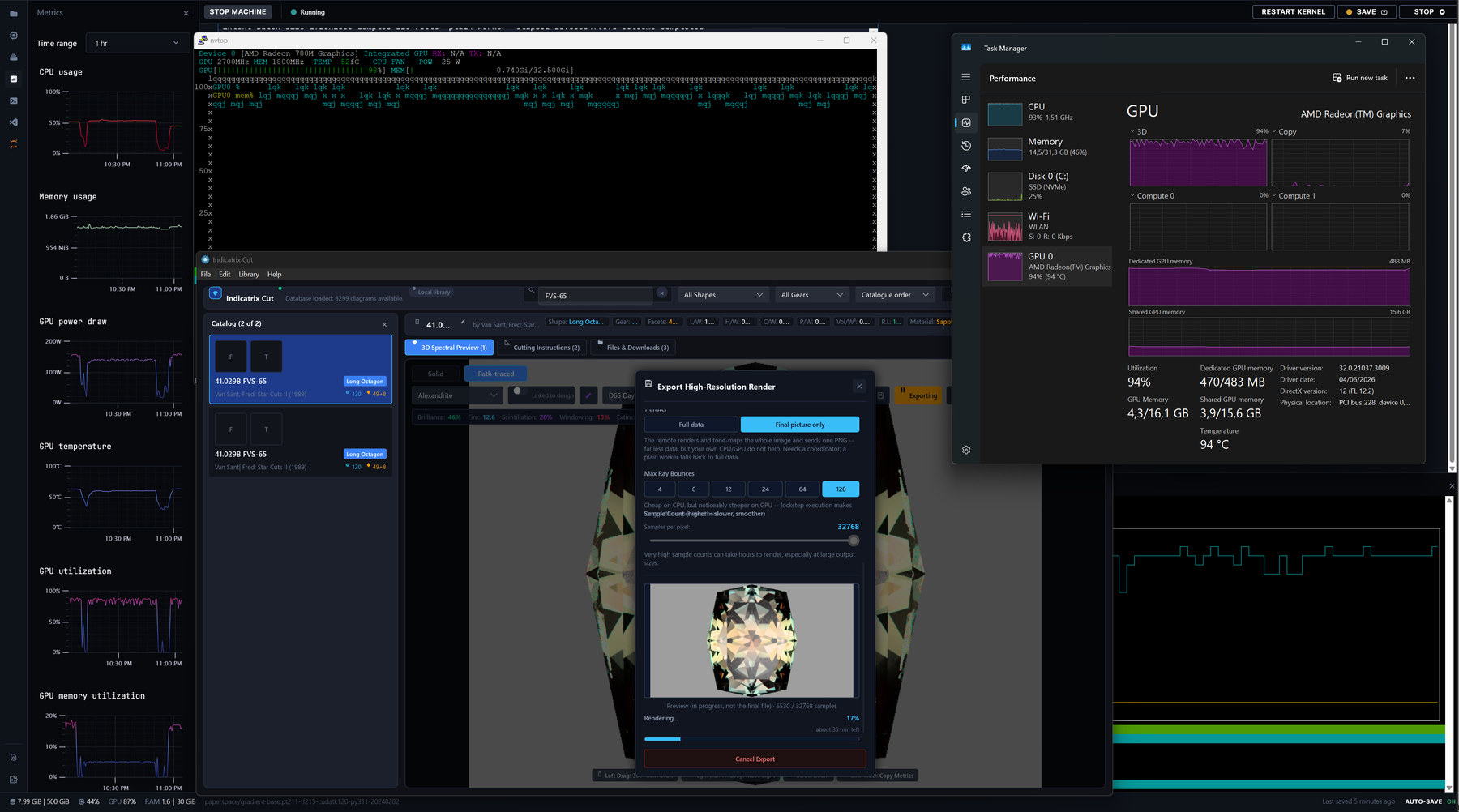
A distributed export in progress: a cloud notebook's metrics pane, nvtop and Windows Task Manager beside the Export High-Resolution Render dialog with Final picture only selected
Fig. 50 — A distributed export in flight with Final picture only transfer: a cloud notebook’s metrics pane on the left, nvtop (AMD Radeon 780M) at the top, Windows Task Manager with the GPU at 94 % on the right, and Pleochroma Cut’s Export High-Resolution Render dialog in the centre: 41.029B FVS-65 in alexandrite, D65 daylight, 128 bounces, 5 530 of 32 768 samples, 17 %.

Ray-Traced and Path-Traced

The current editor offers Solid, Ray-Traced, Path-Traced and Diagram modes; Solid together with a tracer draws the facet edges over its picture. Ray-Traced uses a fixed AA tap count and Fire control; Path-Traced uses progressive spectral sampling.

Ray-Traced is a deterministic approximation: one d-line index, or three fixed indices with Fire, RGB absorption tint and 1/4/8/16 AA taps. It finishes at the tap count without denoising. It omits polarization, birefringent doubling, scattering, zoning and edge rounding. Path-Traced retains the spectral model. Optical metrics, tilt sweeps and diagnostics keep their separate analytic tracer.
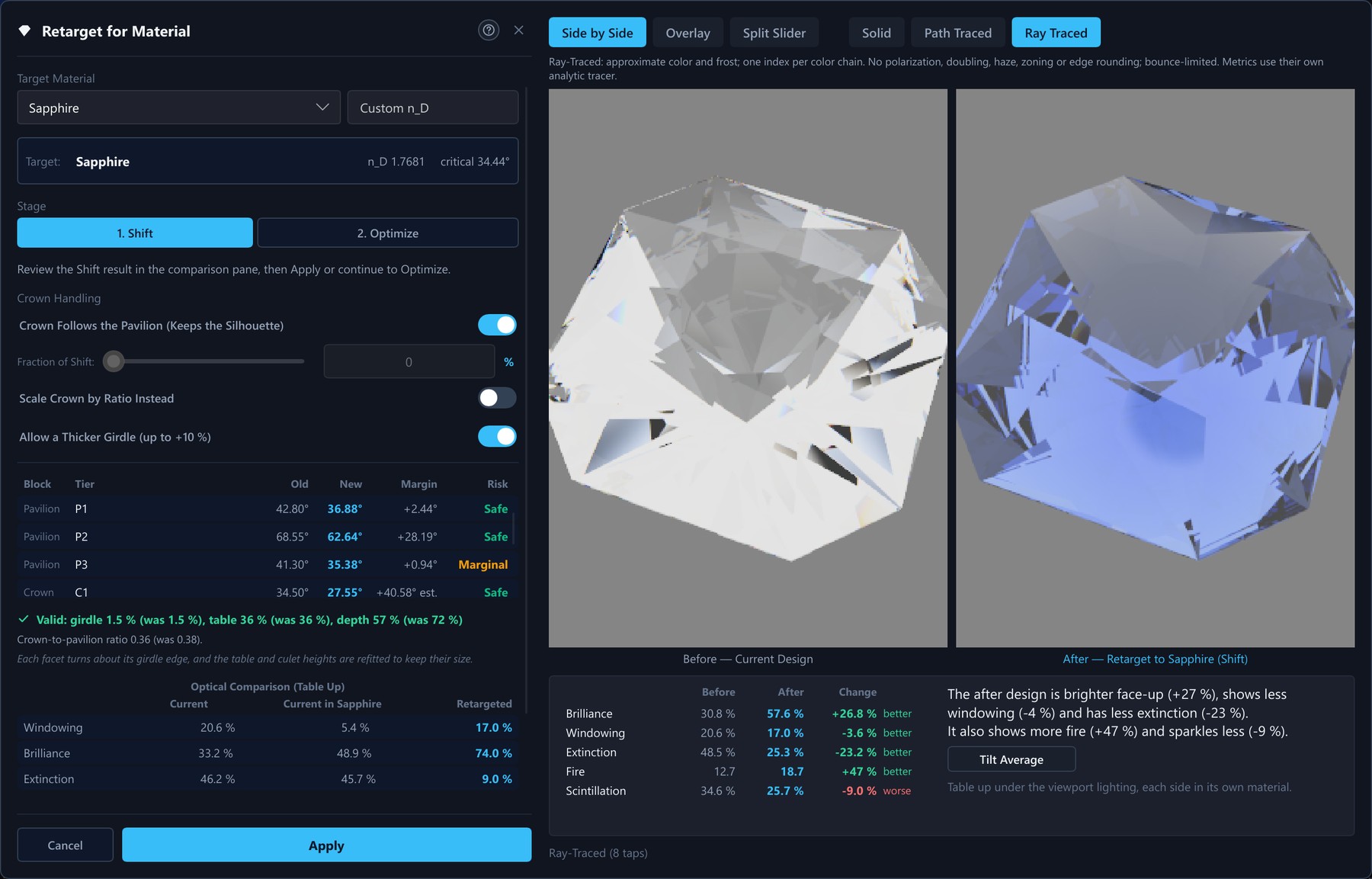
Retarget for Material dialog, Ray-Traced
Fig. 51 — Retarget for Material with the Ray-Traced switch: the same Astryx Star retarget to Sapphire, before and after side by side at eight anti-aliasing taps, with the note on what Ray-Traced leaves out above the pictures.
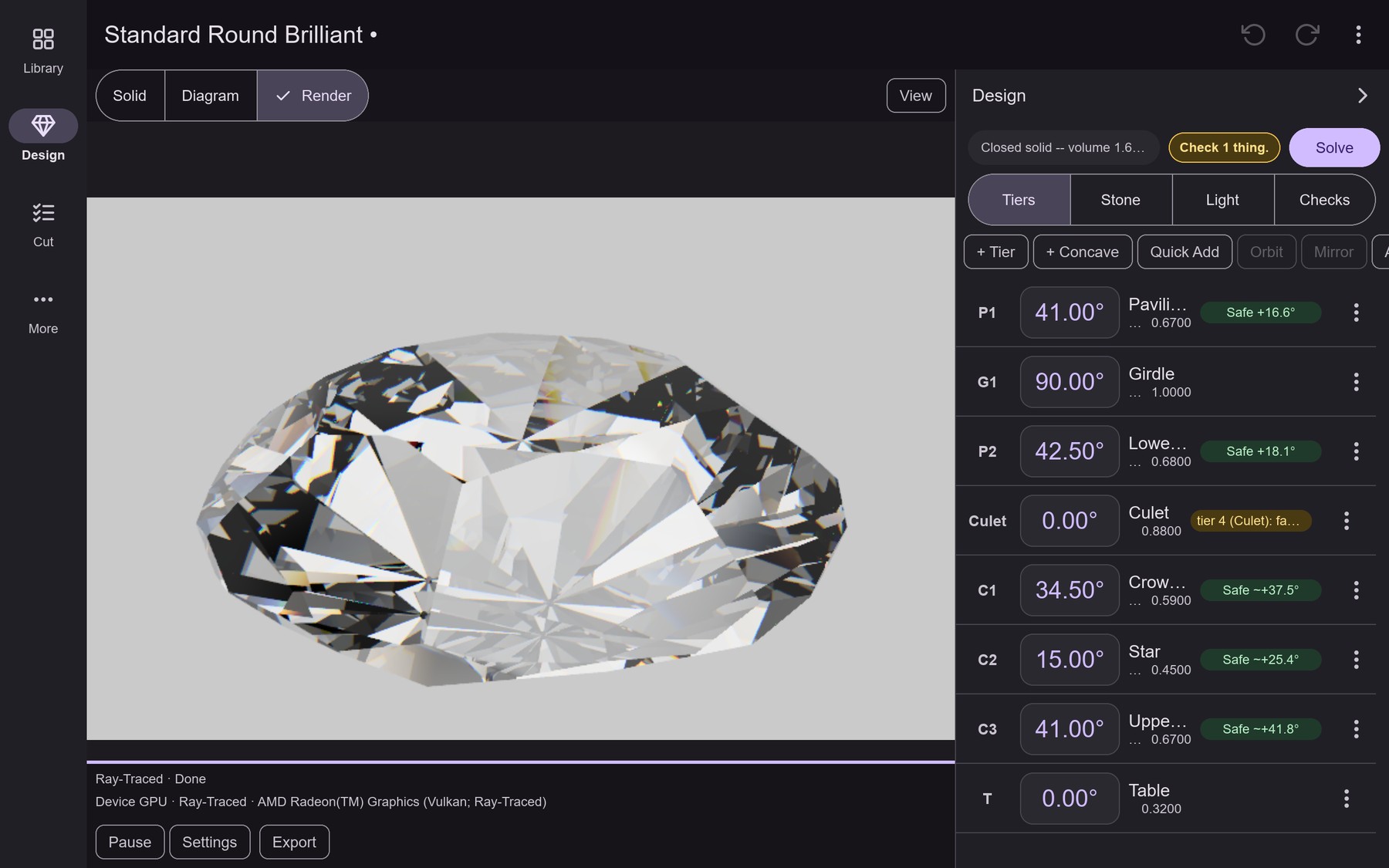
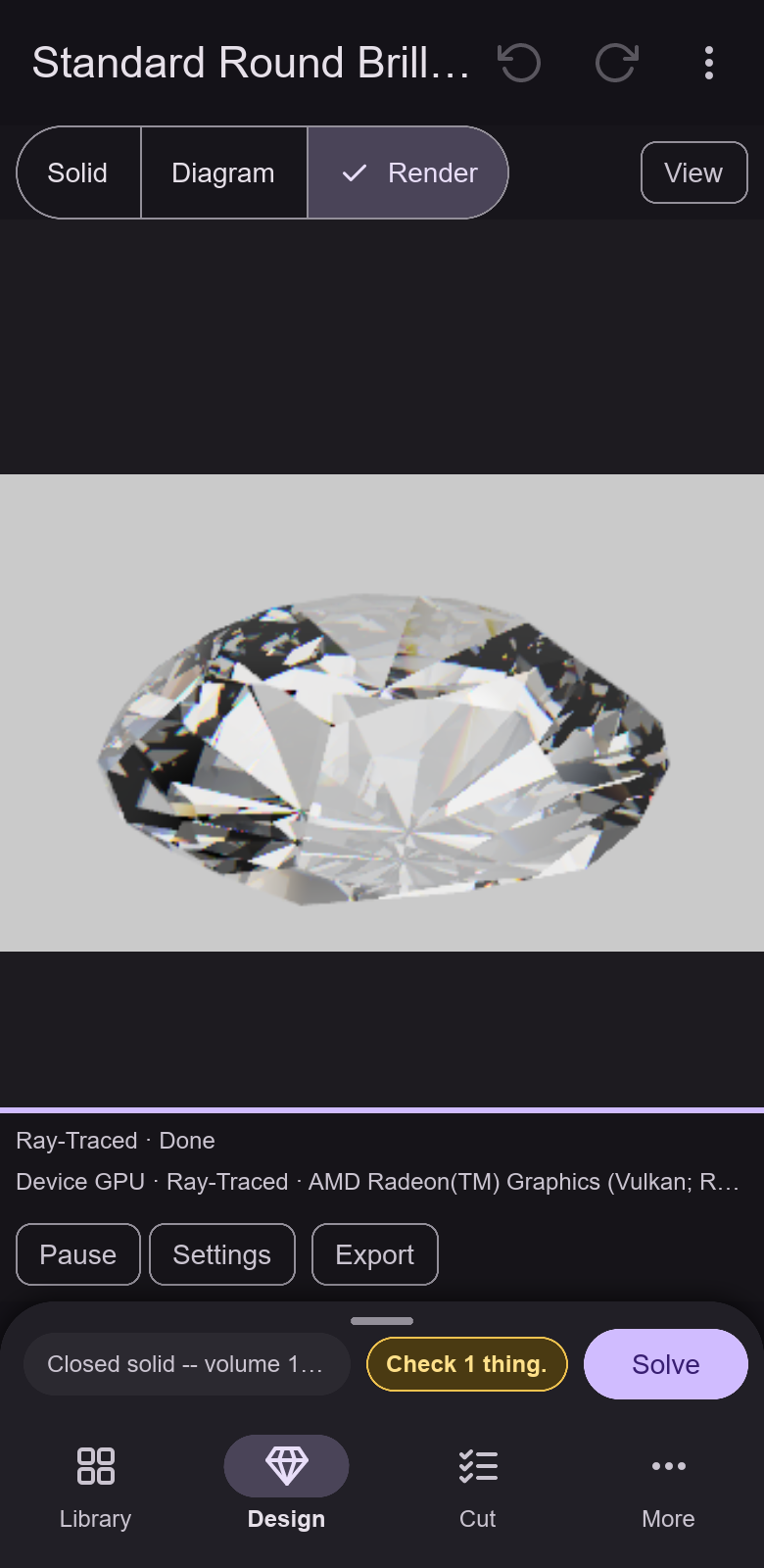
Mobile app: Ray-Traced picture on a phone
Fig. 52 — Ray-Traced on a phone: the Standard Round Brilliant finished on the device GPU, the render report and the Pause, Settings and Export buttons. (mobile app)
Mobile app: Ray-Traced picture on a tablet
Fig. 53 — Ray-Traced on a tablet: the same picture beside the Tiers tab, with the Ray-Traced render report and the Pause, Settings and Export buttons. (mobile app)